Submit, assign, and track technical engineering requests and CAD drawing queues
What this does
Routes technical requests from sales and project teams to specialized engineering teams, tracking CAD drawing production, structural calculations, and consultant approvals.
Before you start
- Sales opportunity, Project, or Customer opening profile created.
Steps
Important
Always record precise aluminium profile system series and glass thermal coating specifications on the technical request form.
-
01
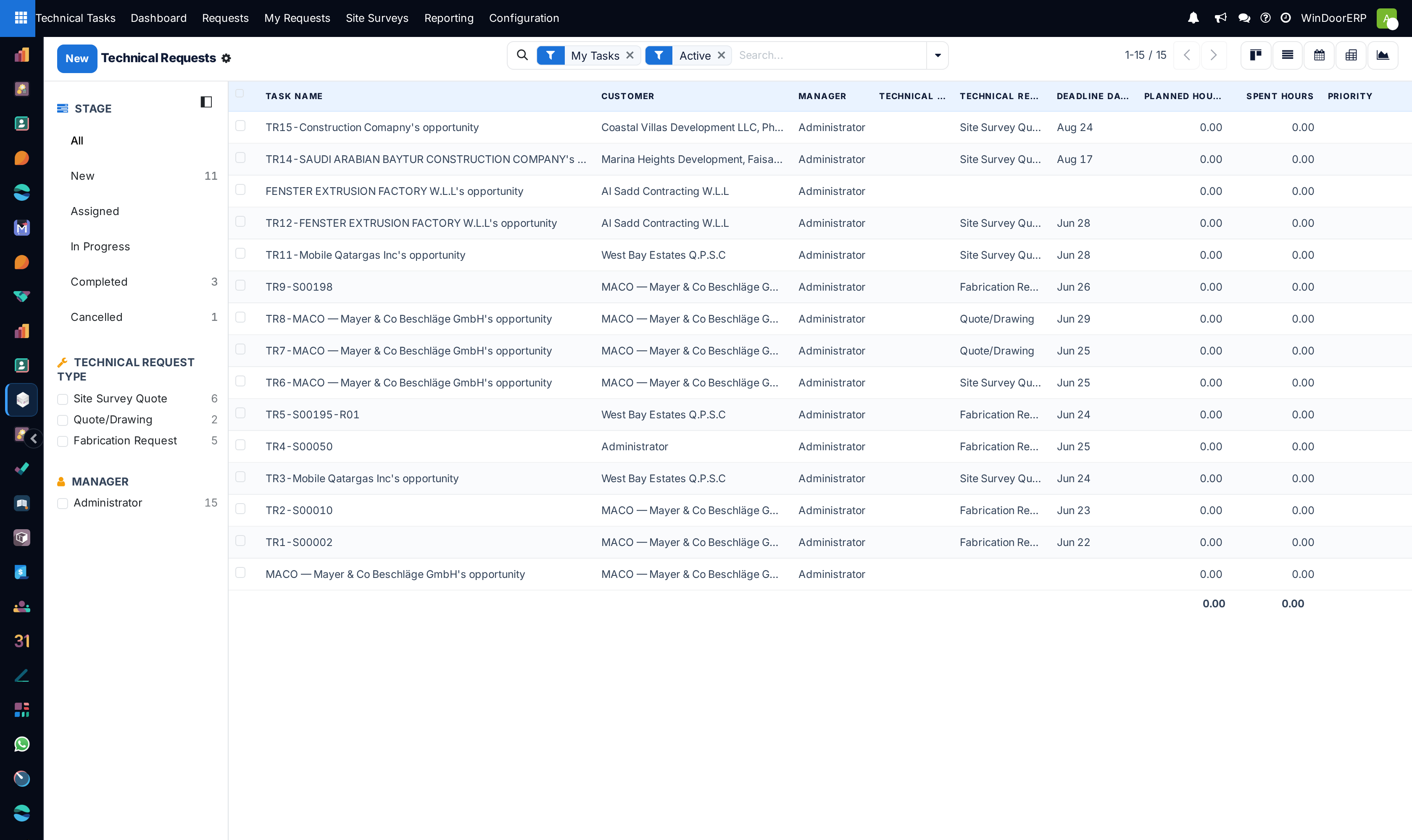
Navigate to Technical Tasks › Requests and click New.
-
02
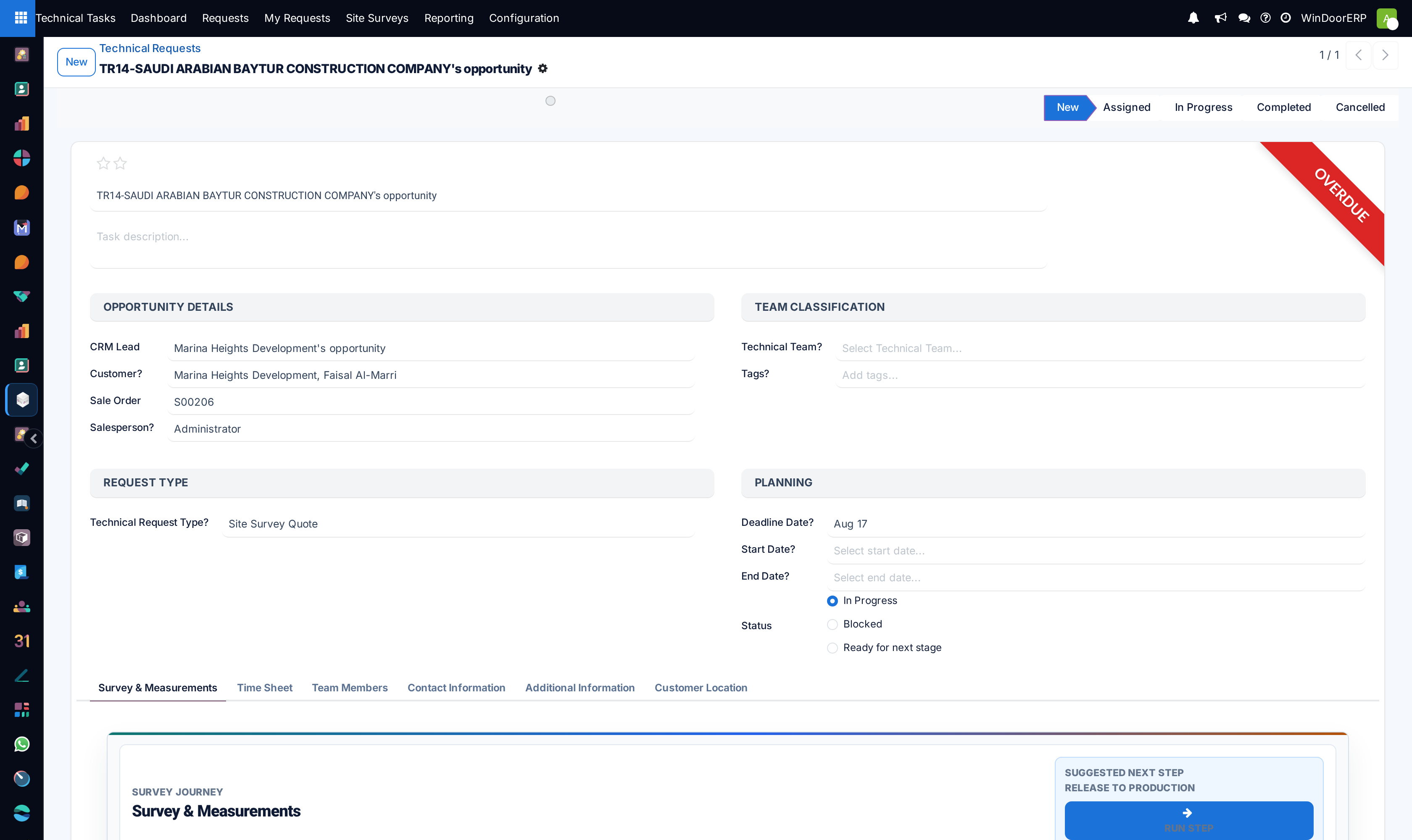
Select the Project, Request Type (Shop Drawing, Cutting Optimization, Glass Spec), and Priority.
-
03
Attach architectural CAD/PDF files, site elevation photos, and consultant specifications.
-
04
Assign to an Engineering Team (Structural Team, Drafting Team, BOM Estimation Team).
-
05
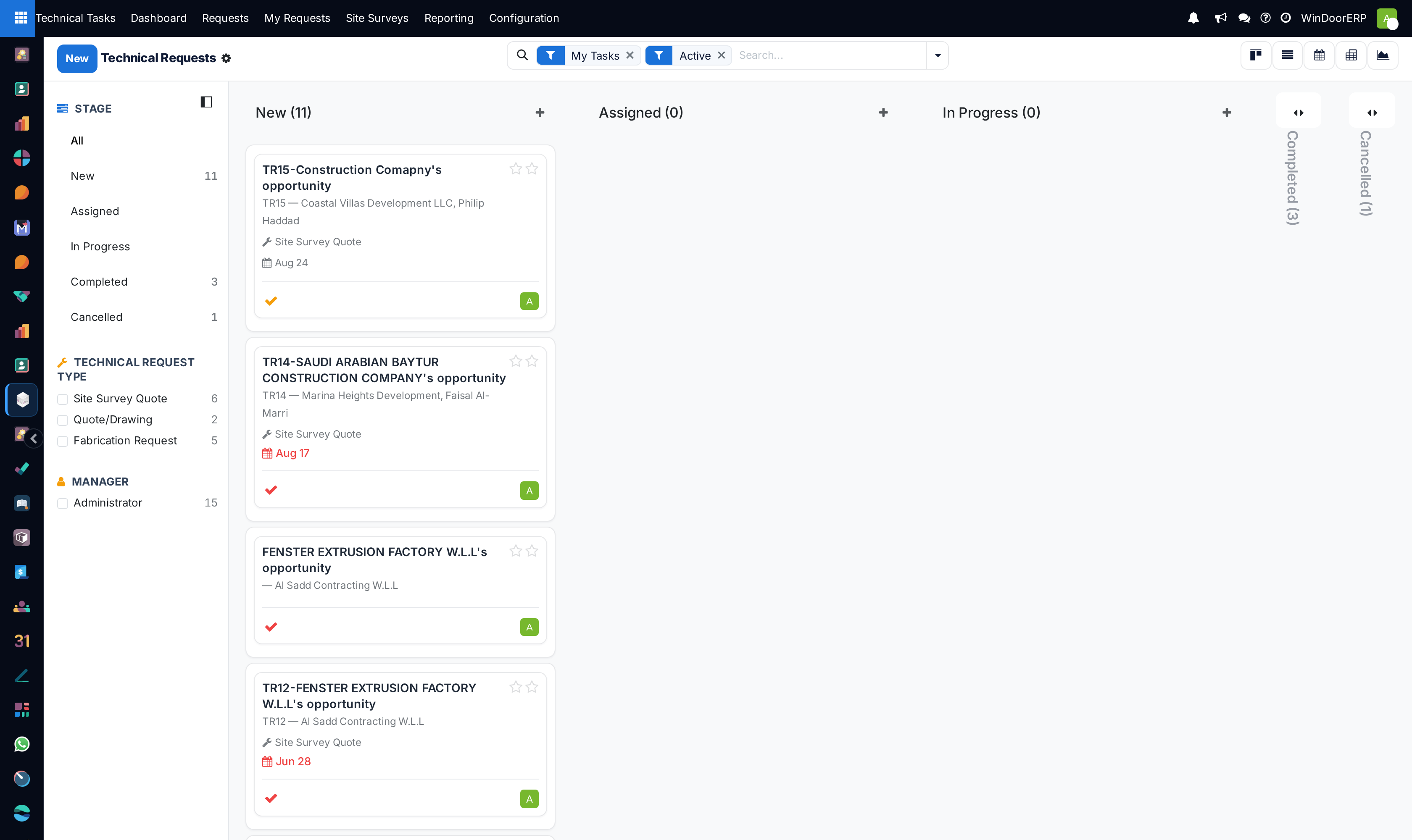
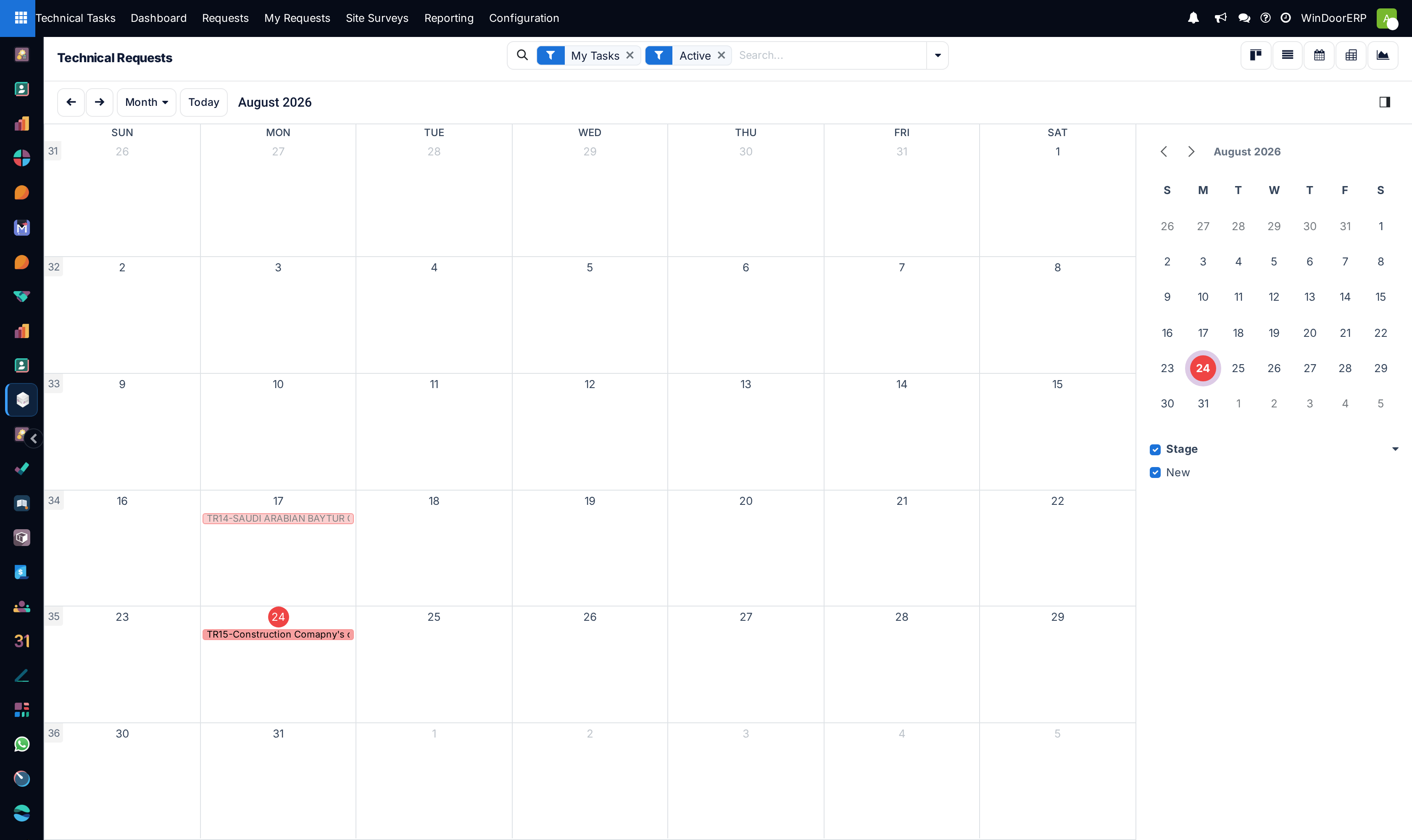
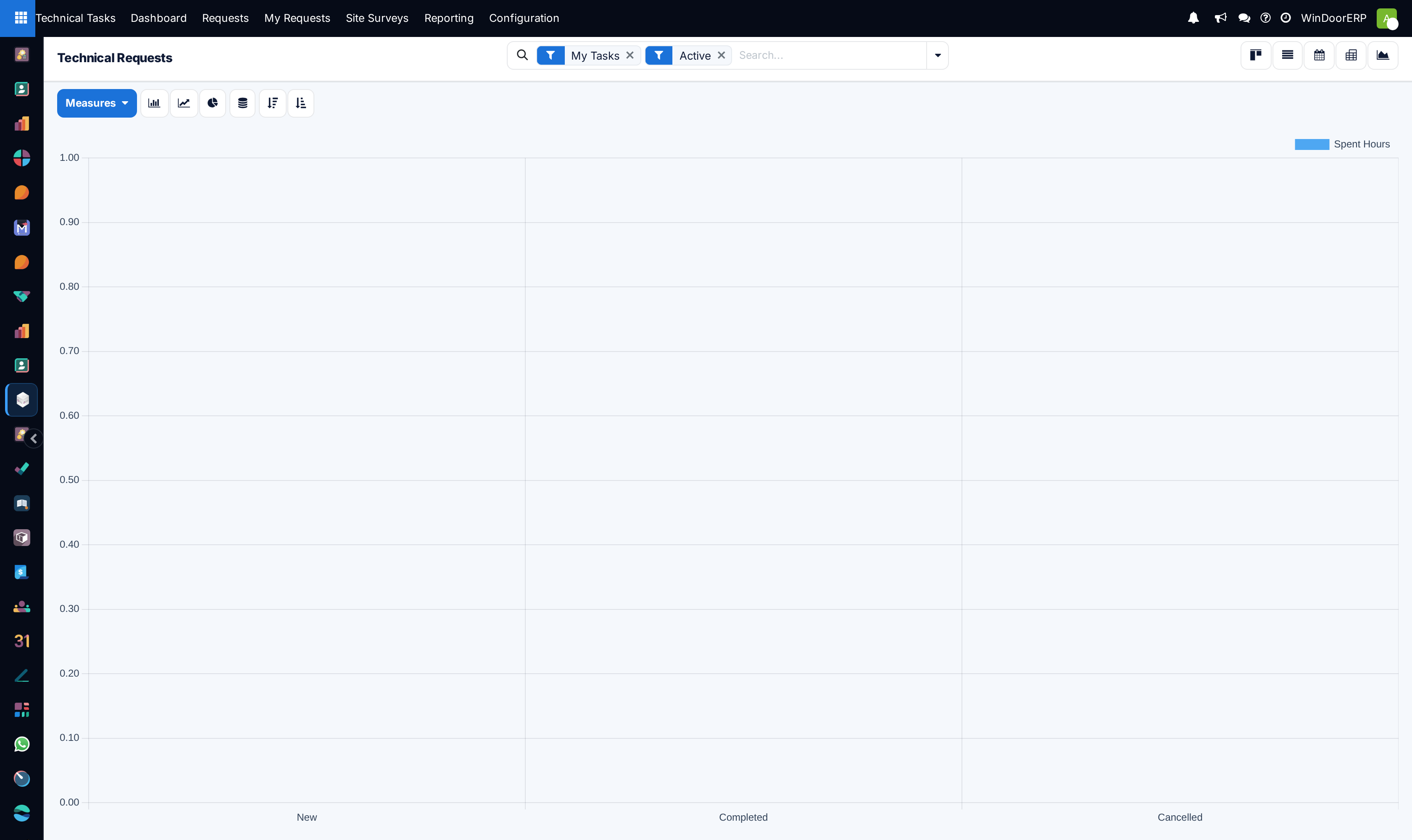
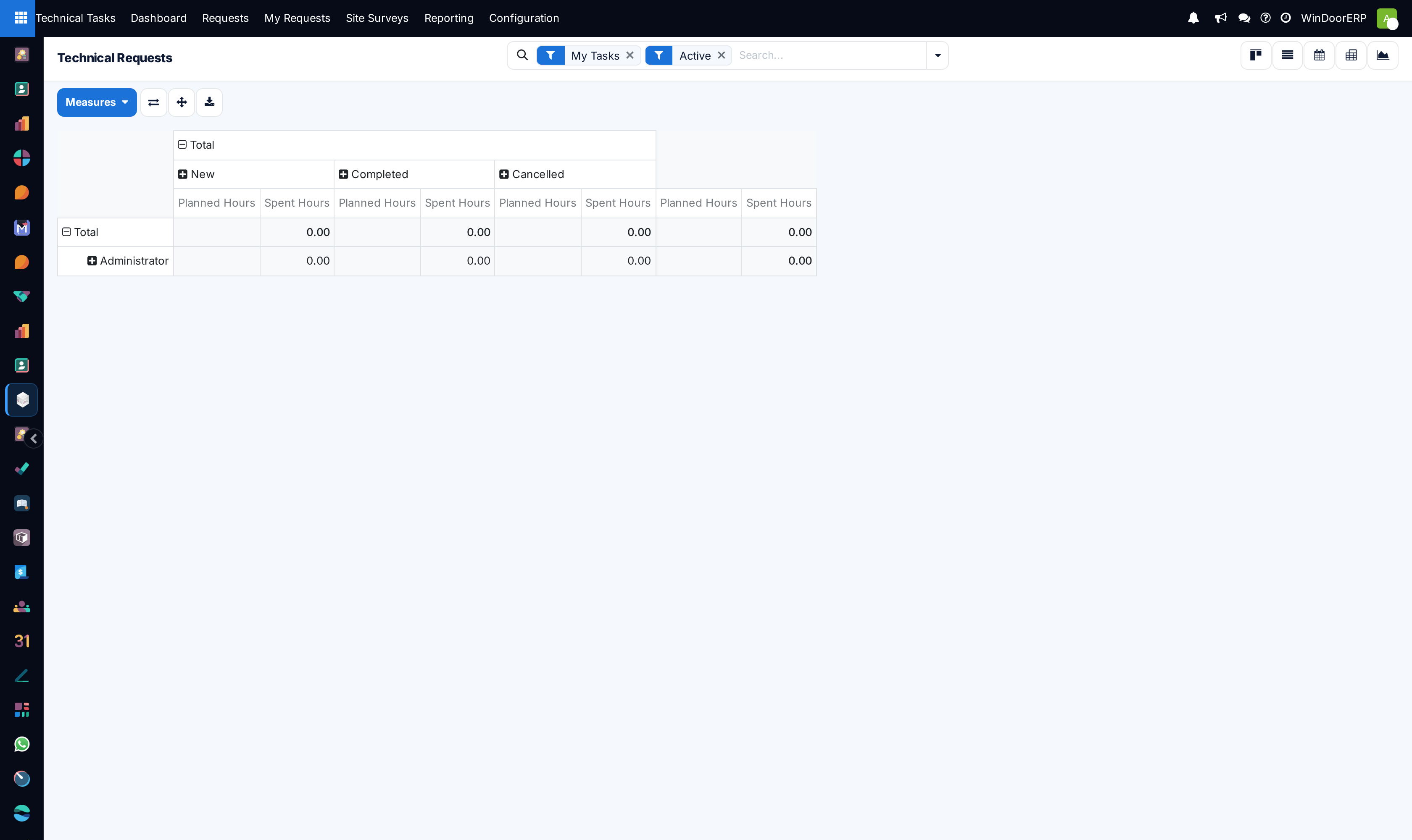
Track progression across Kanban stages (New, Drafting, Review, Client Approval, Completed).
Common mistakes
- Submitting technical requests without attaching architectural floor plans and section details.
- Advancing technical requests to 'Done' before saving CAD dwg files in the document management repository.
Was this article helpful?
Thanks — your feedback helps.
Running a window or door factory?
Ask for a demo