Structure sales teams, assign team leaders, and define monthly invoicing targets
What this does
Organizes your sales force into specialized business units (e.g. Luxury Residential Villas, Commercial Facades, Developer Tenders) with dedicated team leaders, email aliases, and monthly revenue targets.
Before you start
- CRM Manager or Administrator access.
Steps
Important
Setting specific Email Aliases routes incoming architectural tender emails directly into the appropriate sales team's pipeline with zero manual sorting.
-
01
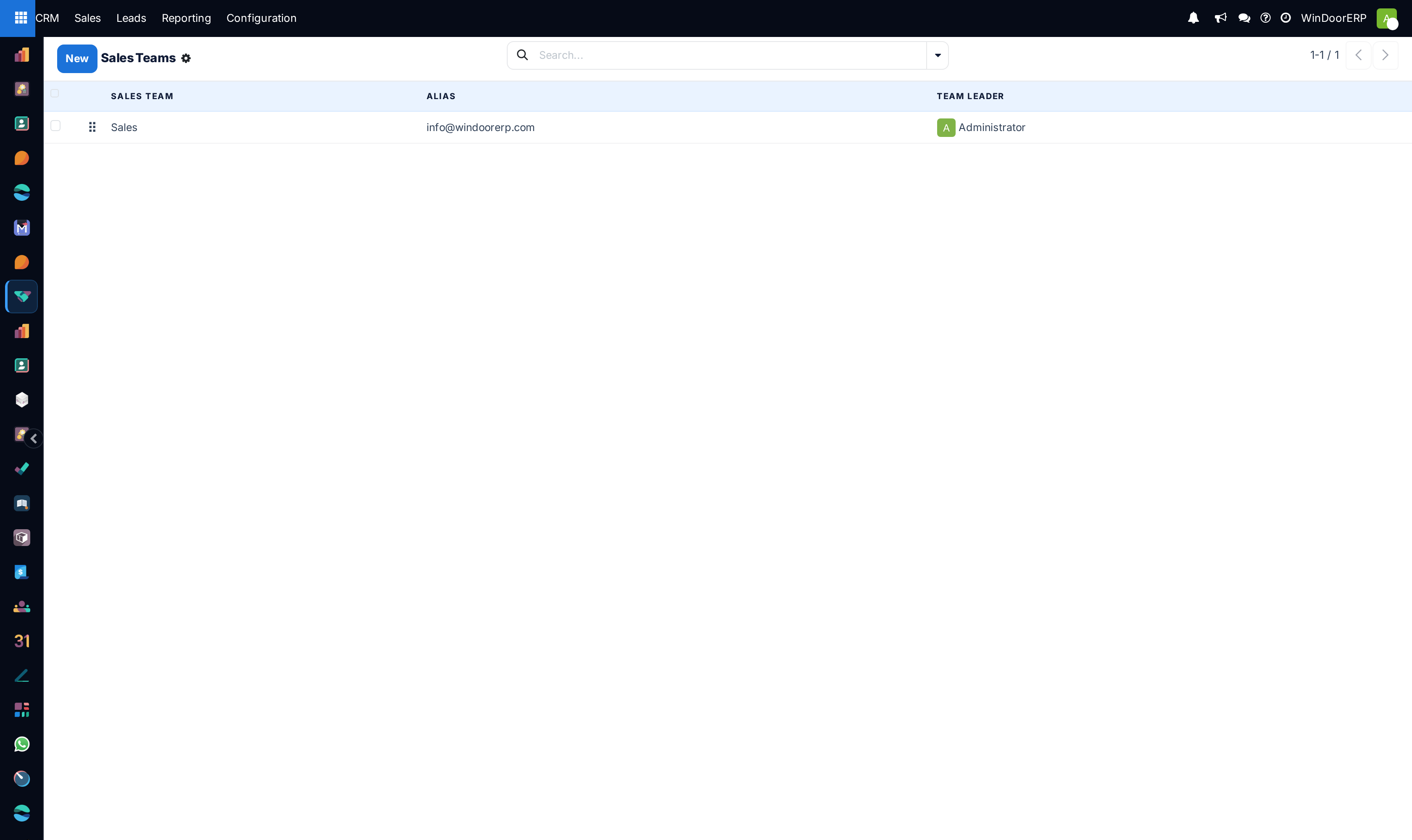
Navigate to CRM › Configuration › Sales Teams.
-
02
Click New to define a team (e.g. Riyadh Residential Team, Dammam Facades Division).
-
03
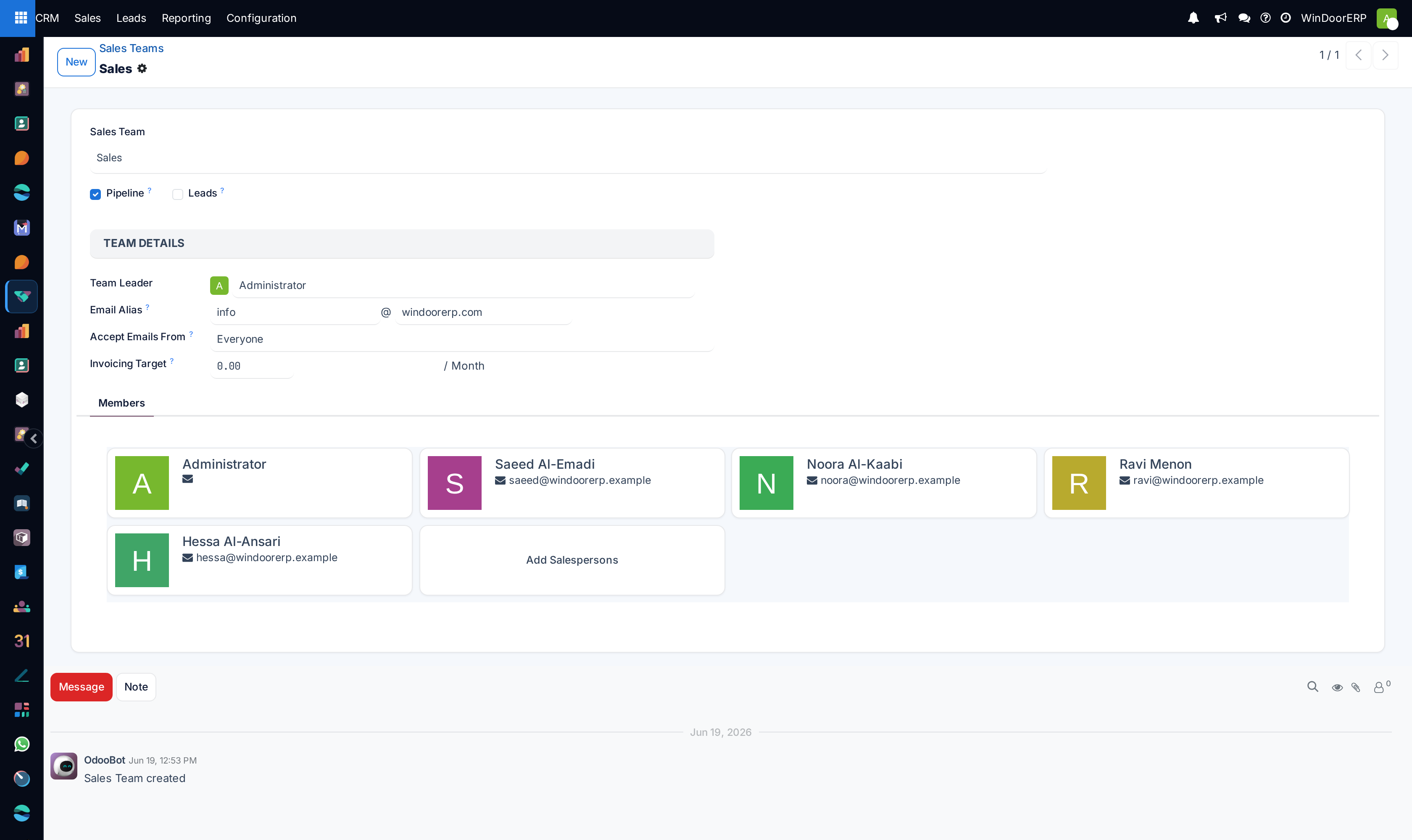
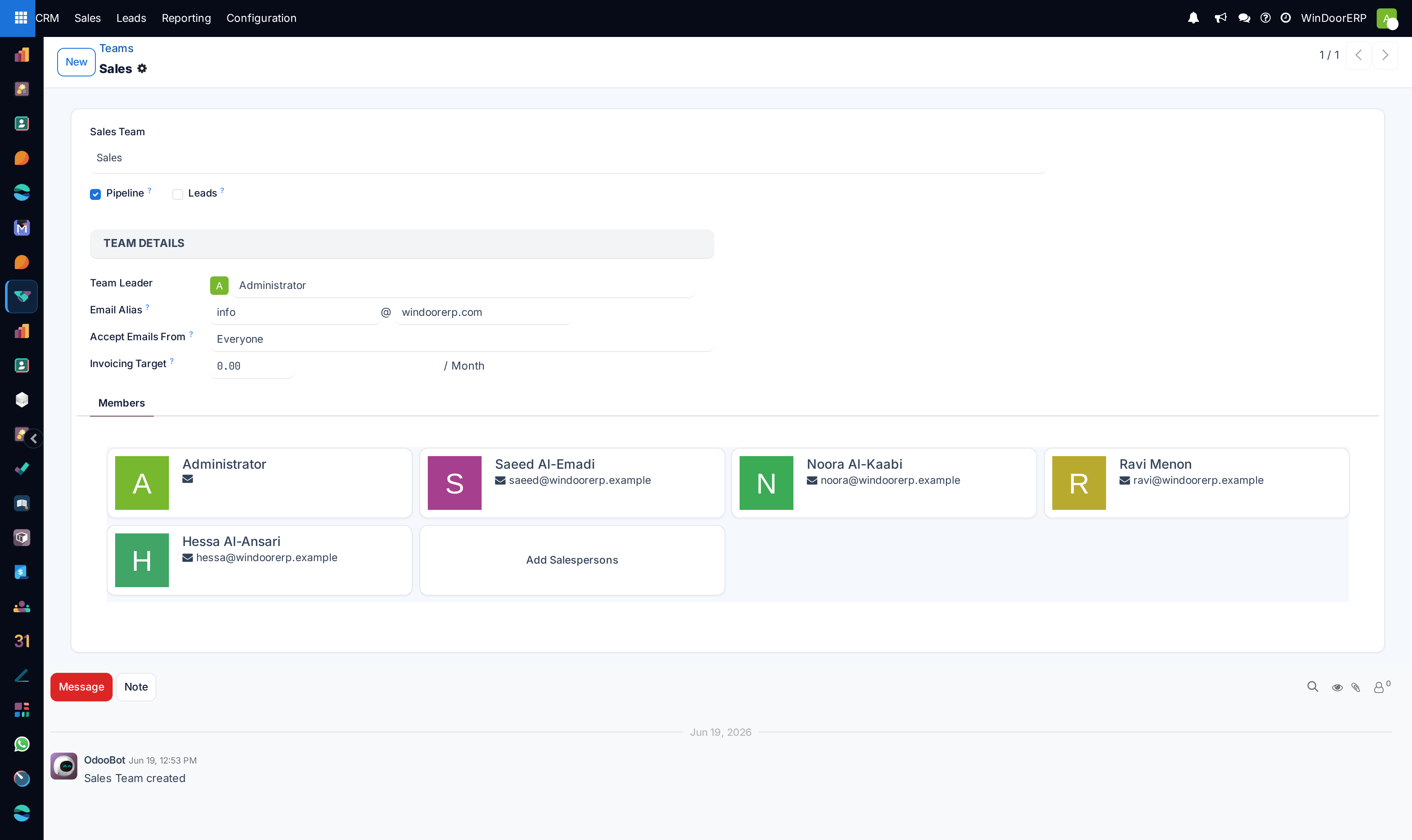
Set the Team Leader, configure the dedicated Email Alias (e.g.
villas@company.com), and enter the Invoicing Target. -
04
Under Team Members, add sales engineers and project estimators.
-
05
Define Assignment Rules with domain criteria (e.g. City = Riyadh and Project Type = Residential) to route incoming leads automatically.
-
06
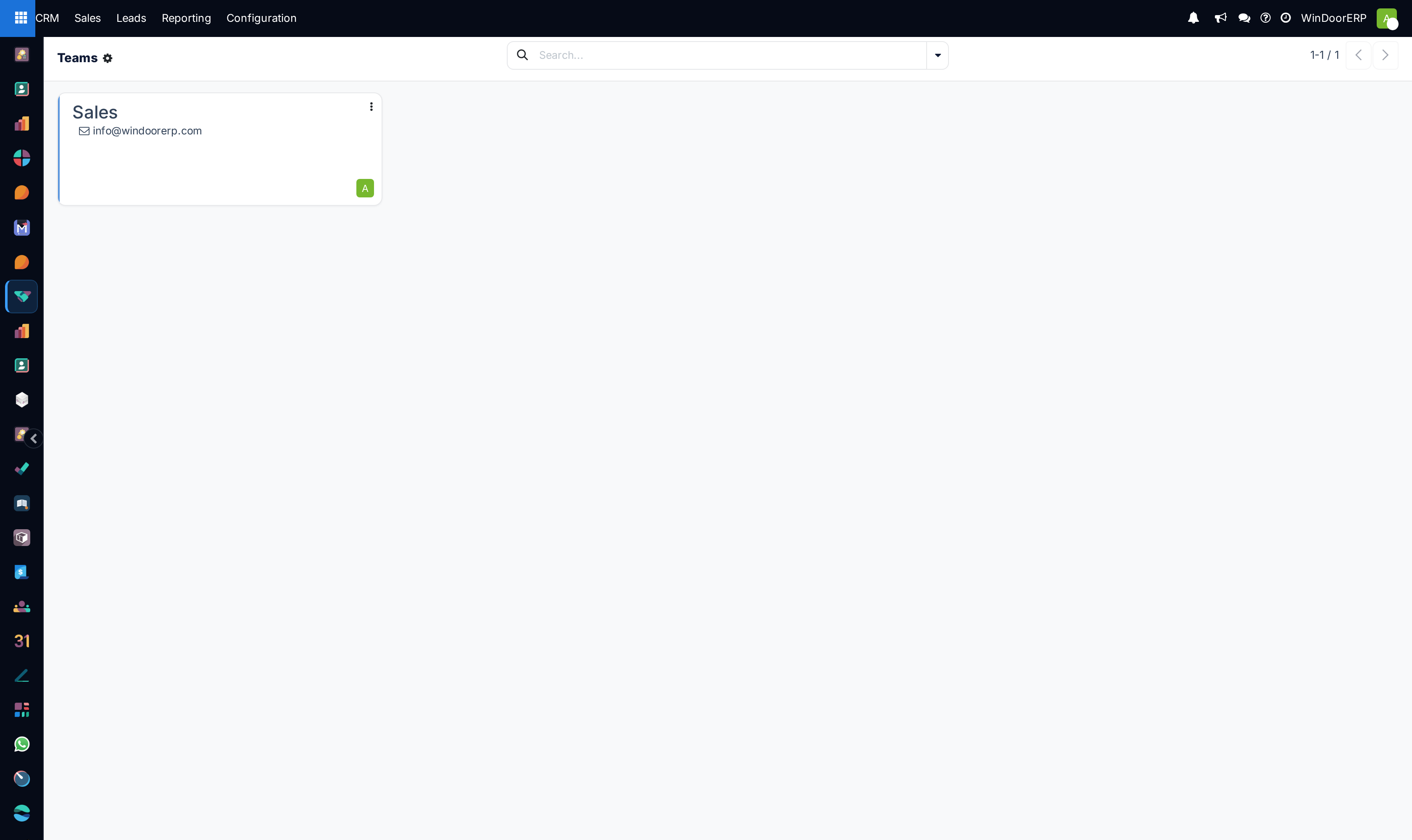
Review team performance on the Sales Teams Kanban Dashboard to track invoiced amounts vs monthly targets.
Common mistakes
- Setting monthly invoicing targets without updating company fiscal year budgets.
- Leaving sales teams without active Team Leaders, causing unassigned lead backlogs.
Was this article helpful?
Thanks — your feedback helps.
Running a window or door factory?
Ask for a demo