Browse and manage the product and materials catalogue
What this does
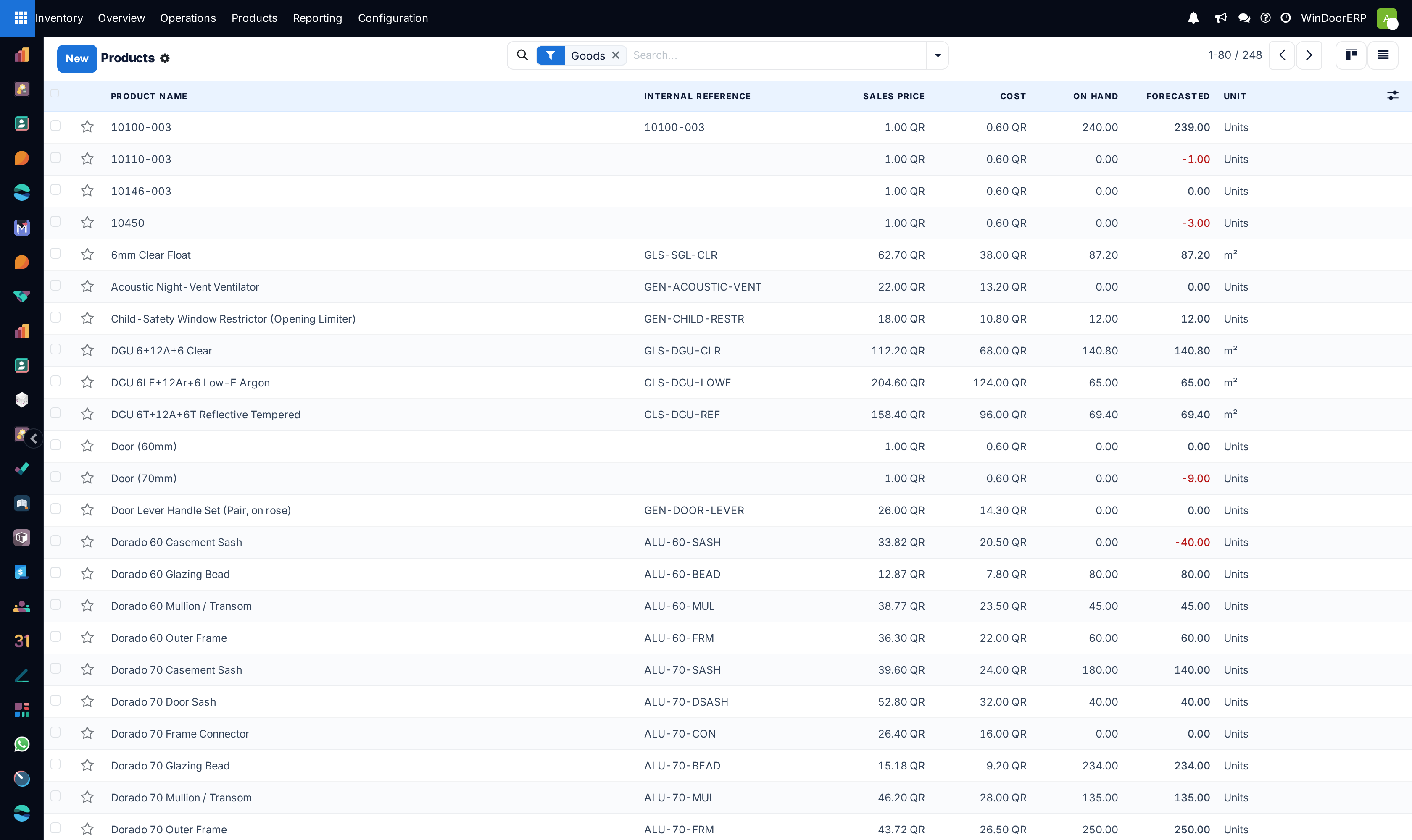
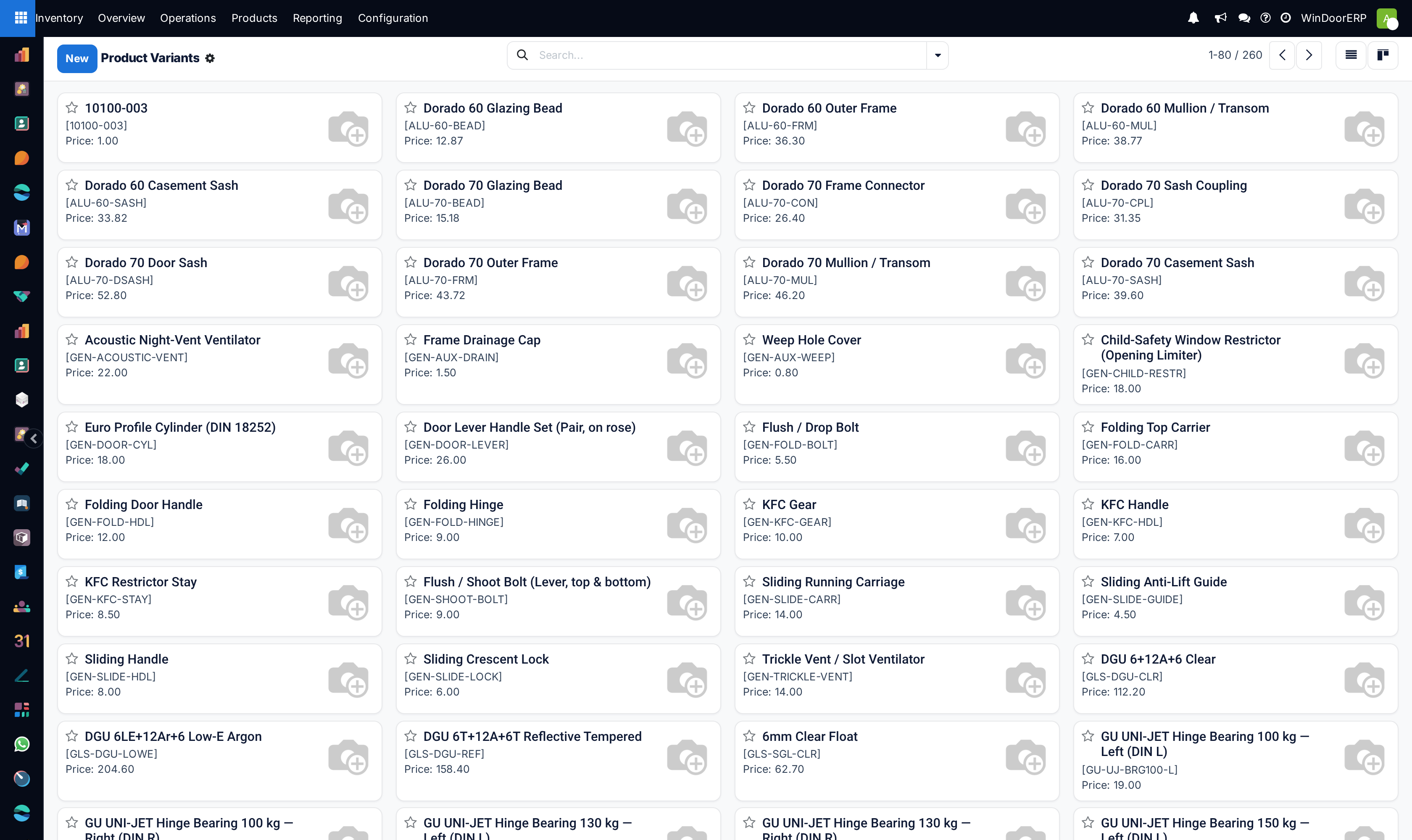
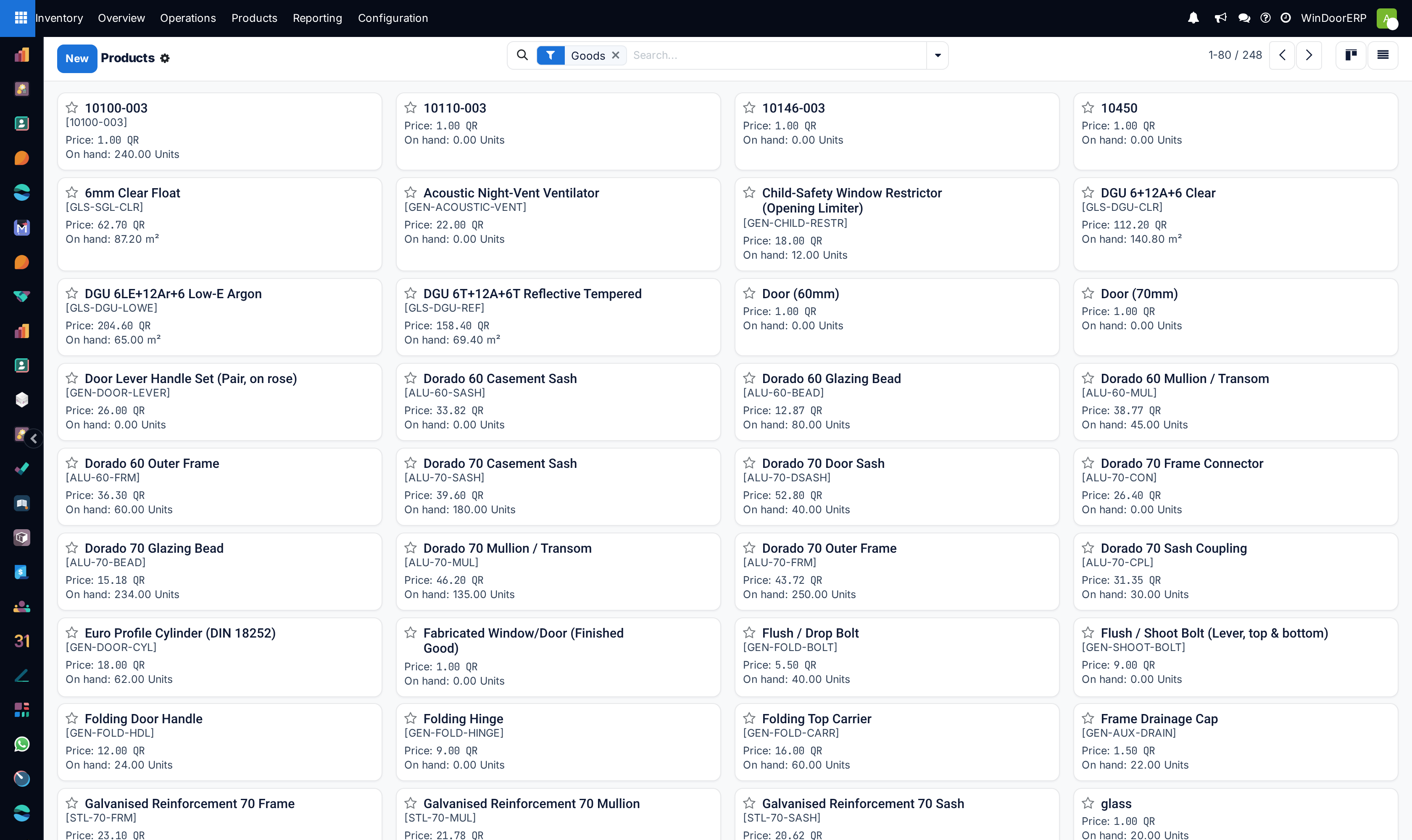
Provides a consolidated overview of every profile extrusion, glass specification, hardware accessory, and finished unit managed in your inventory. You can switch between list and visual card views to inspect current quantities on hand, forecasted needs, and unit costs.
Before you start
- Ensure items are categorized under Storable Product to maintain inventory ledgers.
- Make sure vendor price lists or standard costs are updated for realistic inventory valuation.
Steps
Tip
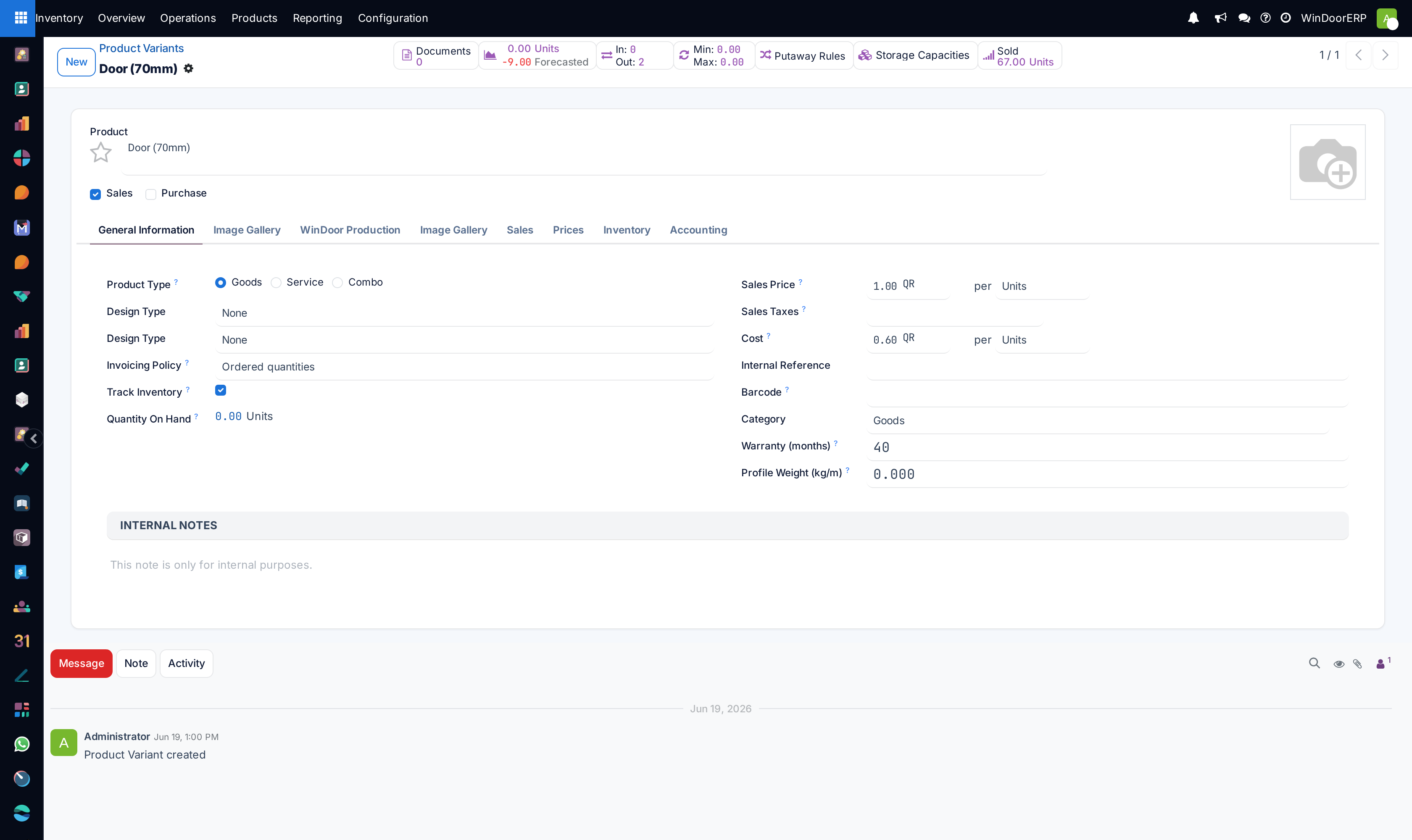
Click the Forecasted smart button on any product card to see a live simulation of when upcoming job orders will consume existing stock.
-
01
Open Inventory › Products › Products (or Product Variants).
-
02
Use the search bar at the top to filter by category (e.g.
Profiles / Thermal Break,Glass / DGU,Hardware / Multipoint Locks). -
03
Inspect the On Hand quantity (what physically sits in the warehouse) and the Forecasted quantity (committed vs scheduled receipts).
-
04
Click on any product card or row to open its full product template, technical properties, and inventory routes.
Common mistakes
- Confusing On Hand stock with Forecasted stock: On Hand shows physical availability right now; Forecasted includes future manufacturing orders and purchase receipts.
Was this article helpful?
Thanks — your feedback helps.
Running a window or door factory?
Ask for a demo