Decide when stock gets reserved
What this does
Reserving stock ties specific units to a specific order. Reserve too early and an urgent job cannot touch material sitting idle for next month; reserve too late and the goods are gone. The reservation method sets the policy, per operation type.
Steps
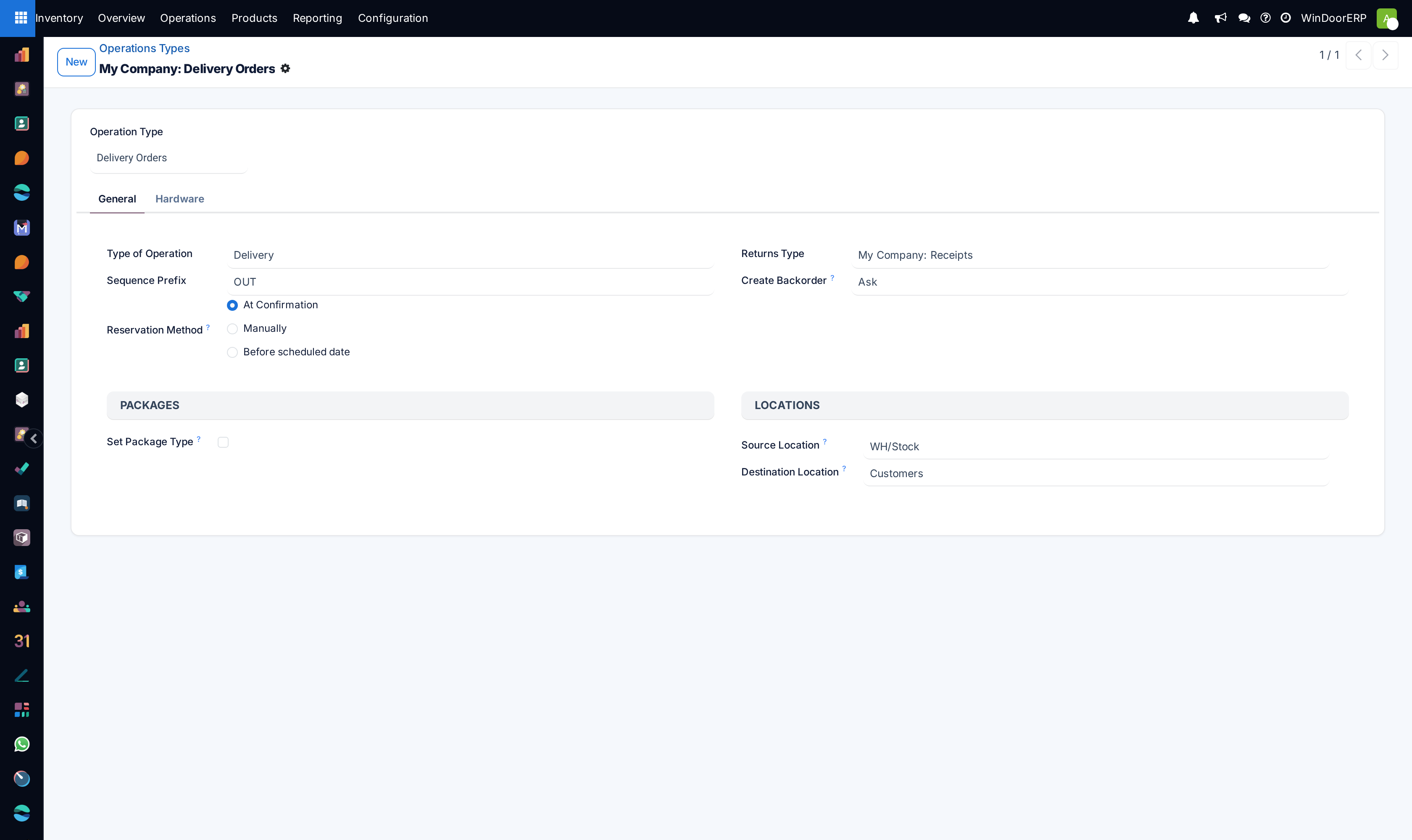
Companies that sell and deliver goods to customers need to make sure they always have stock on-hand, so when new sales orders are confirmed, they can deliver products on time.
In WindoorERP, this can be handled using reservation methods. Reservation methods control how products included in a delivery order (DO) should be reserved for delivery, ensuring they are reserved at the correct times, for the correct orders.
There are three different reservation methods in WindoorERP: At Confirmation, Manually, and Before scheduled date.
Reserves products only when a sales order is confirmed, and if stock is already available.
Once a quote is confirmed, product availability must be checked manually, and the required quantity must be reserved manually.
A specific number of days can be selected; this is the maximum number of days before a scheduled delivery date that products should be reserved.
-
01
Go to Inventory › Configuration › Operations Types.
-
02
Open the type — delivery orders, internal transfers, manufacturing.
-
03
On the General tab, set Reservation Method.
-
04
Save.
Configuration
Reservation methods are set on individual operations types. To configure reservation methods, go to Inventory app › Configuration › Operations Types. Then, select the desired operation type. Or, create a new one by clicking New.
In the General tab of the operation type form, locate the Reservation Method option, and choose which method should be used for this type of operation.
Tip
If the Before scheduled date reservation method is selected, a new Reserve before scheduled date field appears below. From this field, the number of days before and days before when starred can be changed from the default 0.
Changing the days before value changes the maximum number of days before a scheduled date that products should be reserved.
Changing the days before when starred value changes the maximum number of days before a scheduled date that starred (favorited) transfers for products should be reserved.
Required applications
The two required applications that must be installed to use reservation methods are the Sales and Inventory apps.
Note
In addition to delivery orders, reservation methods can also be used for manufacturing orders, resupply subcontractor orders, orders for repairs, and internal transfers, if desired. To enable this, configure the additional settings:
- For manufacturing orders: Install the Manufacturing application by going to the Apps application, locating the Manufacturing app, and clicking Install.
- For resupply subcontractor: Navigate to Manufacturing app › Configuration › Settings, and under the Operations section, enable Subcontracting. Then, click Save.
- For repairs: Install the Repairs application by going to the Apps application, locating the Repairs app, and clicking Install.
- For internal transfers: Navigate to Inventory app › Configuration › Settings, and under the Warehouse section, enable Storage Locations. Then, click Save.
Once these apps are installed, no additional features need to be enabled from the settings for reservation methods to work. They will be available by default on certain operations types, and can be viewed and changed by navigating to Inventory app › Configuration › Operations Types, and then clicking on a specific operations type.
Note
When the Type of Operation is changed to Receipt on an Operations Type form, reservation methods are not available.
The three methods
- At Confirmation — reserve as soon as the order is confirmed, if the stock is there. Simple, and greedy.
- Manually — reserve nothing until somebody presses Check Availability. Full control, and it depends on somebody remembering.
- Before scheduled date — reserve a set number of days before the delivery is due. The middle road, and usually the right one in a job-based business.
Common mistakes
- Leaving everything at At Confirmation and then wondering why a rush job reports no stock while the yard is full.
- Choosing Manually without giving anyone the job of checking availability daily.
- Looking for the setting on receipts — receipts have no reservation method, because there is nothing to reserve.
Was this article helpful?
Thanks — your feedback helps.
Running a window or door factory?
Ask for a demo