Configure an operation type
What this does
An operation type is the template behind every transfer: receipts, deliveries, internal moves. It sets the reference prefix, the default source and destination, and what happens when an order is only half fulfilled.
Steps
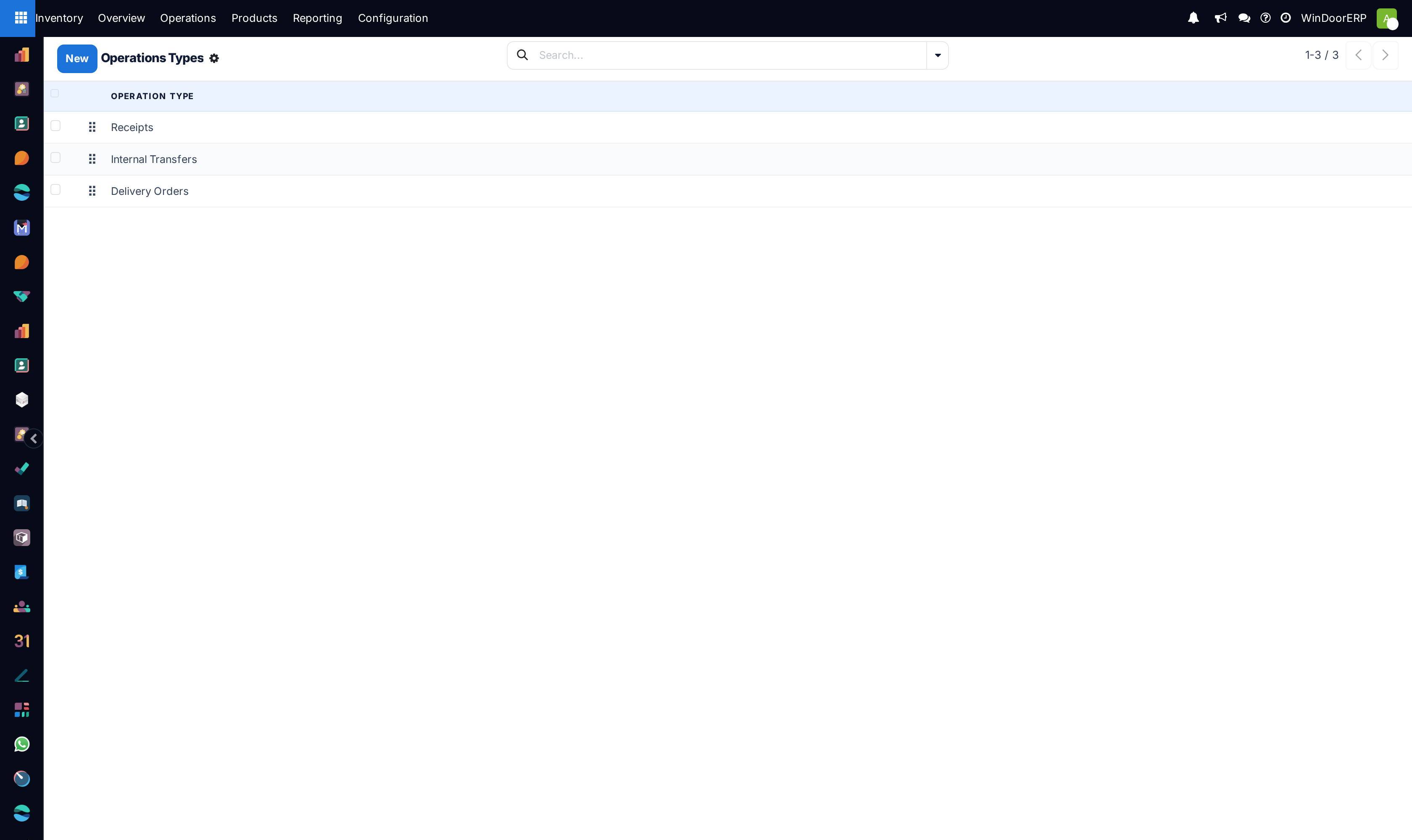
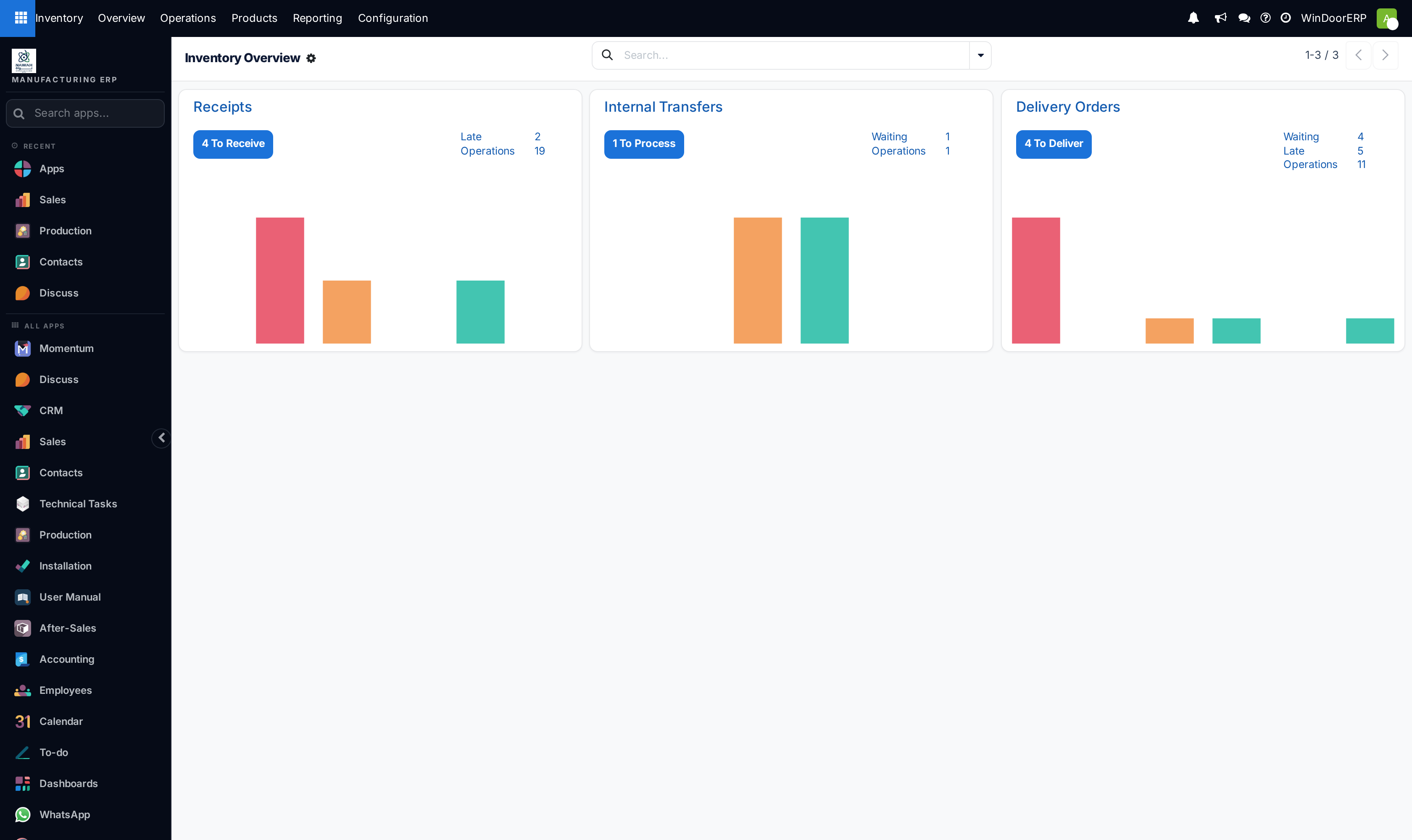
WindoorERP Inventory tracks stock by warehouse and location, and then records what happens to products (receiving, putaway and internal transfers, and picking and delivery) as structured stock moves. These movements are called operations. Operations can also help keep what the system shows current using counts and adjustments.
Each operation belongs to a specific operation type.
-
01
Go to Inventory › Configuration › Operations Types and open one, or click New.
-
02
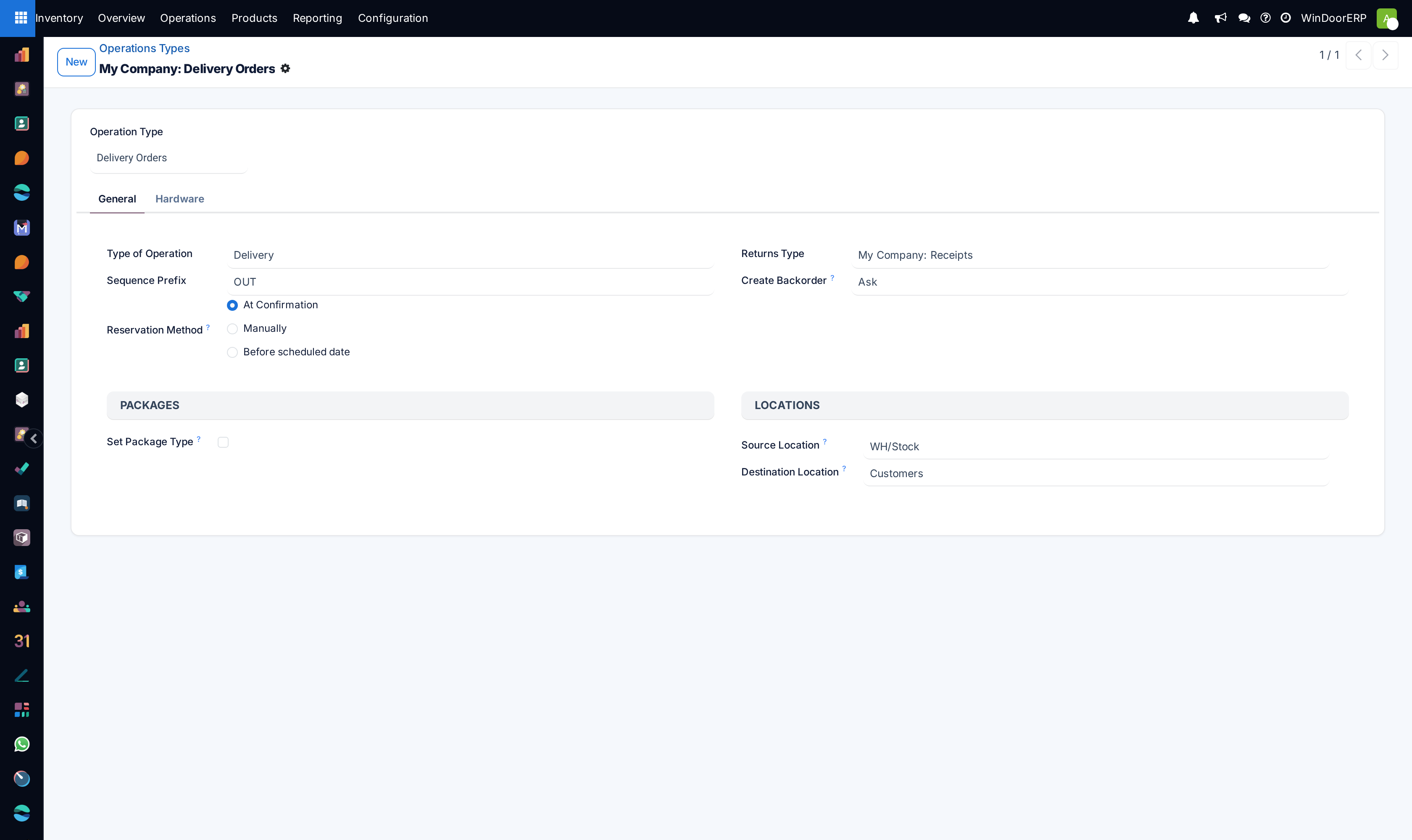
Set the Type of Operation — receipt, delivery, internal transfer, manufacturing.
-
03
Give it a Sequence Prefix; it becomes the reference on every document of this type.
-
04
Choose the Create Backorder behaviour: Ask, Always, or Never (the remainder is cancelled).
-
05
Set the Source Location and Destination Location that should be filled in by default.
-
06
Save.
Operation types
To add or edit operation types, navigate to Inventory app › Configuration › Operations Types. A list of operation types displays.
Open an existing operation type, or click New to create a new operation type. Next, complete the fields of the operation type form.
General tab
Use the General tab to specify basic settings for the operation type.
The following fields are available in the General tab:
- Type of Operation: Specify the type of operation.
- Sequence Prefix: Specify a short prefix WindoorERP will use to name transfers.
- Barcode: Define the barcode to be used when transferring products between locations.
- Company: Specify the company that can use this operation type.
- Returns Type: Define which operation can create returns for this operation type.
- Create Backorder: Define when back orders for unfulfilled products can be created upon validation for this operation type. Select Ask if WindoorERP should ask whether to create a back order. Select Always to always generate a back order. Select Never to specify that the remaining products should be canceled.
- Analytic Costs: Select this checkbox to ensure analytic entries are created in a project when stock moves are validated. It tracks the total cost of products included in stock moves (deliveries and receipts) that have been validated for the project. This ensures that the product's cost is tracked during the stock move.
- Card Color: Select a color to use for the operation type card on the Overview page.
Lots/serial numbers
This section only appears if Lots & Serial Numbers is enabled in Inventory app › Configuration › Settings.
The following fields are available:
- Create New: Select this checkbox to specify that lots and serial numbers can be created from this operation type.
- Use Existing ones: If this checkbox is selected, the lot or serial number can be selected when creating transfers for this operation type.
Locations
This section only appears if Storage Locations is enabled in Inventory app › Configuration › Settings.
Specify the following locations for the operation type:
- Source Location: Select a default source location when operations of this type are created.
- Destination Location: Select a default destination location when operations of this type are created.
Packages
This section only appears if Packages is enabled in Inventory app › Configuration › Settings.
If Set Package Type is selected, a package or package type can be selected when the Put in Pack button is clicked on an operation's order form.
Batch & wave transfers
This section appears only if Batch, Wave & Cluster Transfers is enabled in Inventory app › Configuration › Settings.
Select the Dispatch Management checkbox to show dispatch-management-related details on the batch or wave form and the Inventory Overview page. Then, select a location or vehicle.
Select the Automatic Batches checkbox to specify that pickings should be automatically batched as they are confirmed when possible.
Hardware tab
Use the Hardware tab to specify settings for connected devices and how they should interact with operations of this operation type.
In the Print on validation or Print when done section, specify what should be printed automatically when an operation is validated.
In the Print on "Put in Pack" section, specify what should be printed when the Put in Pack button is clicked on an operation form. Packages must be enabled in Inventory › Configuration › Settings for this option to show.
In the Scales section, specify a scale to use in conjunction with operations of this operation type in the Connect Scale field.
For manufacturing operation types, in the Print when "Create new lot/SN" section, select what should be printed when a lot or serial number is generated on an operation.
Barcode App tab
Use the Barcode App tab to specify how this operation type integrates with the Barcode app. Specify when barcodes must be scanned or how often, whether to group products, or when to validate an operation.
To display reserved lots or serial numbers on an operation in the Barcode app, select the Show reserved lots/SN checkbox.
To show the packages that must be moved during a Barcode operation, select Move Entire Packages.
The other tabs
- Lots/serial numbers — whether this operation may create new tracking numbers, use existing ones, or both. Appears once lots and serial numbers are enabled.
- Packages — lets Put in Pack ask for a package type.
- Batch & wave transfers — automatic batching of pickings as they are confirmed, and the dispatch details for vehicle loading.
- Hardware — what prints automatically when an operation is validated or packed, and which scale is connected.
- Barcode App — when barcodes must be scanned, whether whole packages move at once, and when the operation validates itself.
Common mistakes
- Setting Create Backorder to Never on deliveries: the unshipped balance is cancelled silently and the customer waits for goods nobody is preparing.
- Changing a sequence prefix on a live type — old and new references stop lining up in reports.
- Pointing the default destination at a virtual location.
Was this article helpful?
Thanks — your feedback helps.
Running a window or door factory?
Ask for a demo