Open as few packages as possible
What this does
Chooses the package that most nearly covers the demand, so full bundles stay sealed and you do not end up with six part-used pallets.
Before you start
- Enable Packages in the Inventory settings, and store the goods in packages.
Steps
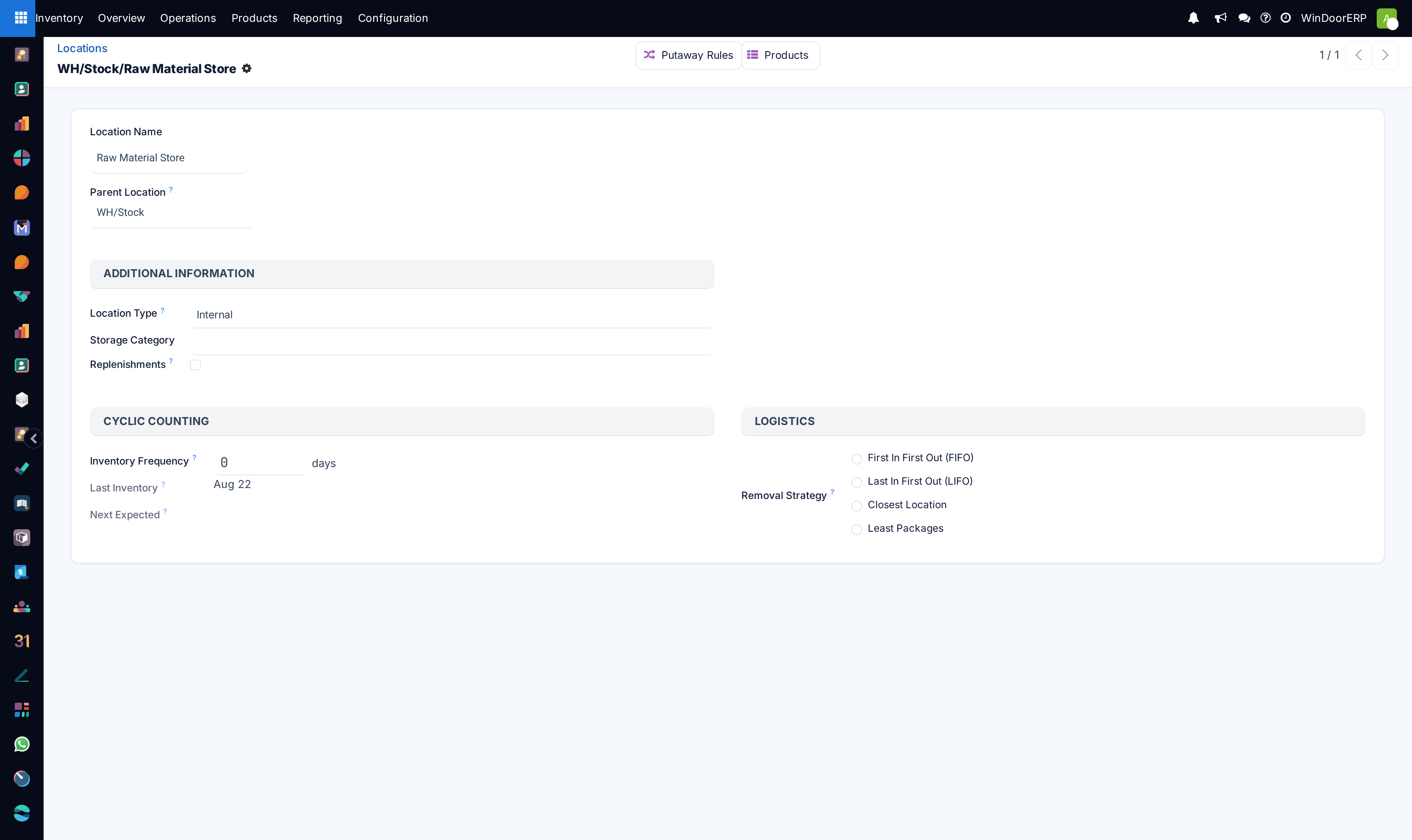
A demand for 15 units against packages of 10 and 20 will take the package of 20 rather than opening two.
The Least Packages removal strategy fulfills an order by opening the fewest number of packages, which is ideal for maintaining organized stock without needing to open multiple boxes.
Example
To understand how the removal strategy works, consider the following example, featuring a warehouse that stores packages of flour in bulk packages of 100 kg.
To minimize moisture and prevent possible loss of product due to spillage and repacking, the least packages removal strategy is used to fill the order by opening the fewest packages of flour, instead of opening multiple packages.
A package of 100 kg of flour is depleted to 54 kg after fulfilling some orders. There are other packages of 100 kg in stock.
When an order for 14 kg of flour is placed, the package of 54 kg is selected, leaving 40 kg of flour in the bag. Another order for 80 kg of flour is placed. An unopened 100 kg package is used to fulfill the order.
While this temporarily results in two open packages, one for 40 kg and another for 20 kg, these open packages are prioritized in the next pickings that are those sizes or smaller.
-
01
Go to Inventory › Configuration › Categories (or a location) and open the record.
-
02
Set the removal strategy to Least Packages.
-
03
Save.
Enabling the least packages removal strategy
A package is a physical container holding one or more products. Packages can also be used to store items in bulk.
The packages feature is used to group products together and is required for the least packages removal strategy.
Navigate to Inventory app › Configuration › Settings and in the Operations section, select the check box for the Packages feature.
Store products in packages
First, products are received either in packages or individually. Next, the received products are stored in packages created during a transfer.
Set the removal strategy
After you have configured your product inventory, set the removal strategy on the storage location or product category.
On the storage location
To set a removal strategy on a storage location, you must first enable a couple settings in the Inventory configuration settings. Open Inventory app › Configuration › Settings, and in the Warehouse section, enable Storage Locations and Multi-Step Routes.
Next, open Inventory app › Configuration › Locations. Open an existing location or create a new location. On the location form, under the Logistics heading, set the Removal Strategy. to Least Packages
On the product category
Configure removal strategies on product categories by going to Inventory app › Configuration › Categories and selecting the intended product category. Next, in the Force Removal Strategy field, select Least Packages.
Important
When there are different removal strategies applied on both the location and product category for a product, the value set on the Force Removal Strategy field set on a product category form is applied as top priority.
For example, flour is stored in 100-kilogram packages. It is stored in a location with other heavy items. To minimize how far pickers have to walk, the location uses the closest location removal strategy. To further optimize the picking time, and to reduce the number of packages opened during picking, the flour's product category, Baking Materials, uses the least packages removal strategy.
Workflow
Using the least packages removal strategy, the fewest number of packages is used to fulfill an order.
Consider the following example, featuring the product, Flour (kg). The product's unit of measure, located on the product form, is set to kg. The product is stored in packages of 100 kg, with one remaining package containing 54 kg. The product category's Force Removal Strategy is set to Least Packages.
Tip
You can verify the product's on-hand stock in the Locations report. Open Inventory app › Reporting › Locations. Click in the Search field to filter by On Hand, as well as product.
A sales order is created for eighty kilograms of flour by going to the Sales app and creating a new quotation. After clicking Confirm, the delivery order is created.
On the delivery order, the Quantity field displays the amount automatically picked, according to the removal strategy.
For more details about where the units were picked, click Details on the product line. Doing so opens the Detailed Operations pop-up window, displaying how the reserved items were picked, according to the removal strategy.
In the Detailed Operations pop-up window, the Pick From field displays where the quantities to fulfill the Demand are picked. Because the order demands eighty kilograms, which exceeds the quantity in the opened package of 54 kg, an unopened package of 100 kg is selected.
Common mistakes
- Using it for material that ages: the sealed pallet at the back may be the oldest one you own.
- Goods not actually recorded in packages, in which case the strategy has nothing to work with.
Was this article helpful?
Thanks — your feedback helps.
Running a window or door factory?
Ask for a demo