Track personal opportunities, priority ratings, and next scheduled follow-up actions
What this does
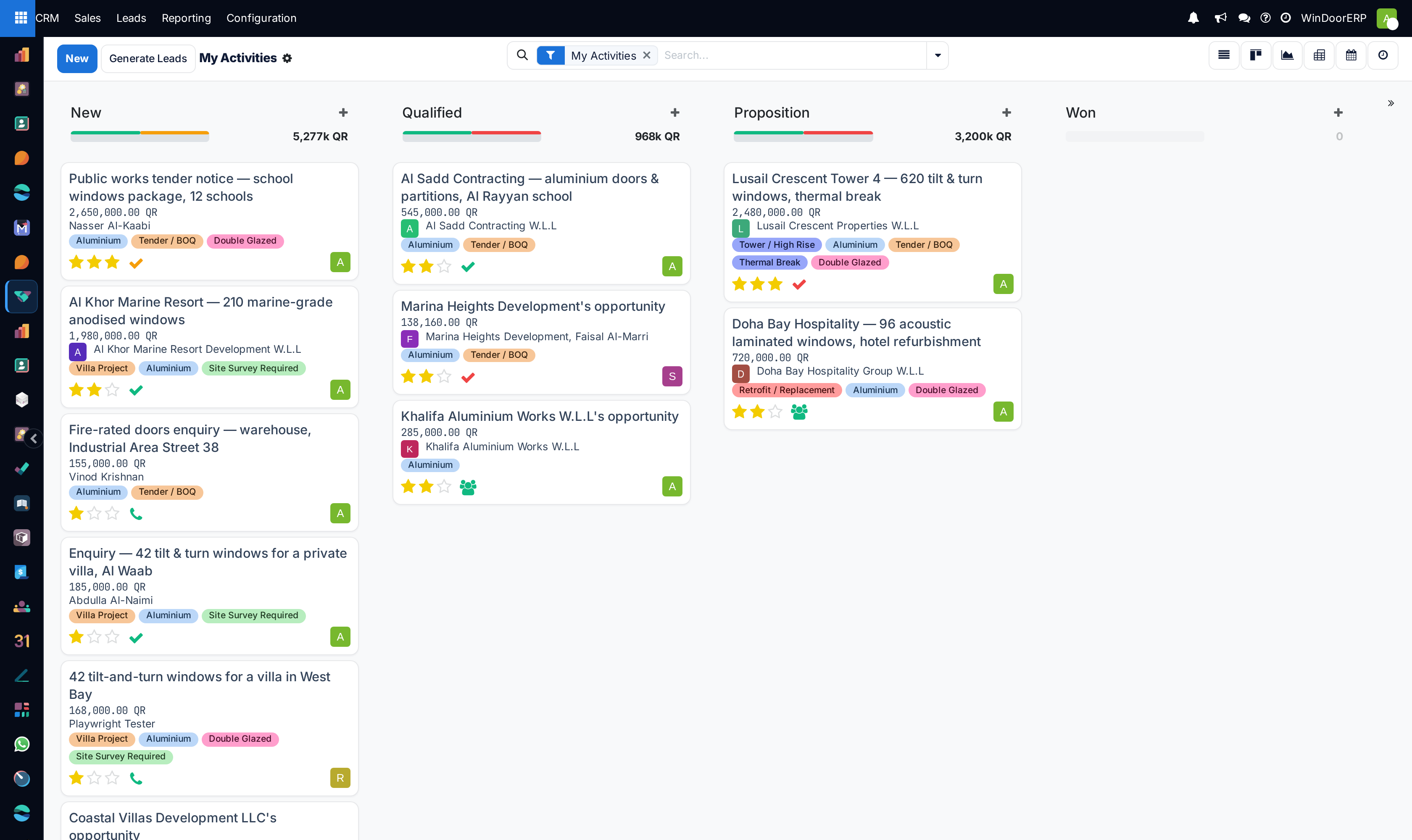
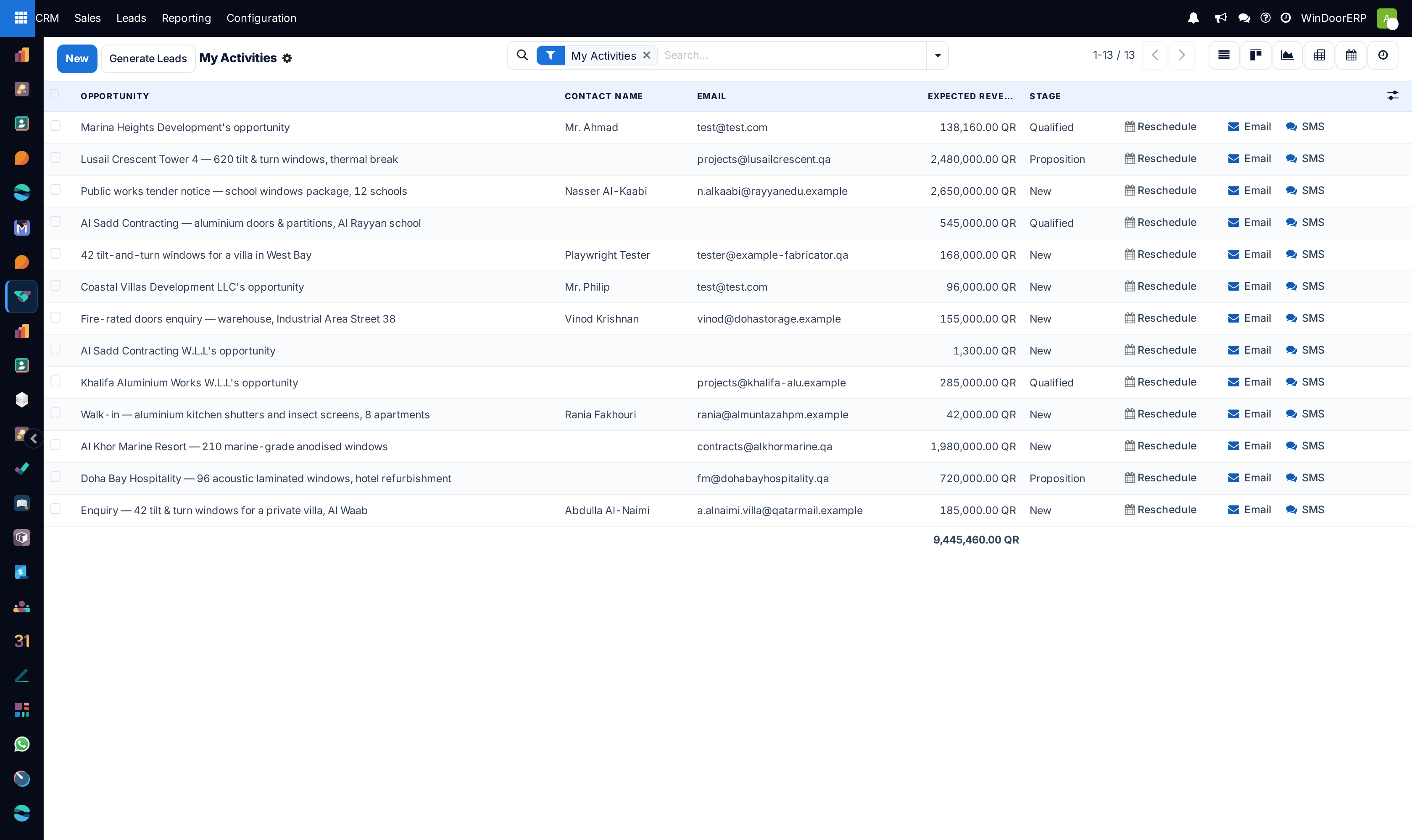
Provides sales reps with a focused view of their assigned inquiries, enabling quick priority tagging (1 to 3 stars), scheduled phone calls, and quotation follow-ups.
Before you start
- Assigned opportunities in WindoorERP CRM.
Steps
Important
Opportunities with overdue activities display red indicator clocks, signaling immediate follow-up required to prevent client churn.
-
01
Open CRM › Sales › My Pipeline to see your personal workload.
-
02
Use the Priority star icons on each card to highlight VIP clients or fast-track tenders.
-
03
Click the activity clock icon on any card to view upcoming, today's, or overdue follow-up tasks.
-
04
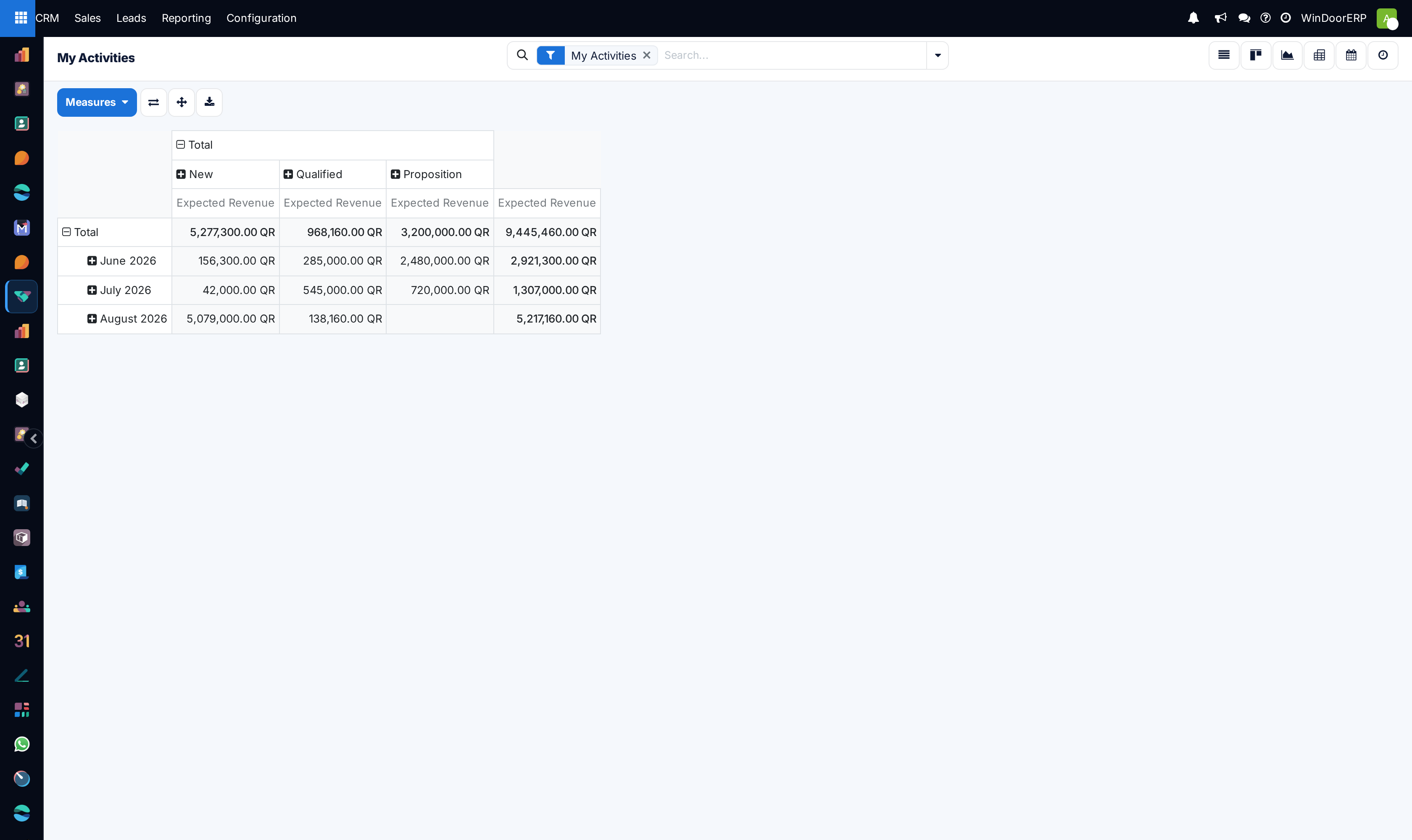
Update deal estimates as revised architectural drawings and opening schedules are submitted.
Common mistakes
- Leaving opportunity cards without scheduling a definitive Next Activity date.
- Ignoring priority ratings on high-margin curtain wall or structural glazing inquiries.
Was this article helpful?
Thanks — your feedback helps.
Running a window or door factory?
Ask for a demo