Read the five reports
Find the stock that stopped moving
Why this step
Start here if you only read one. Profile in a finish you no longer sell, ordered for a job that was cancelled, is the quiet way a fenestration company loses money — and aging is the only report that shows it before a stock write-off does.
What this does
Analyzes the age of inventory sitting in your warehouse across customizable retention intervals (e.g. 0–30 days, 31–60 days, 61–90 days, 90+ days). It highlights dormant extrusion offcuts, obsolete glass sheets, and slow-moving hardware to free up working capital and warehouse space.
Before you start
- Ensure incoming supplier receipts and internal movements have been properly validated with accurate receipt dates.
Steps
Tip
Review the 90+ days bracket before every major material procurement cycle to check whether existing offcuts or excess stock can fulfill new quotation cutting plans.
-
01
Open Inventory › Reporting › Stock Aging Report.
-
02
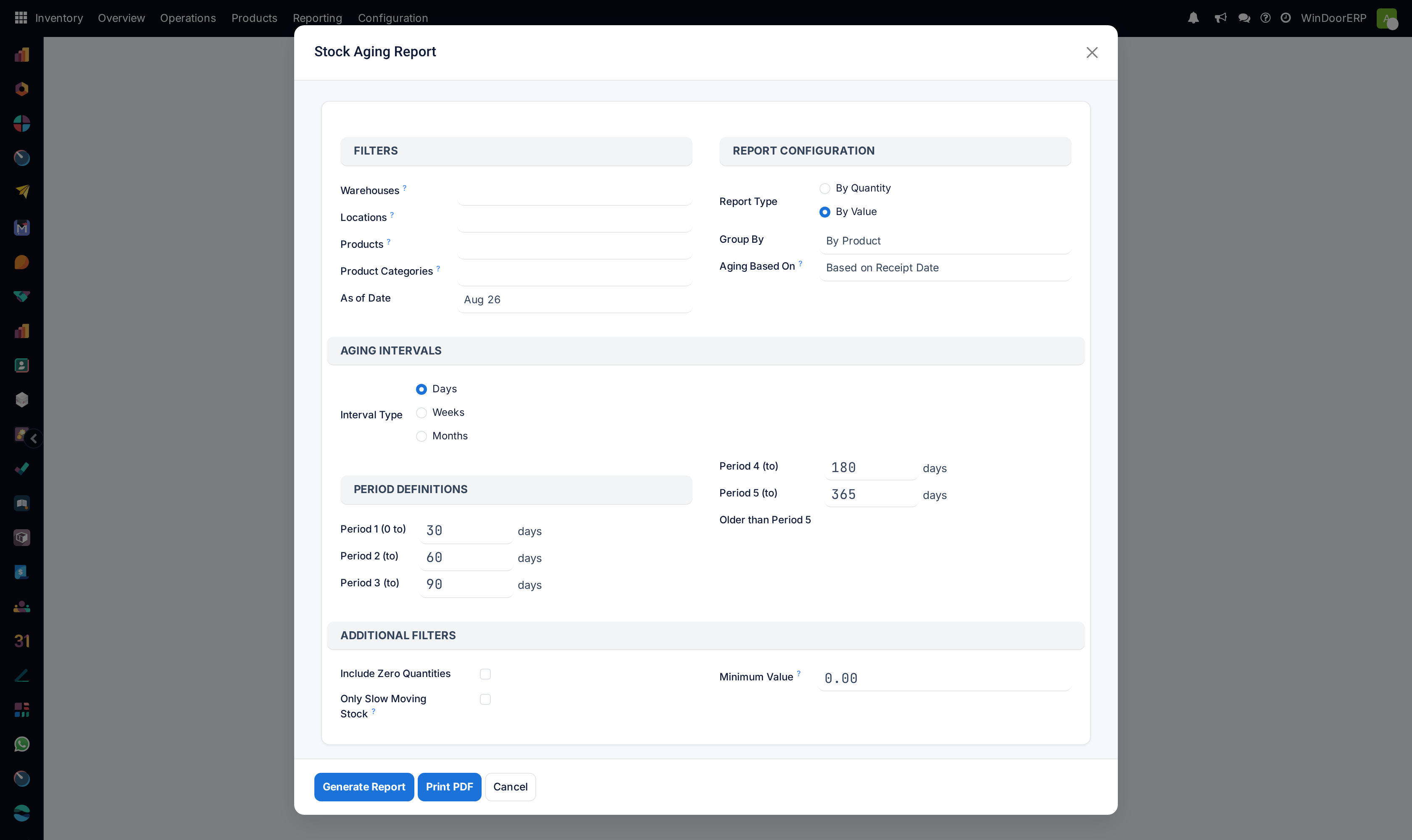
Select the target warehouse, product categories, and the aging breakdown intervals.
-
03
Click Generate Report.
-
04
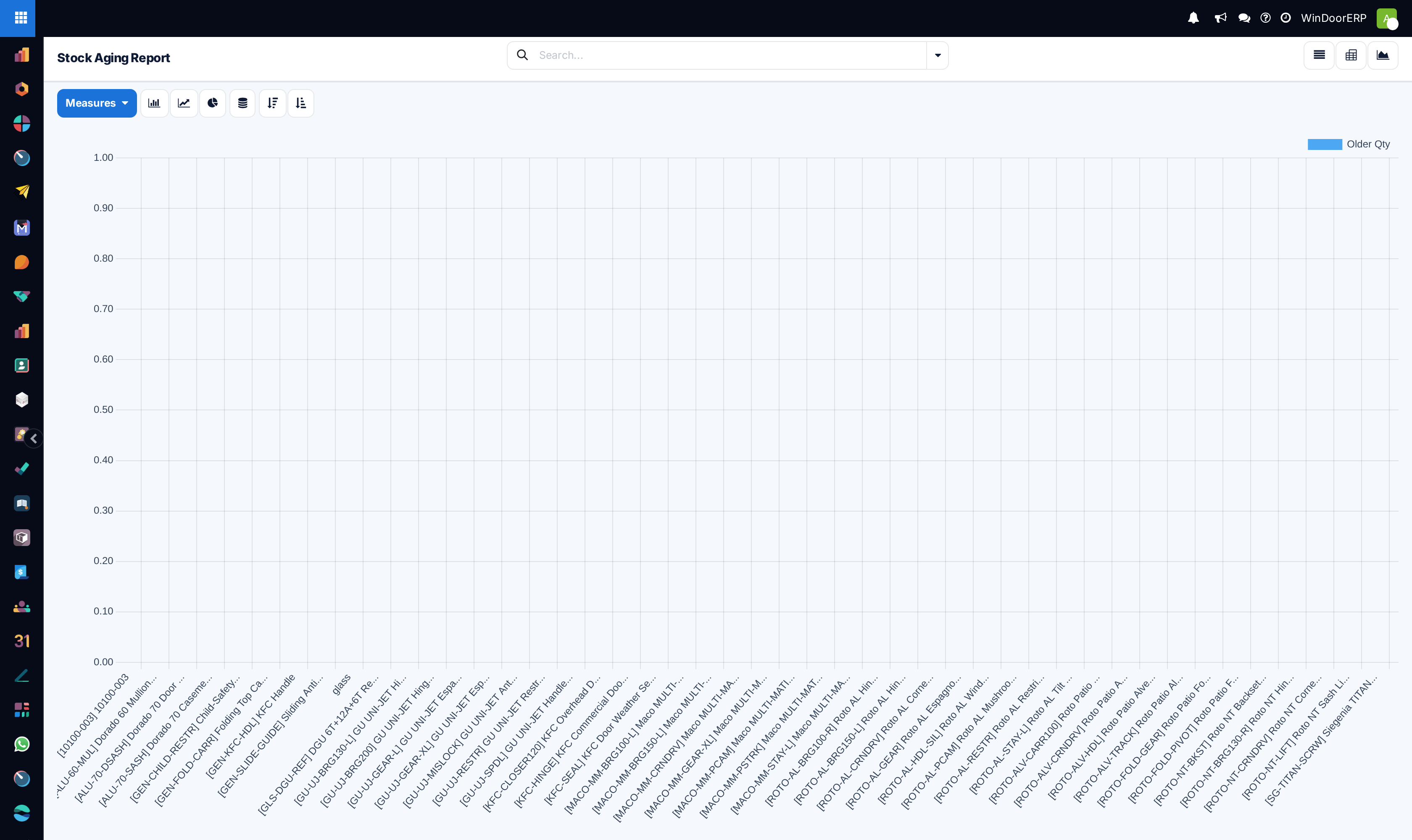
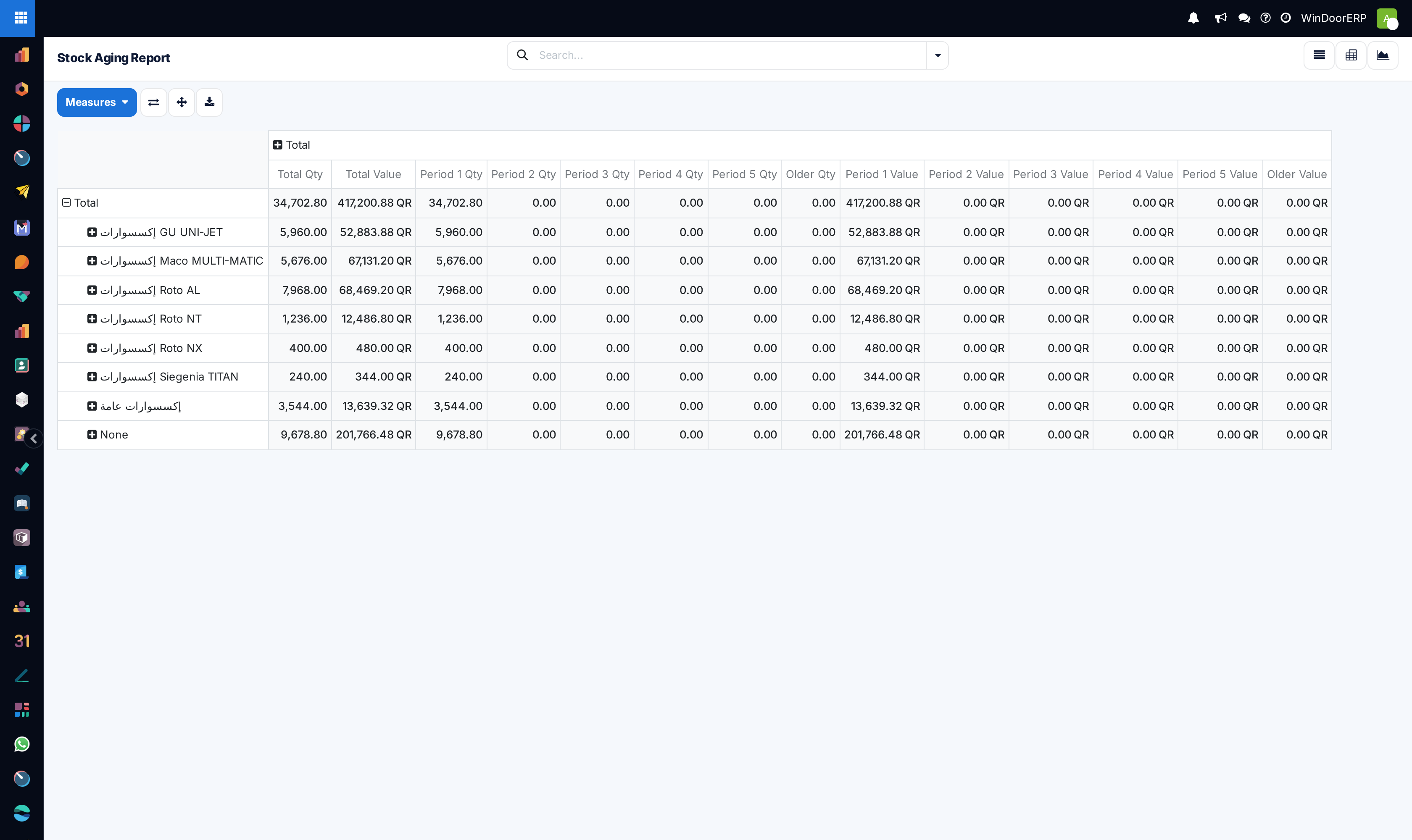
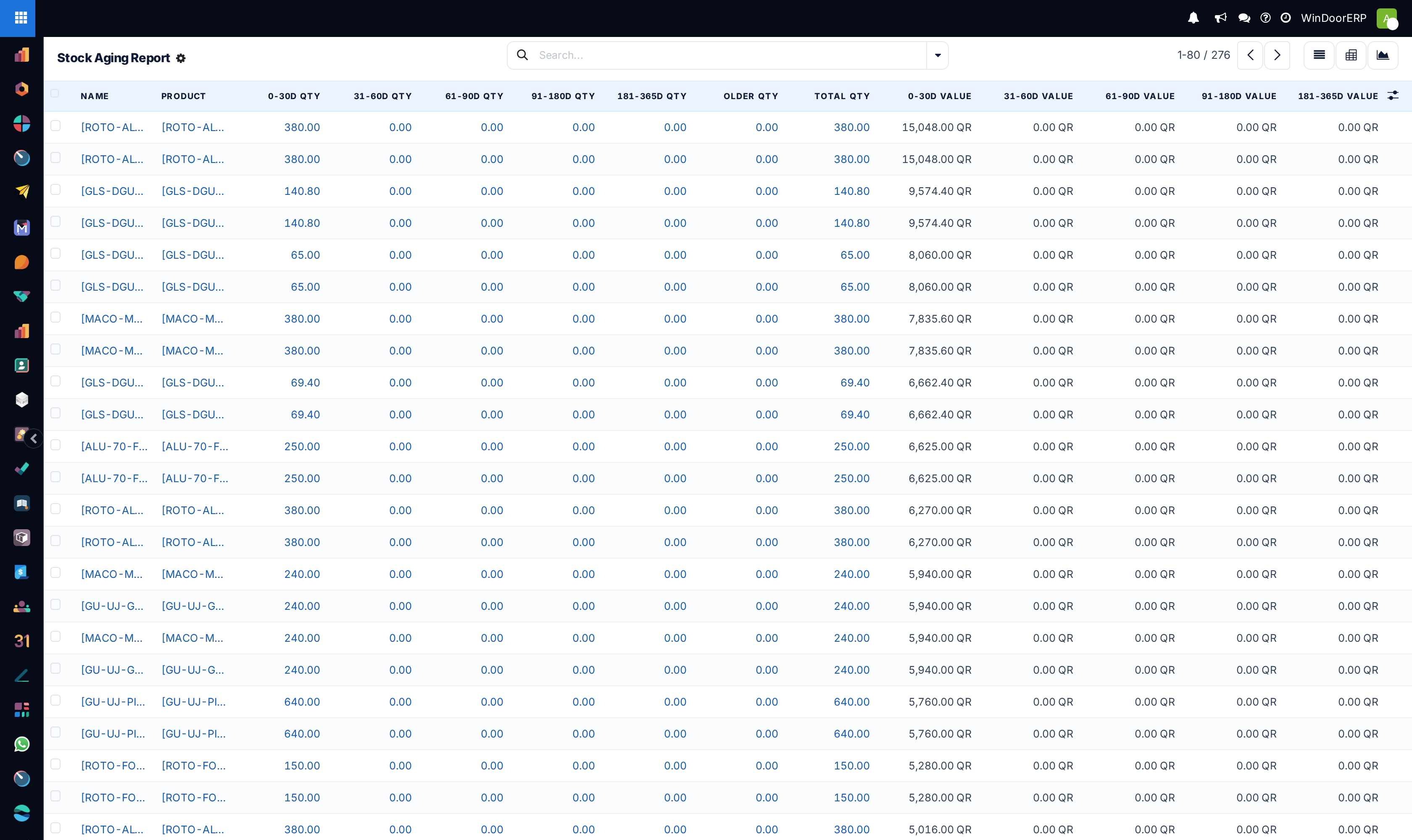
Switch between Graph view (to visualize capital tied up by age bracket) and List / Pivot view (to pinpoint individual item codes).
-
05
Use filters to group by product family or location zone.
Common mistakes
- Leaving unconfirmed scrap orders or negative inventory adjustments unposted, which skews aging calculation.
Checkpoint
You can name the oldest material in your yard and say what it is still doing there.