See what the hours bought
Decide which hours are billable
Why this step
Utilisation by employee, project, task and billing type — and the rules behind it. This is the step that turns a timesheet from a record into an invoice line or a costed variation.
What this does
Generates multi-dimensional timesheet analytical reports to measure labor utilization rates, compare billable versus non-billable hours, and configure validation rules.
Before you start
- Timesheets submitted by department teams.
Steps
Important
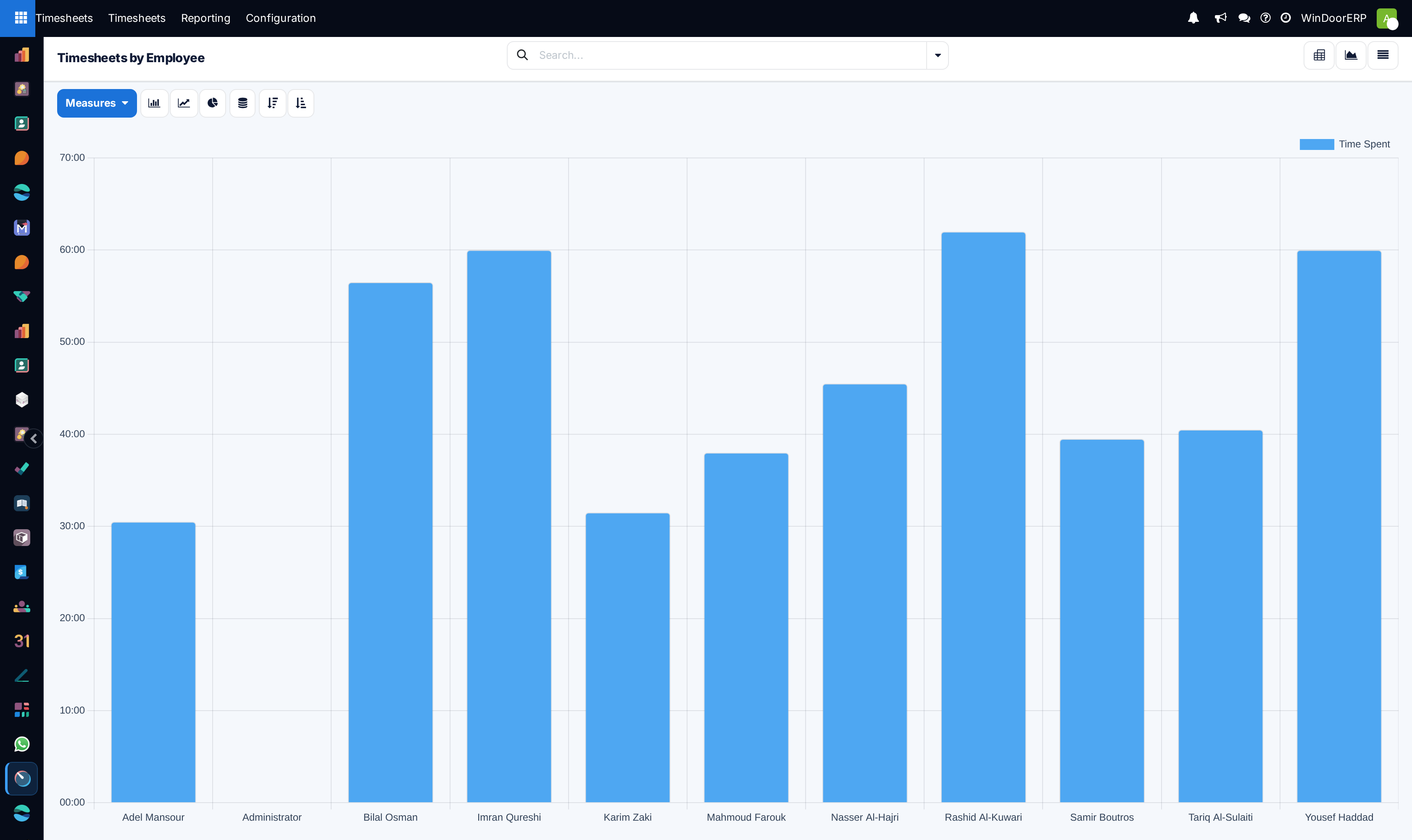
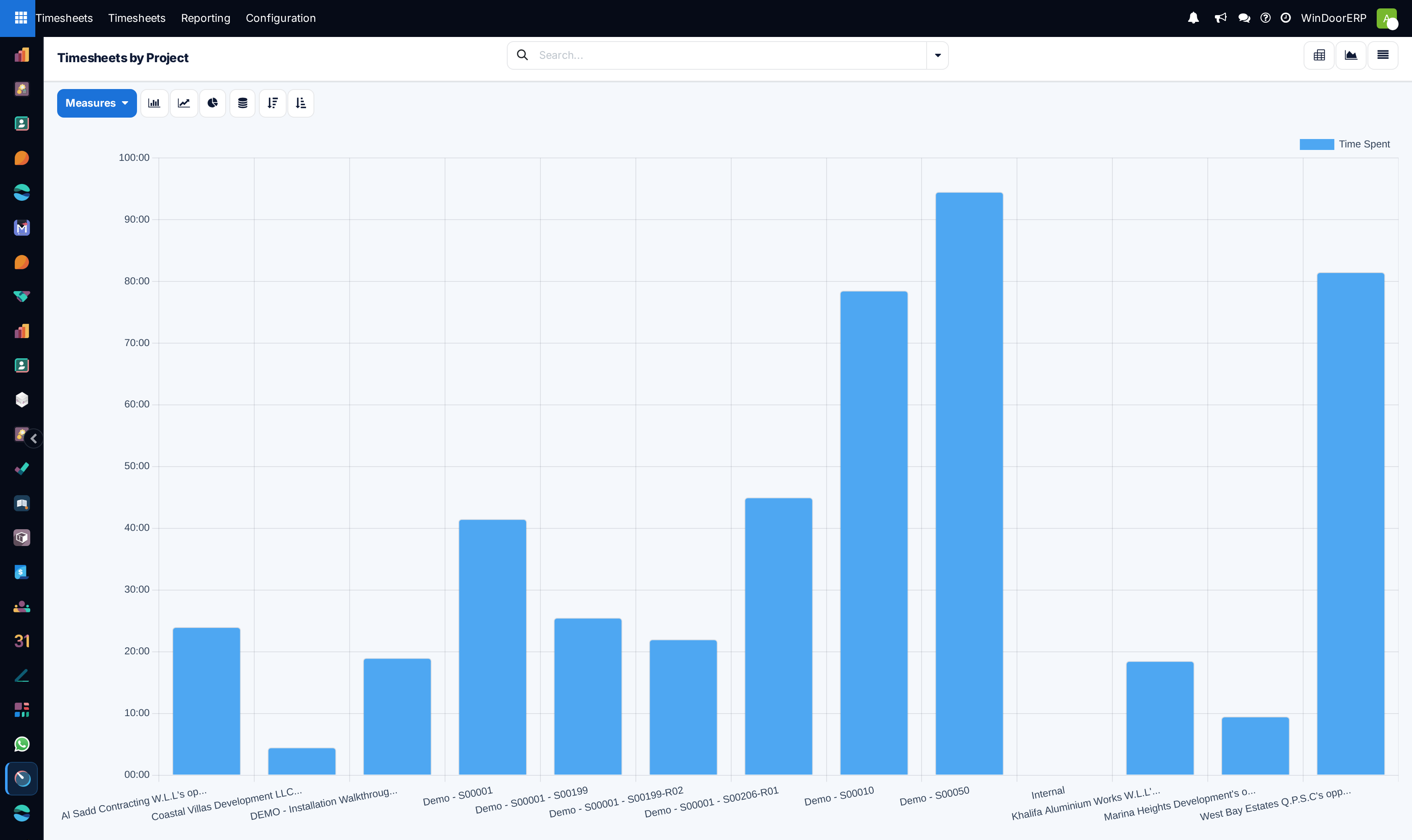
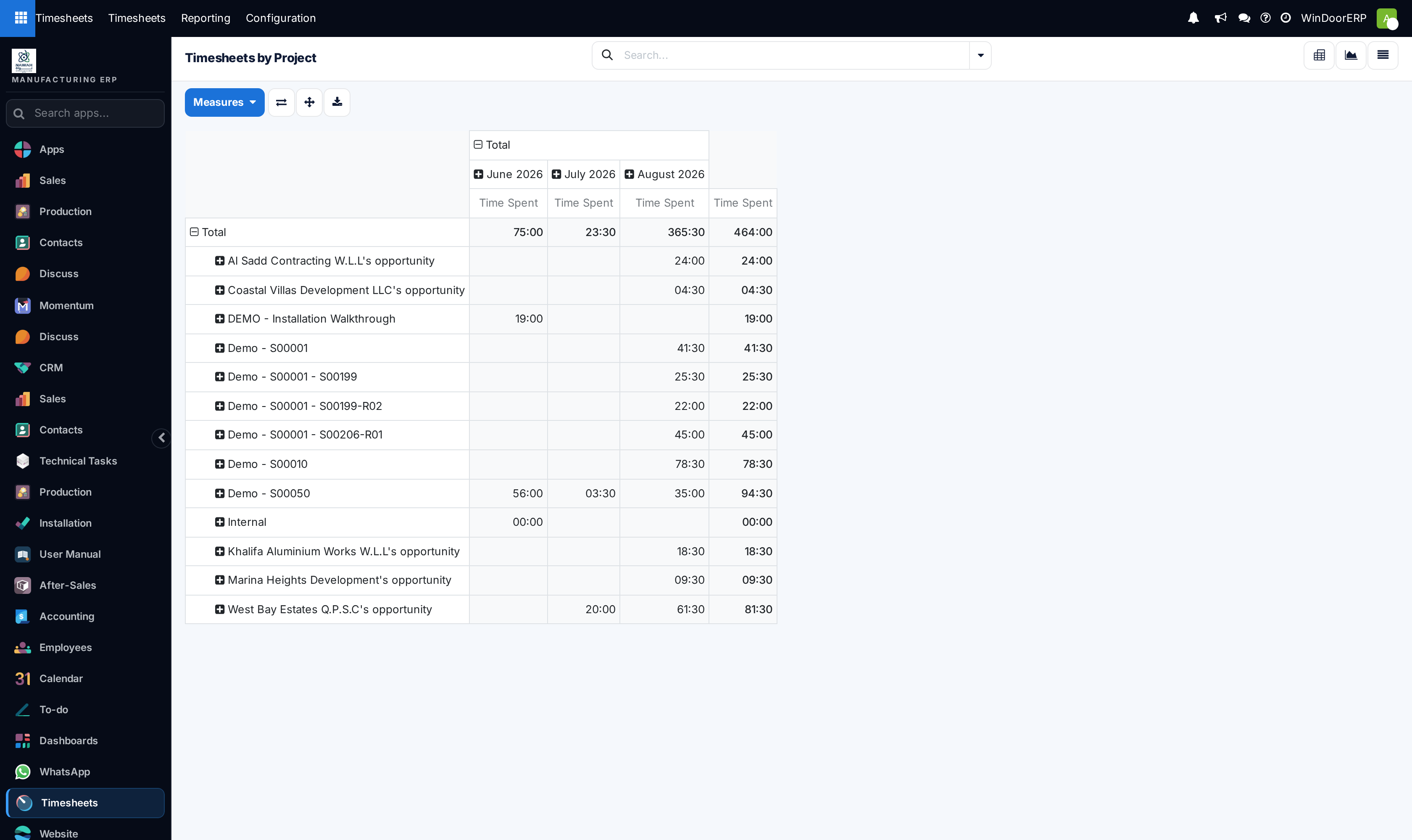
Comparing Timesheets by Project against original engineering estimates highlights project tasks experiencing installation delays early.
-
01
Navigate to Timesheets › Reporting.
-
02
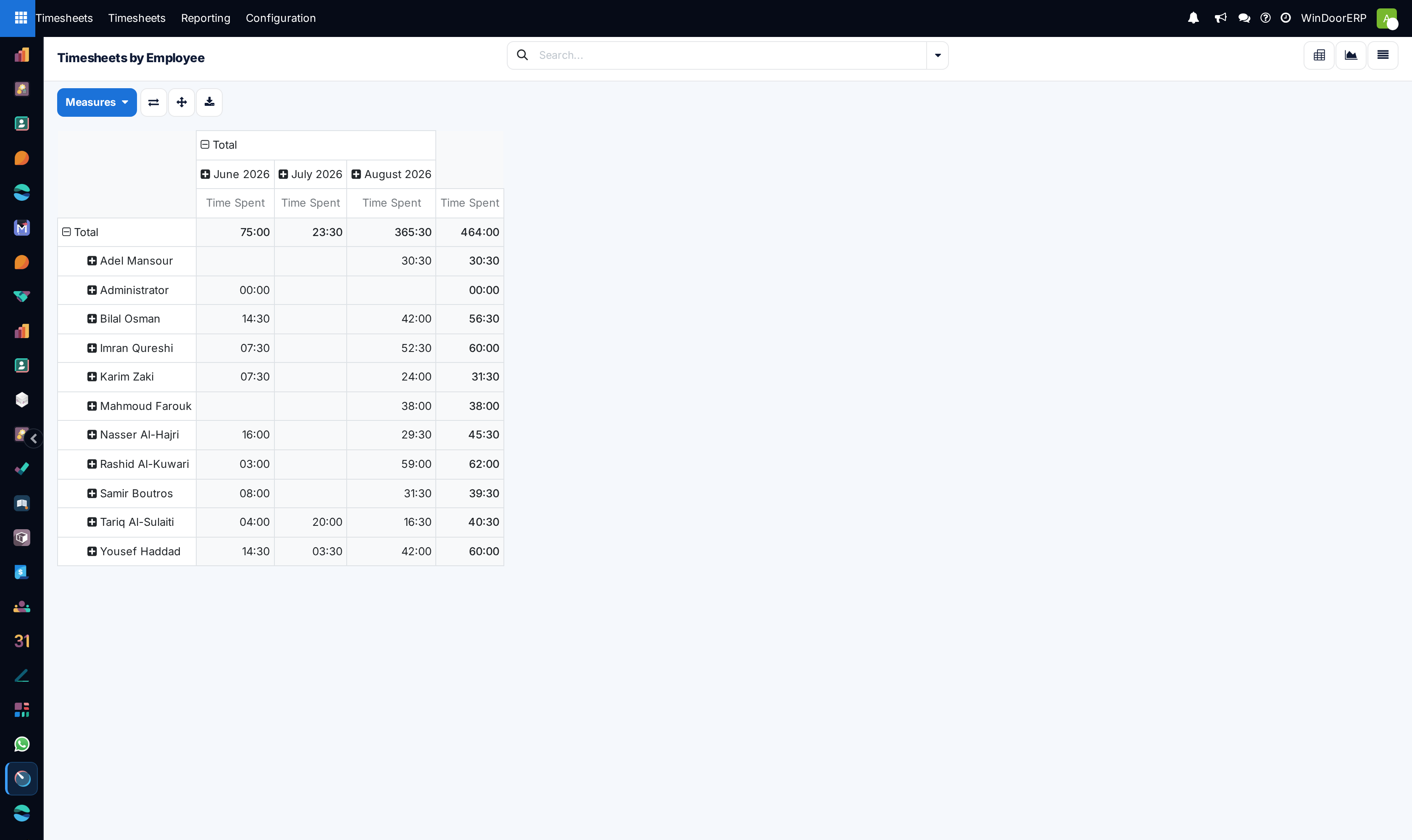
Open By Employee across Graph and Pivot views to analyze individual productivity.
-
03
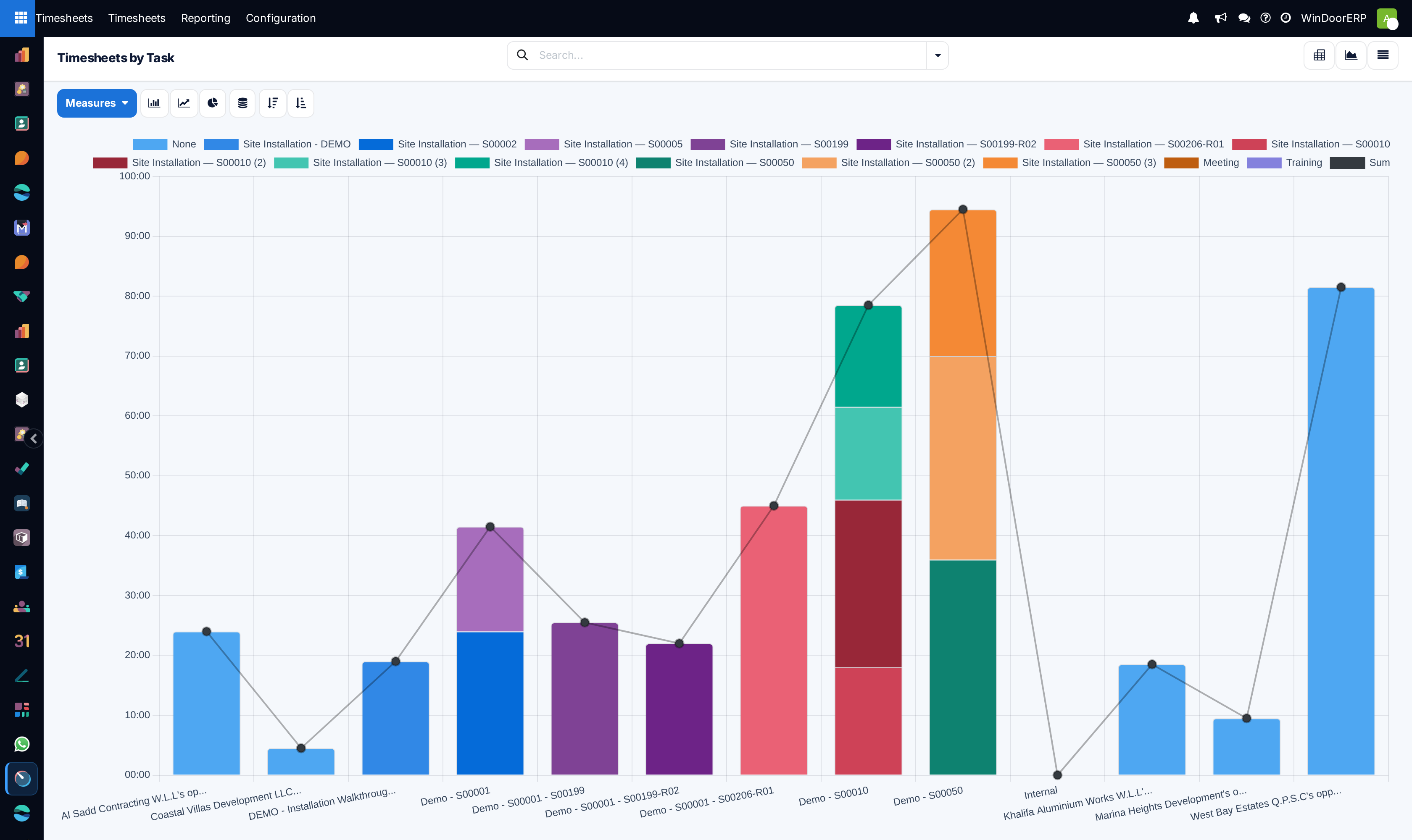
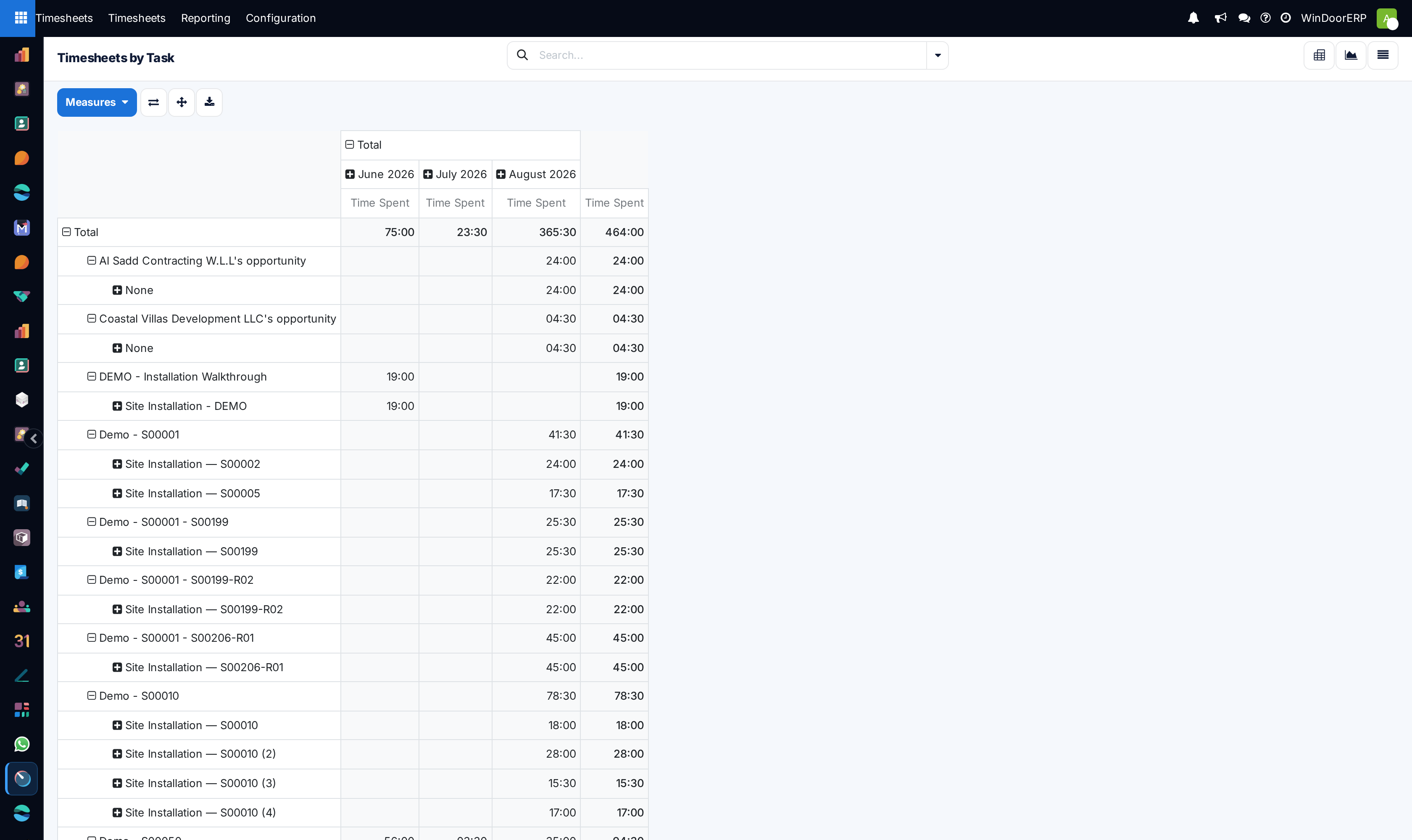
Inspect By Project and By Task to audit contract labor budget burn rates.
-
04
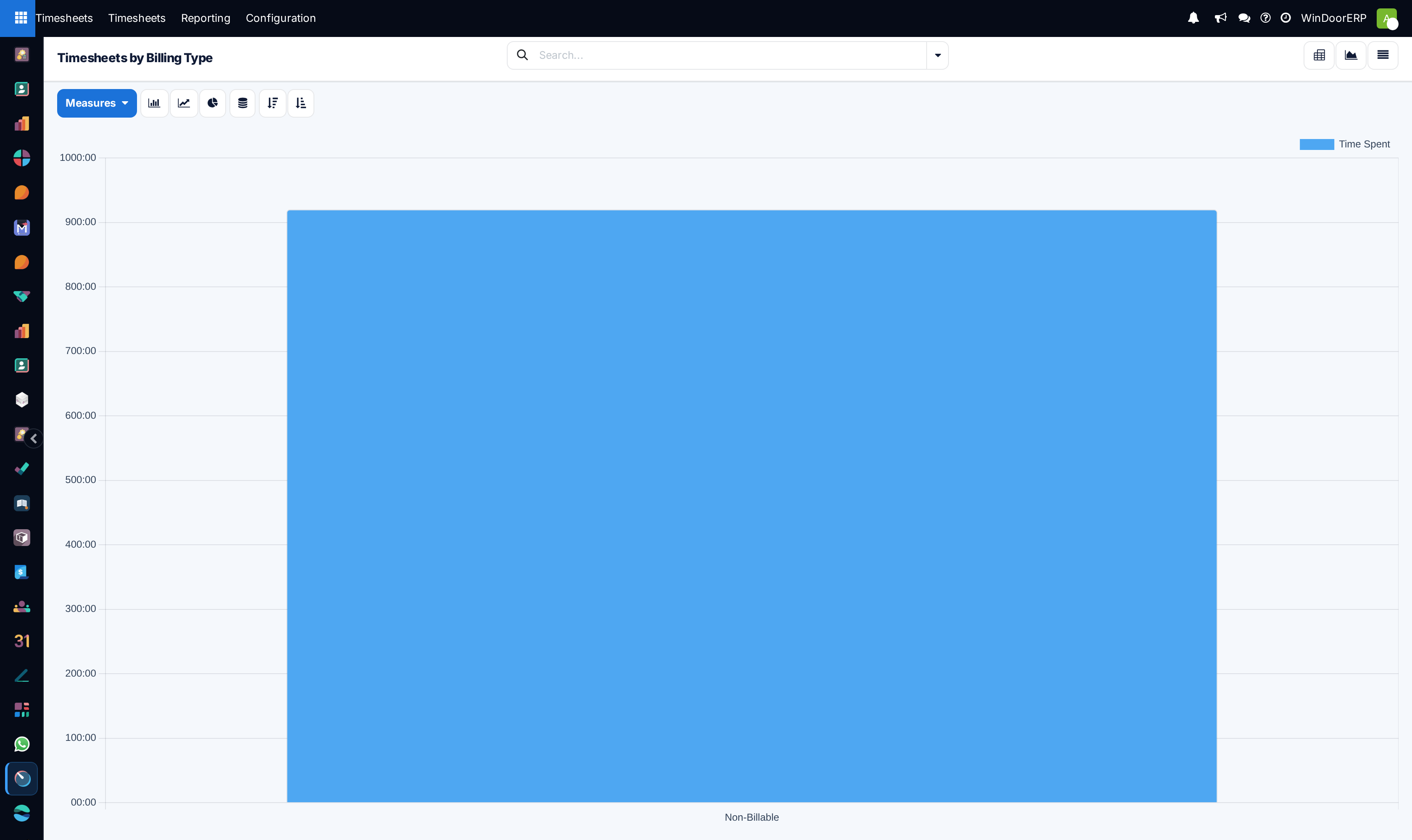
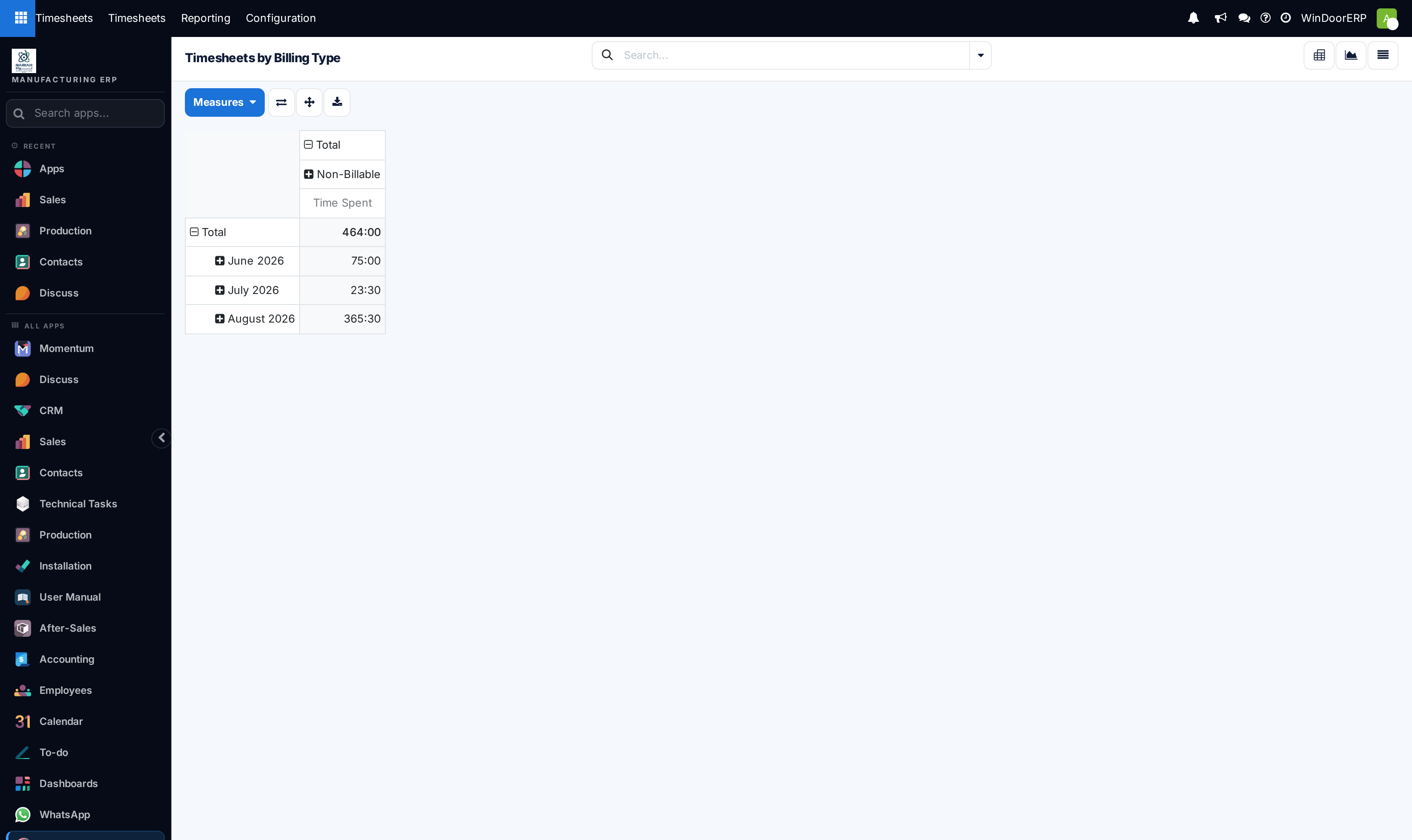
Review By Billing Type to separate billable client services from non-billable internal shop upkeep.
-
05
Configure overtime limits and reminder triggers in Configuration.
Common mistakes
- Allowing timesheets to remain unapproved after the fiscal payroll cutoff date.
- Billing non-billable shop drawing revisions to clients without contract variation order authorization.
Checkpoint
You can separate billable site hours from internal rework, and defend the split to a customer.