Open the portal
Let customers serve themselves
Why this step
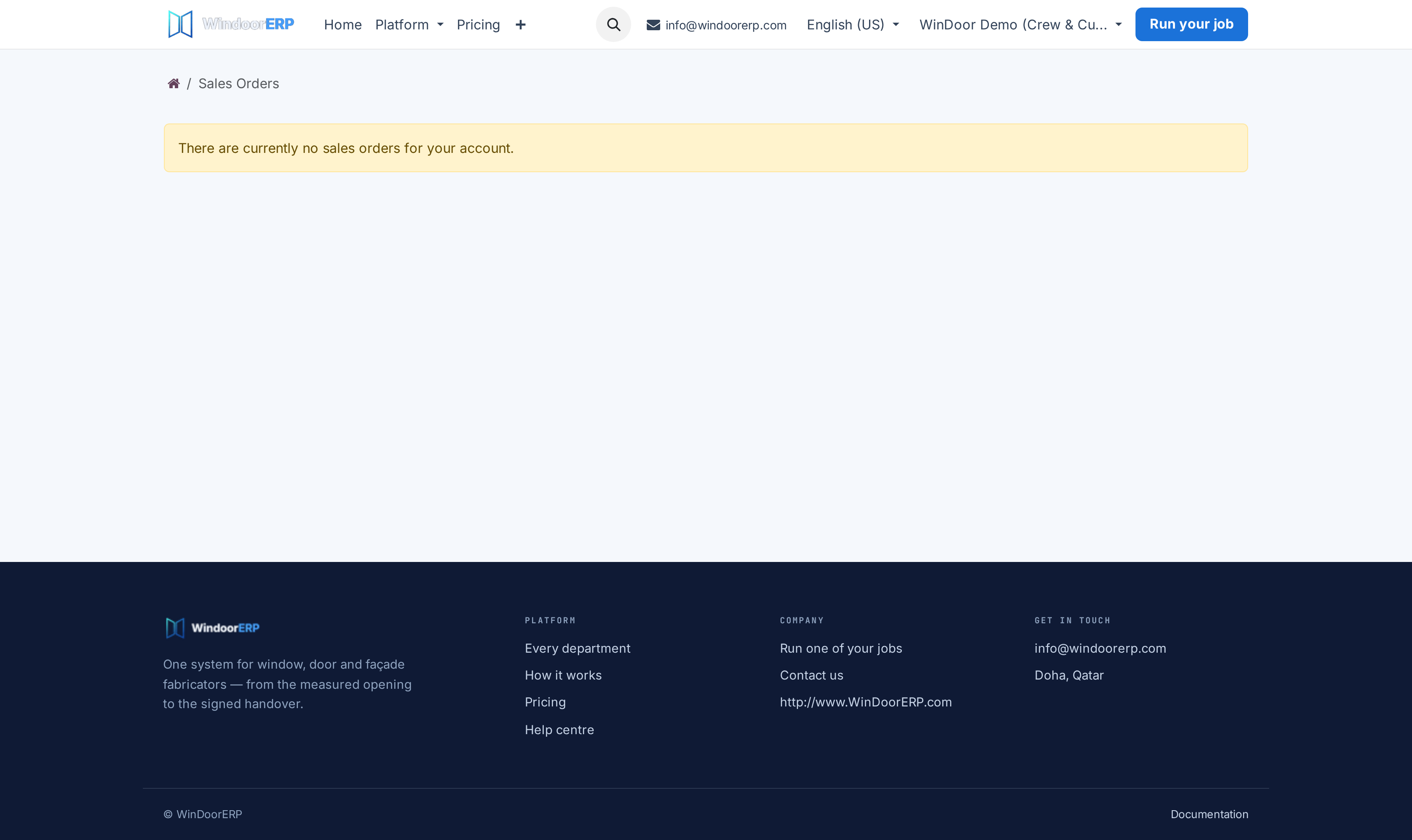
Live orders, quotations they can approve, milestone invoices they can track and service requests they can raise — without a phone call. On a long fenestration contract this is the single change your team will feel first.
What this does
Empowers villa owners and commercial contracting clients with a dedicated 24/7 web portal to review live quotation drawings, approve contracts with digital e-signatures, pay invoices online, and request warranty service.
Before you start
- Customer portal user invitation sent.
Steps
Important
Enabling online quotation approvals and e-signatures through the portal cuts commercial sales closing cycles from days to minutes.
-
01
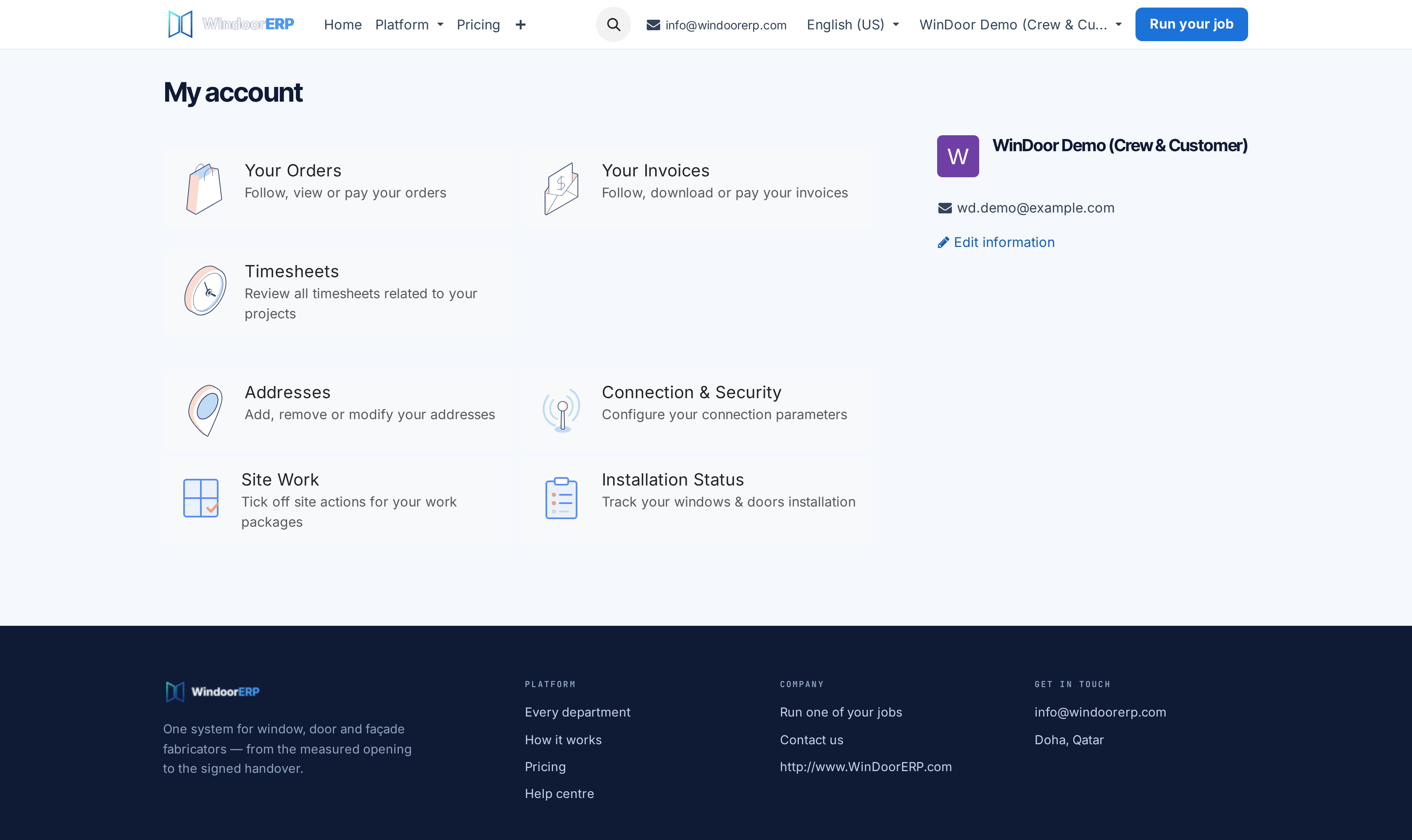
Customer logs into the secure portal at
https://www.windoorerp.com/my. -
02
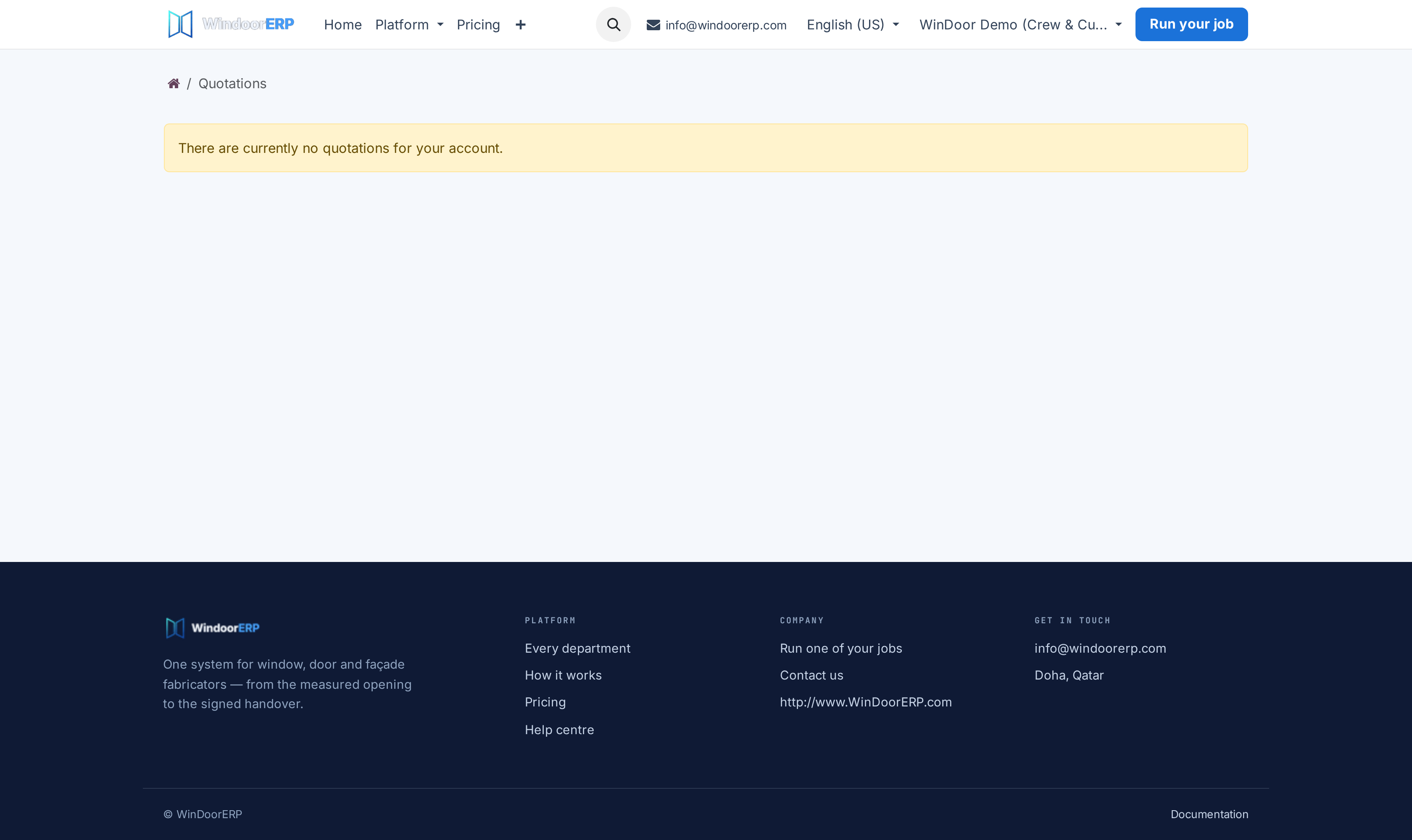
Review active quotations under My Quotations and approve instantly with an electronic signature.
-
03
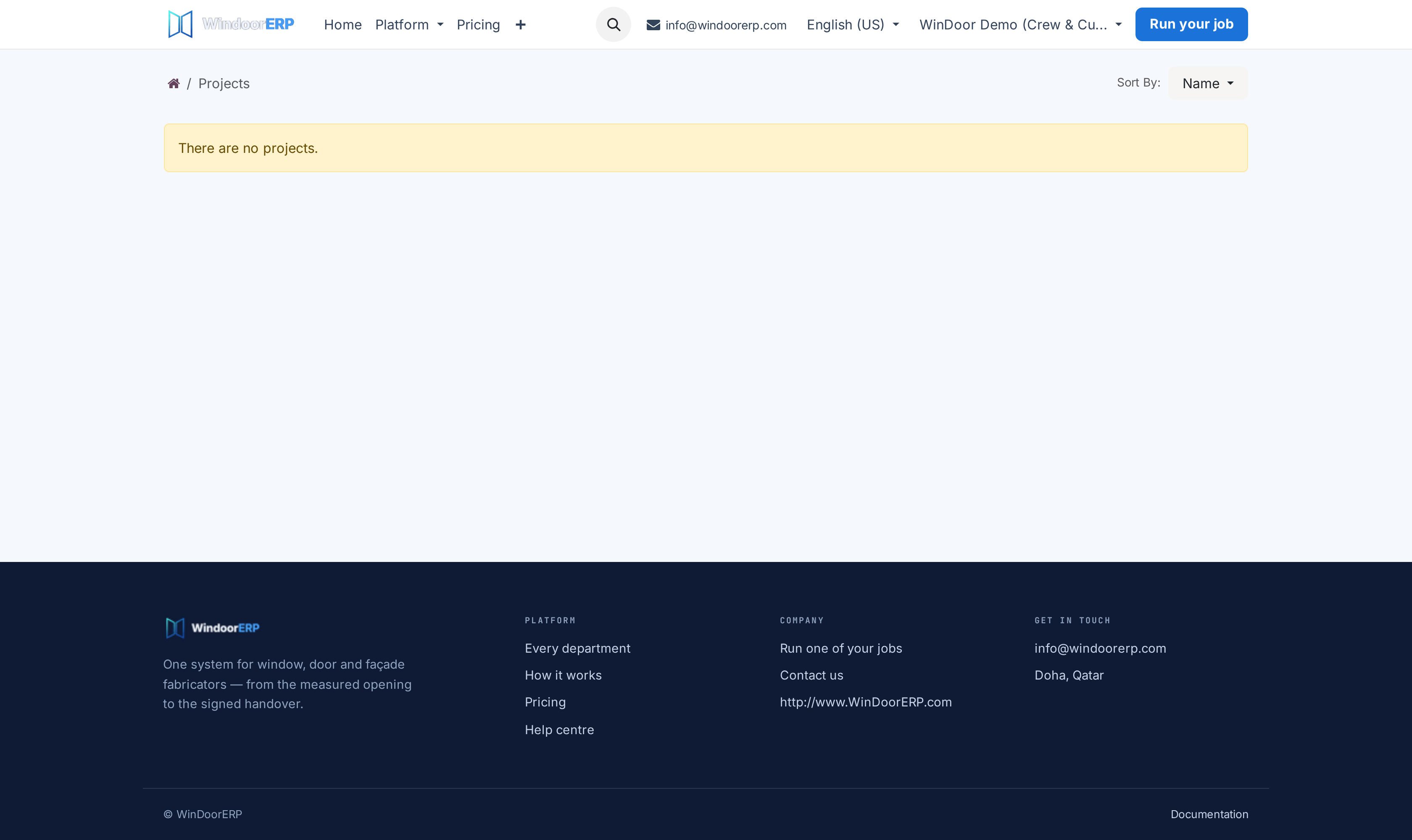
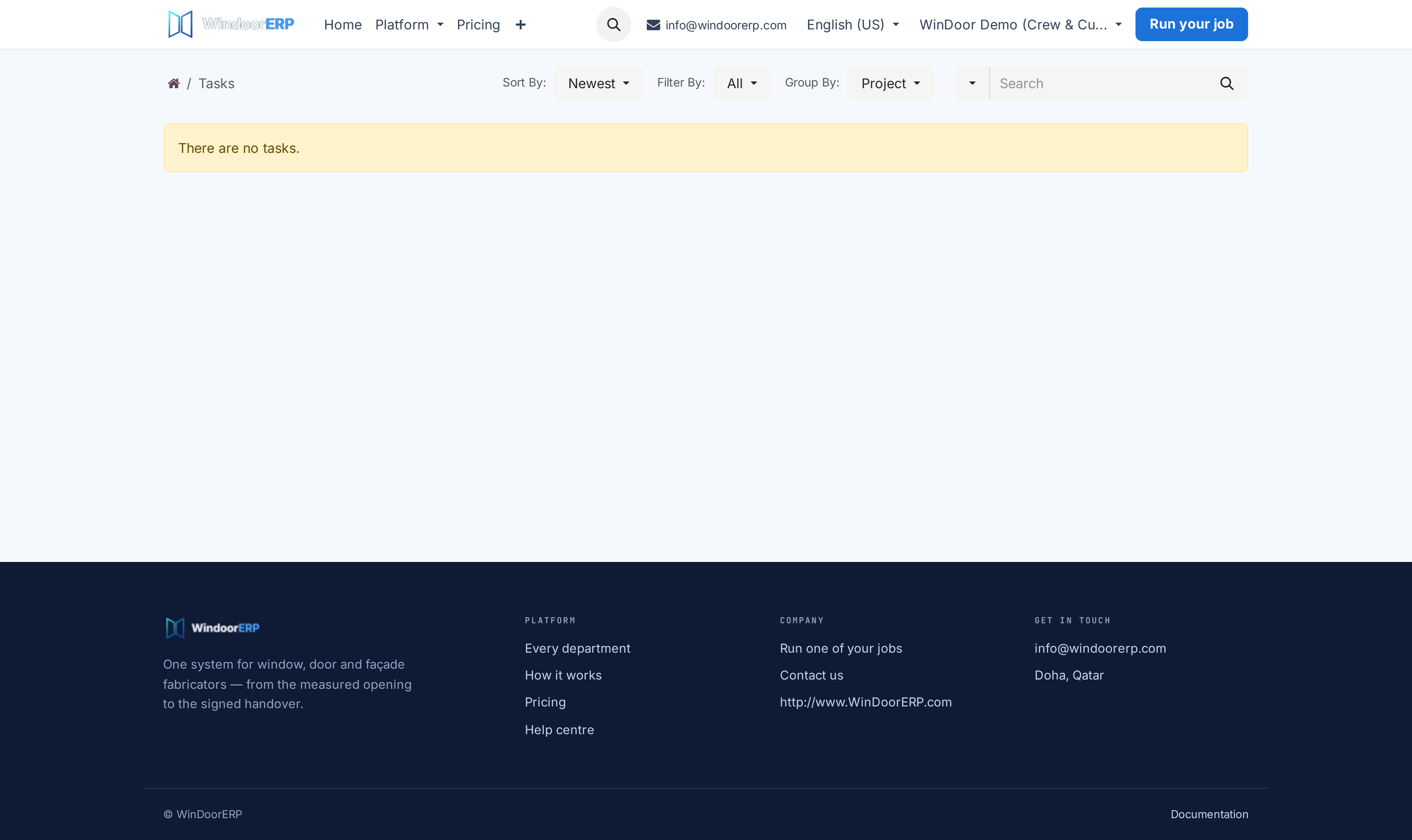
Track project milestones under My Projects and My Tasks.
-
04
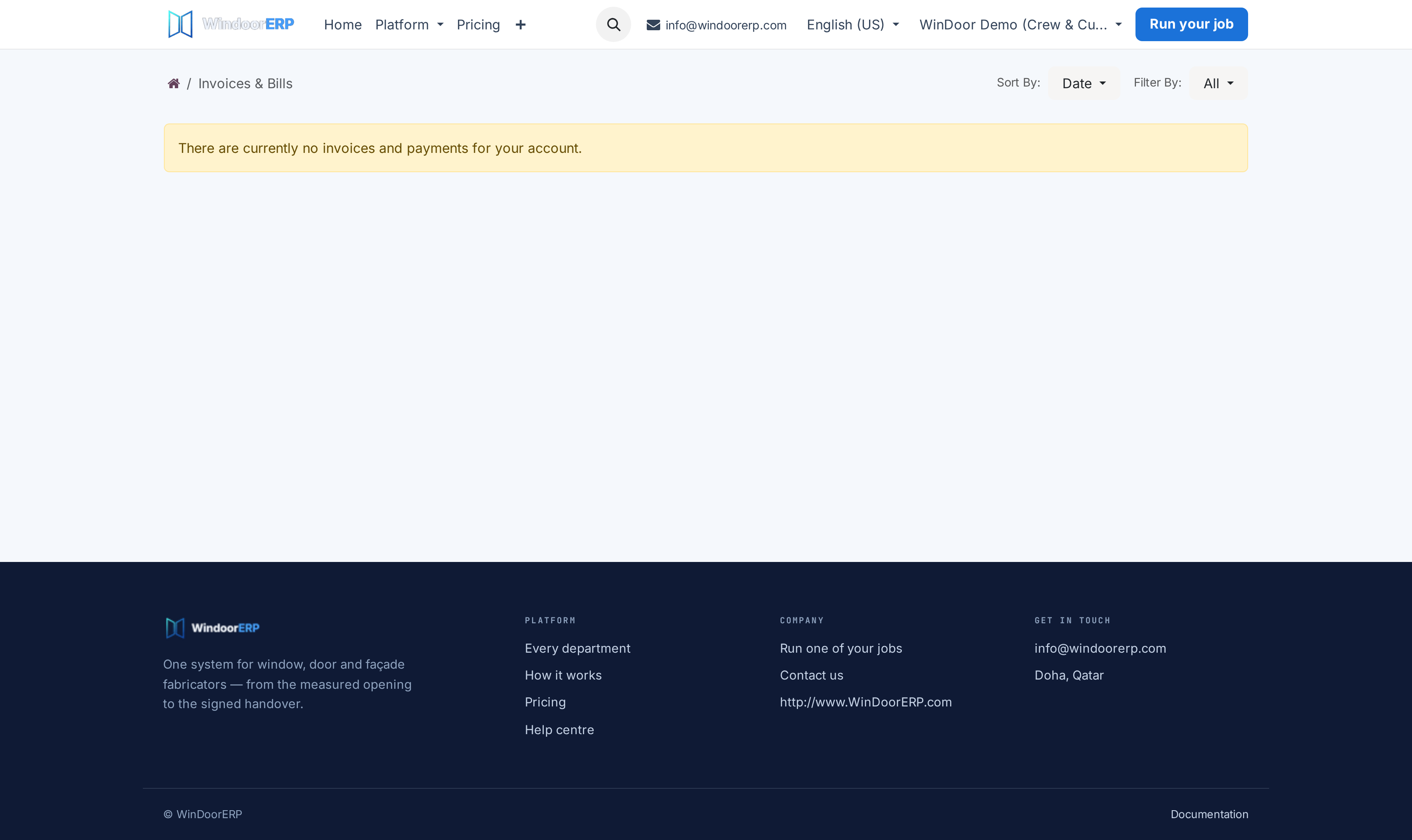
Download tax invoices and execute online card payments under My Invoices.
-
05
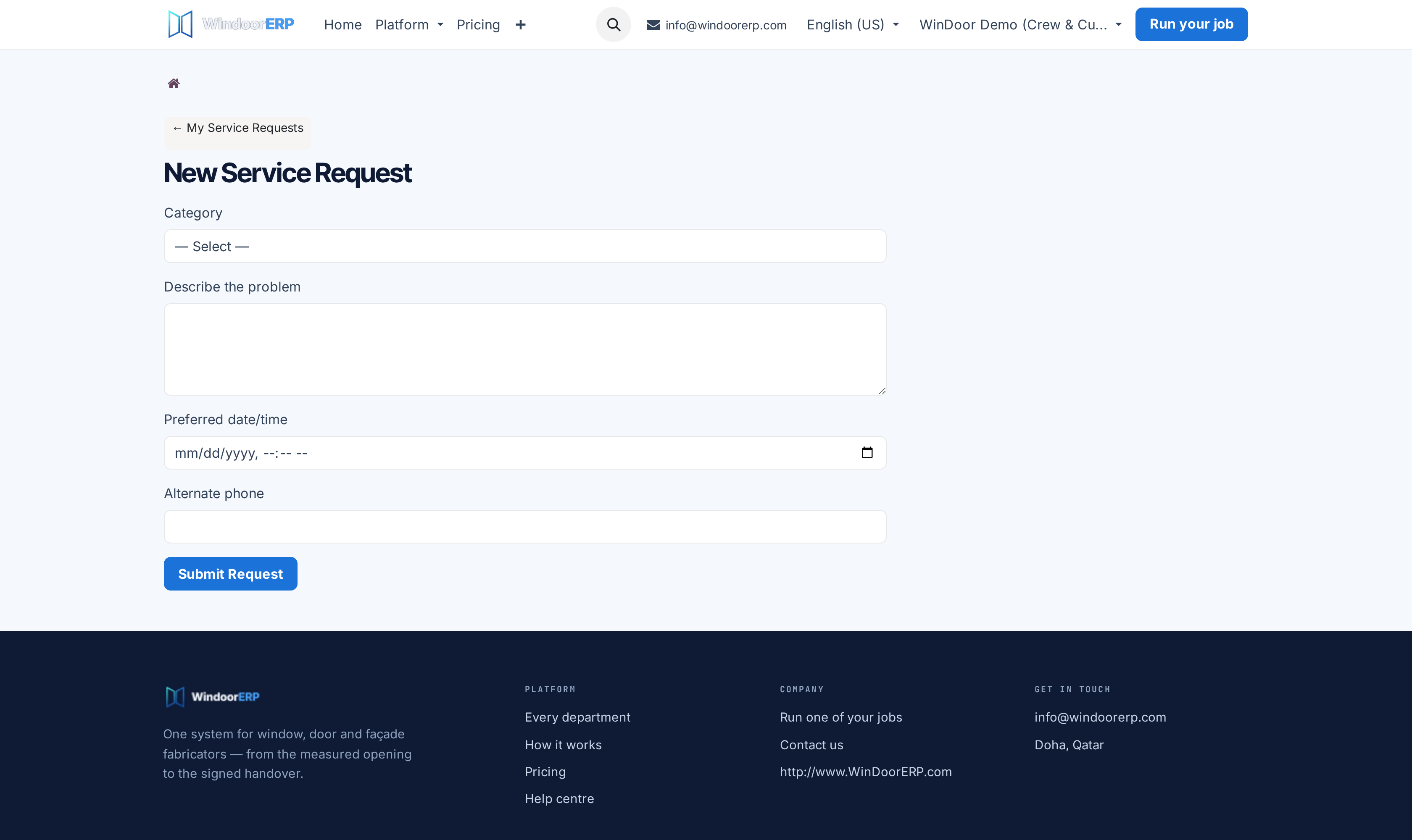
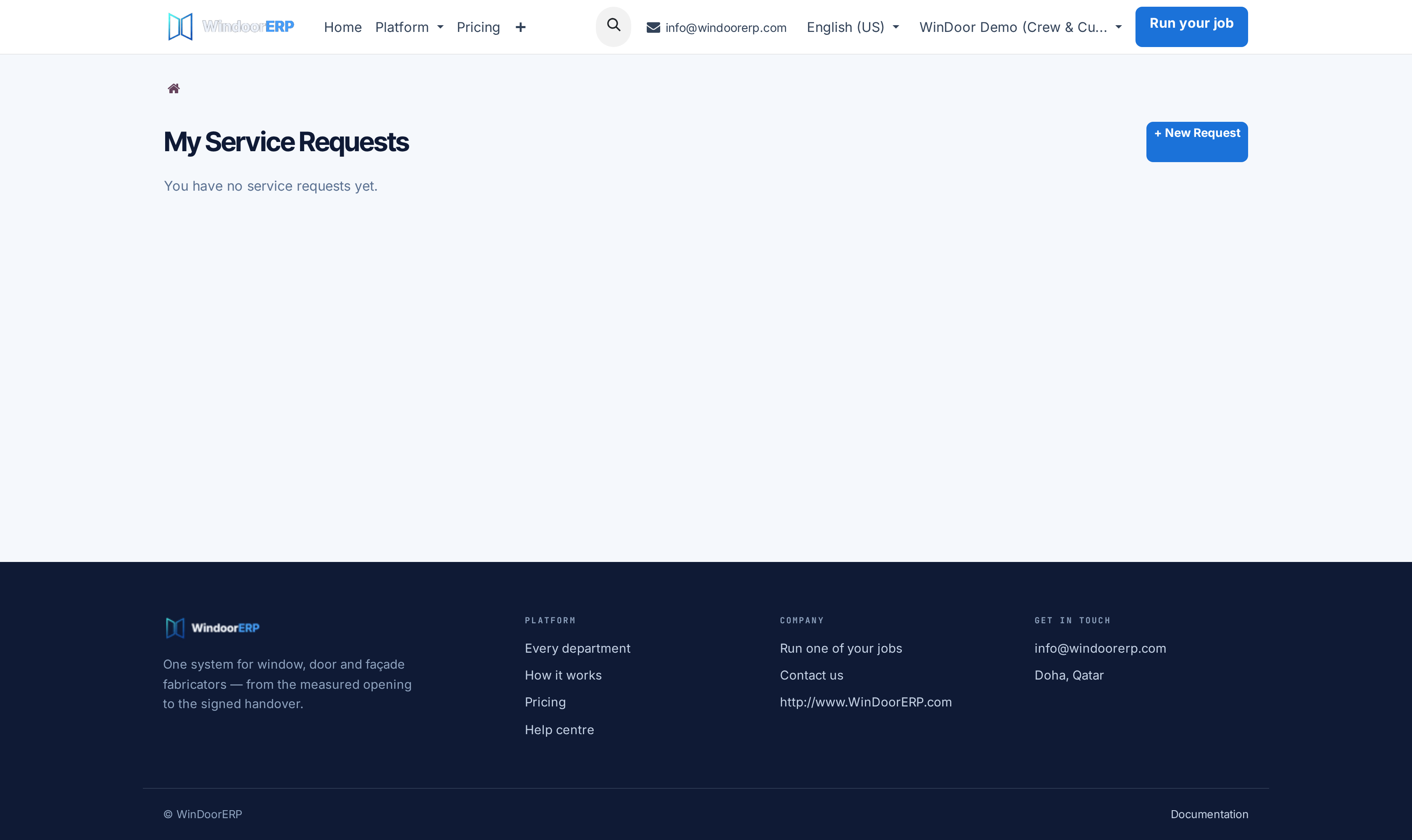
Submit warranty maintenance tickets under Log a Service Request and track repairs in After-Sales Services.
Common mistakes
- Failing to publish approved CAD elevation drawings to the customer portal.
- Leaving warranty service tickets unacknowledged on the customer portal for over 24 hours.
Checkpoint
A customer signs in and can answer their own question about status, price and what happens next.