Decide which units leave first
What this does
When the same product sits in several places or arrived on several dates, the removal strategy decides which units the picker is told to take. It is set once and applies to every picking after that.
Steps
When both are set, the category wins. When neither is set, FIFO is used.
For companies with warehouses, removal strategies determine which products are taken from the warehouse, and when. For example, for perishable products, prioritizing the picking of goods with the nearest expiration date helps minimize food spoilage.
The following columns in the table below list the removal strategies available in WindoorERP, and detail how pickings are determined and the picking order. Leverage these removal strategies to have WindoorERP automatically select how products are selected for orders:
| FIFO | LIFO | FEFO | Closest Location | Least Packages | |
|---|---|---|---|---|---|
| Based on | Incoming date | Incoming date | Removal date | Location sequence | Package quantity |
| Selection order | First in | Last in | First to expire | Alphanumeric name of location | Quantity closest to fulfilling demand |
For comprehensive examples of how to use each removal strategy, refer to each individual documentation page.
Note
FIFO is the default removal strategy. When a removal strategy is not set for the location or the product category, FIFO is used.
-
01
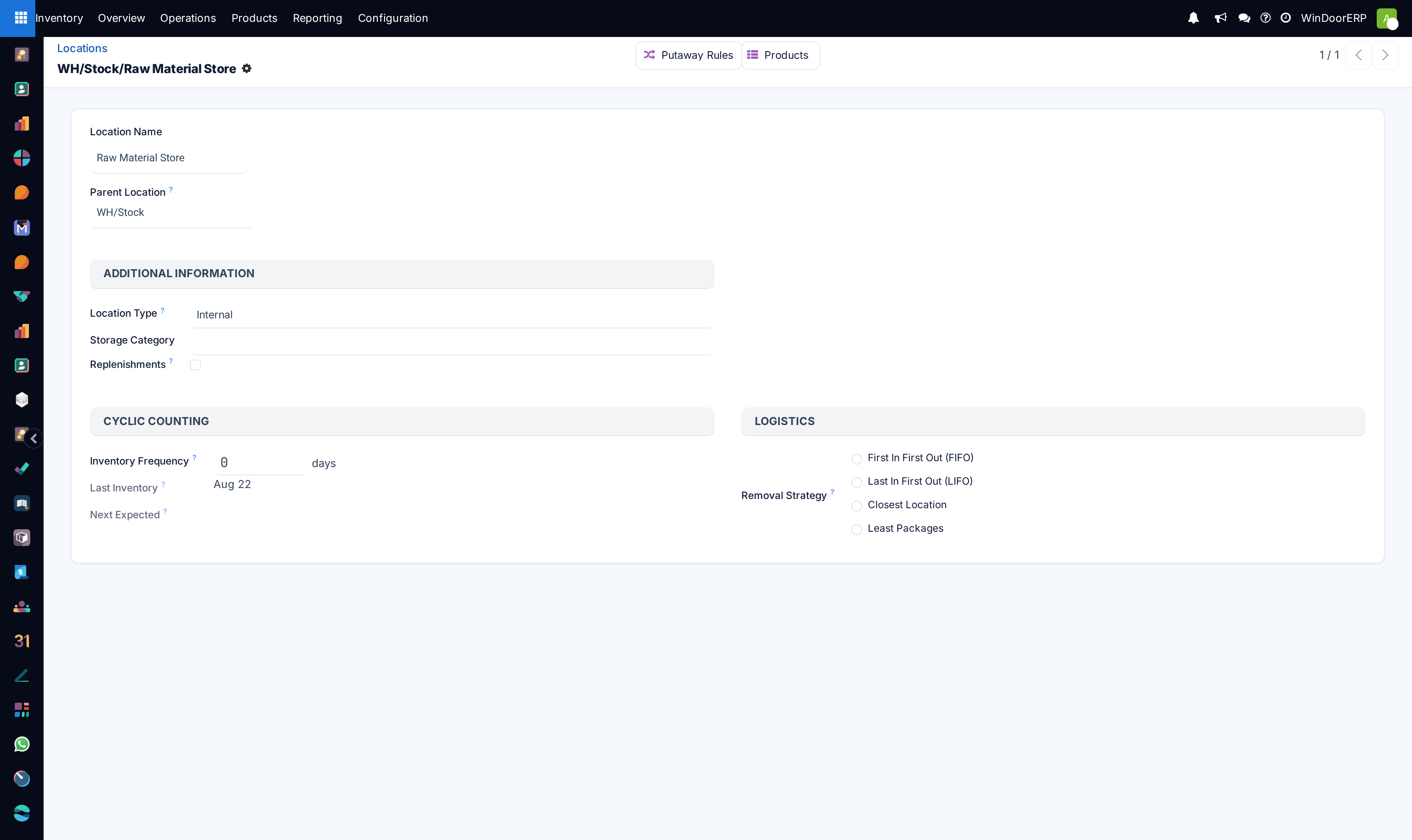
To set it on a location: go to Inventory › Configuration › Locations, open the location, and choose a Removal Strategy. This needs Storage Locations and Multi-Step Routes enabled.
-
02
To set it on a product category: go to Inventory › Configuration › Categories, open the category, and choose a Force Removal Strategy.
-
03
Save.
Configuration
Removal strategies are set at either the product category or the storage location level.
Configure removal strategies on the location by going to Inventory › Configuration › Locations, and selecting the desired location. On the location form, choose a removal strategy from the Removal Strategy field's drop-down menu options.
Important
To set a removal strategy on a location, the Storage Locations and Multi-Step Routes settings must be enabled in Inventory › Configuration › Settings.
These features are only necessary when setting the removal strategy for a location.
Configure removal strategies on product categories by going to Inventory › Configuration › Categories, then selecting the intended product category. Next, choose a removal strategy from the Force Removal Strategy drop-down menu options.
Important
When different removal strategies are applied to both the location and product category for a product, the value set in the Force Removal Strategy field on the category form takes priority.
Required features
While some removal strategies are available by default, some additional features must be enabled in Inventory › Configuration › Settings for the removal strategy option to appear in the drop-down menu of the Force Removal Strategy or Removal Strategy field.
Refer to the table below for a summary of required features. Otherwise, refer to the dedicated sections for the removal strategy for more details on requirements and usage.
| FIFO | LIFO | FEFO | Closest Location | Least Packages | |
|---|---|---|---|---|---|
| Required features | Lots & Serial Numbers | Lots & Serial Numbers | Lots & Serial Numbers, Expiration Date | Storage Locations, Multi-Step Routes | Packages |
Lots and serial numbers
Lots and serial numbers differentiate identical products and track information like arrival or expiration dates. To enable this feature, navigate to Inventory › Configuration › Settings. Under the Traceability heading, check the box beside Lots & Serial Numbers to enable the feature.
Next, ensure the intended product is tracked by lots or serial numbers by navigating to the product form through Inventory › Products › Products, and selecting the desired product. On the product form, switch to the Inventory tab, and under the Tracking field, select either the By Unique Serial Number or By Lots options.
After enabling the features, assign lot or serial numbers to products using an inventory adjustment or during product reception.
Locations and routes
Storage locations and multi-step routes are necessary features for setting all types of removal strategies on a location. However, these features are specifically required for the closest location removal strategy, as it is applied at the location level.
To activate these features, navigate to Inventory › Configuration › Settings. Under the Warehouse heading, enable the Storage Location and Multi-Step Routes features.
Expiration date
Enable the expiration date feature to track expiration dates, best-before dates, removal dates, and alert dates on a lot or serial number by navigating to Inventory › Configuration › Settings.
Under the Traceability heading, ensure the Lots & Serial Numbers feature is selected, and then select the check box for Expiration Dates to enable the feature.
Packages
The packages feature is used to group products together and is required for the least packages removal strategy.
Navigate to Inventory › Configuration › Settings and select the check box for the Packages feature.
The five strategies
- FIFO — oldest arrival first.
- LIFO — newest arrival first.
- FEFO — nearest removal date first.
- Closest Location — nearest location by name order.
- Least Packages — the package that most nearly covers the demand.
Common mistakes
- Setting a strategy on the location and being surprised the category overrules it.
- Expecting FIFO to work on a product with no lot or serial tracking — without tracking there is nothing to order by.
- Overriding the suggested units at picking time out of habit, which quietly cancels whatever strategy you configured.
Was this article helpful?
Thanks — your feedback helps.
Running a window or door factory?
Ask for a demo