Plan follow-ups: schedule activities, read the leads calendar, and book meetings on a deal
What this does
Every follow-up you owe a customer — the call back, the site measurement, the sample drop, the meeting to sign — is scheduled as an activity on the lead or opportunity it belongs to. This article covers how to schedule one, how the calendar of leads is read, and where a real diary appointment with a customer is booked, which is a different screen from the one most people look for first.
Before you start
- Access to the CRM app, and the Calendar app for meetings.
- Activity types configured at CRM › Configuration › Activities › Activity Types. This is where an activity such as Site Survey or Sample Presentation is defined once, with its default duration, its summary and the note the assignee sees.
Important
Two different things are called "the calendar" in CRM, and confusing them wastes real time:
The calendar view of leads plots the enquiries themselves by the date of their next activity. It is a workload picture. You cannot create anything on it.
The Calendar app holds actual appointments with attendees, times and invitations. It is reached from the Meetings button on the opportunity.
Schedule the next step on a deal
Open the lead or opportunity and use the chatter at the bottom of the form. Anything already scheduled is listed above it under Planned Activities, with a count beside the heading.
The scheduled activity now drives the colour of the deal everywhere: green while planned, amber on the day it is due, red once overdue. That colour is what the pipeline's progress bars and the Late, Today and Future Activities filters are built on.
Note
A deal with no scheduled activity is invisible to every follow-up view in the system. It is not "clean" — it is unmanaged. Closing an activity without scheduling the next one is the most common way a live enquiry goes quiet for a month.
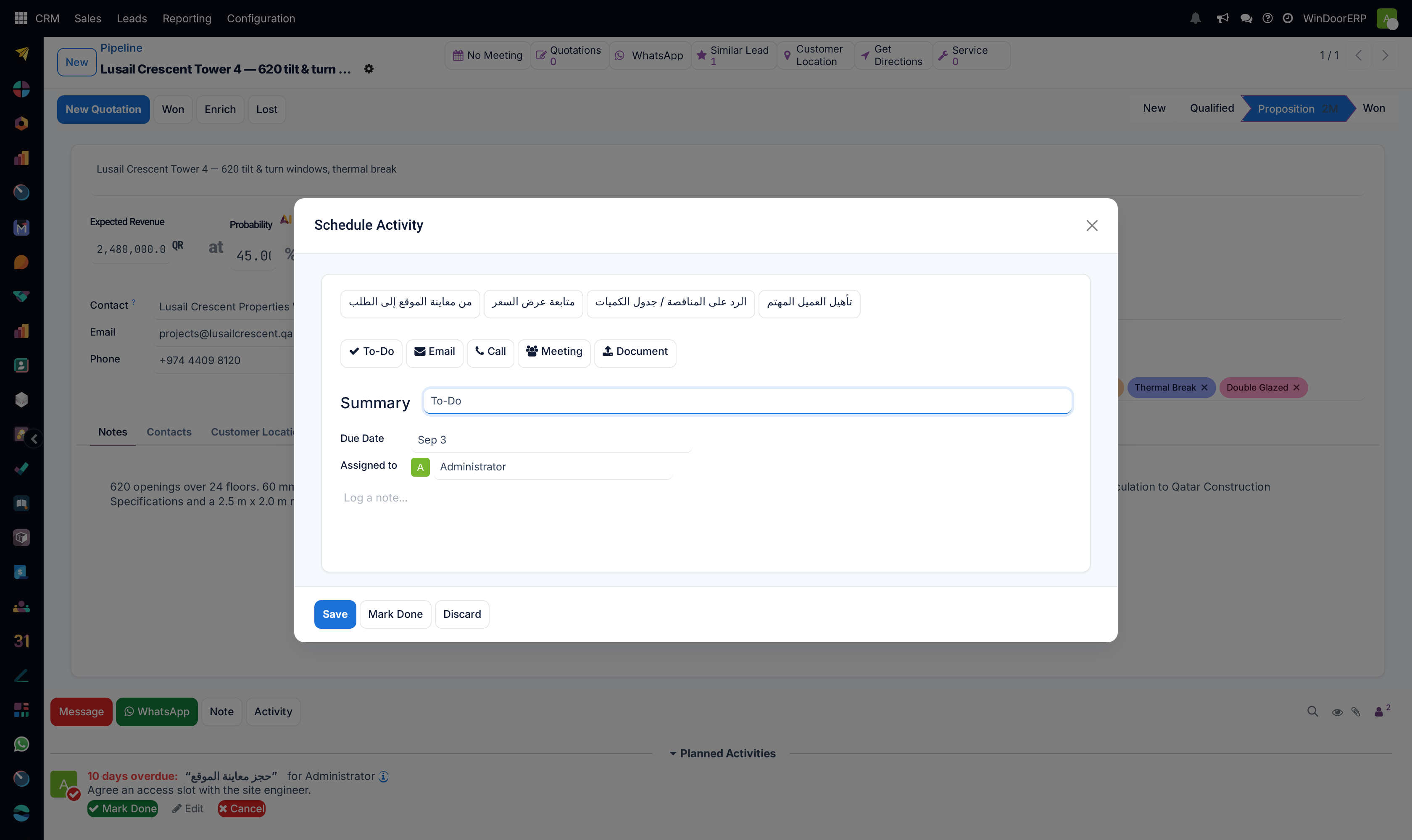
-
01
Click Activity.
-
02
Pick the type from the badges at the top — call, email, meeting, to-do, or any type your administrator has added such as Site Survey. Where a type has been chained to a previous one, the likely next steps appear as Recommended Activities above them.
-
03
Write the Summary — one line, because this is what shows on the Kanban card and in the activity lists. The placeholder shows the expected style: e.g. Discuss Proposal.
-
04
Set the Due Date. This is the date the deal is sorted and coloured by everywhere else in CRM.
-
05
Set Assigned to. It defaults to you; hand it to the surveyor or the estimator when the next step is theirs.
-
06
Add the note the assignee will need, and click Schedule. Reopening an activity that already exists shows Save instead.
The calendar of leads
From CRM › Leads or the pipeline, switch to the calendar view using the view switcher at the top right.
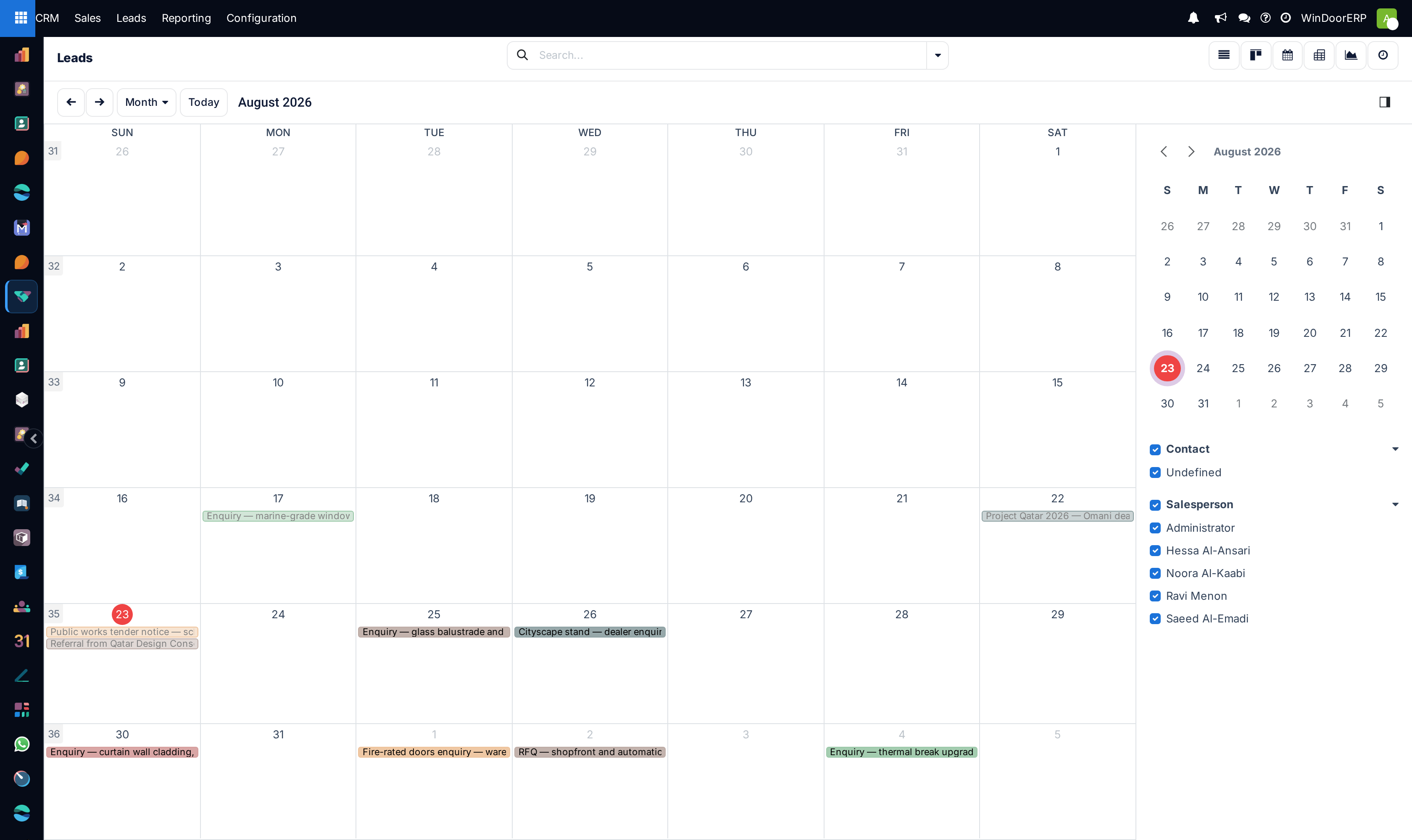
What you are looking at is the enquiries themselves, each placed on the date of its next activity and coloured by the salesperson who owns it. Read it for load and for gaps, not as a diary.
| On the screen | What it does |
|---|---|
| Month / Week / Day | The scale selector at the top left, with Today and the arrows beside it. |
| An entry | One lead or opportunity, shown on its next-activity date. Click it to open the record. |
| Colour | The responsible salesperson. |
| Side panel — mini calendar | Jump to any date. |
| Side panel — Contact | Filter the board to particular customers. |
| Side panel — Salesperson | Tick and untick people to compare one person's week against another's. This is the fastest way to see that one estimator is carrying three times the visits of everyone else. |
| Empty slots | Clicking one does nothing. This view is read-only by design: an enquiry is scheduled by giving it an activity, not by drawing on the calendar. |
Booking an actual meeting
When the appointment is a real event with a time and attendees — a showroom consultation, a site visit with the client present, a contract signing — open the opportunity and click the Meetings smart button at the top of the form.
That opens the Calendar app already filtered to this opportunity, and a meeting created there arrives prefilled: the opportunity as the subject and link, its customer as an attendee alongside you, and its sales team. The calendar also opens on the period where this deal's meetings actually are, rather than on today, so an appointment three weeks out is on screen when you arrive.
Once a meeting exists, the smart button shows its date, so the next appointment on a deal is visible from the form without opening anything.
Example
A villa enquiry needs a laser measurement before it can be quoted. Schedule a Site Survey activity assigned to the surveyor with a due date — that puts the deal on the surveyor's activity list and on the leads calendar. Then, if the customer must be present, use Meetings to book the actual slot, so the customer receives an invitation and the visit occupies real time in the surveyor's diary.
Seeing everything you owe
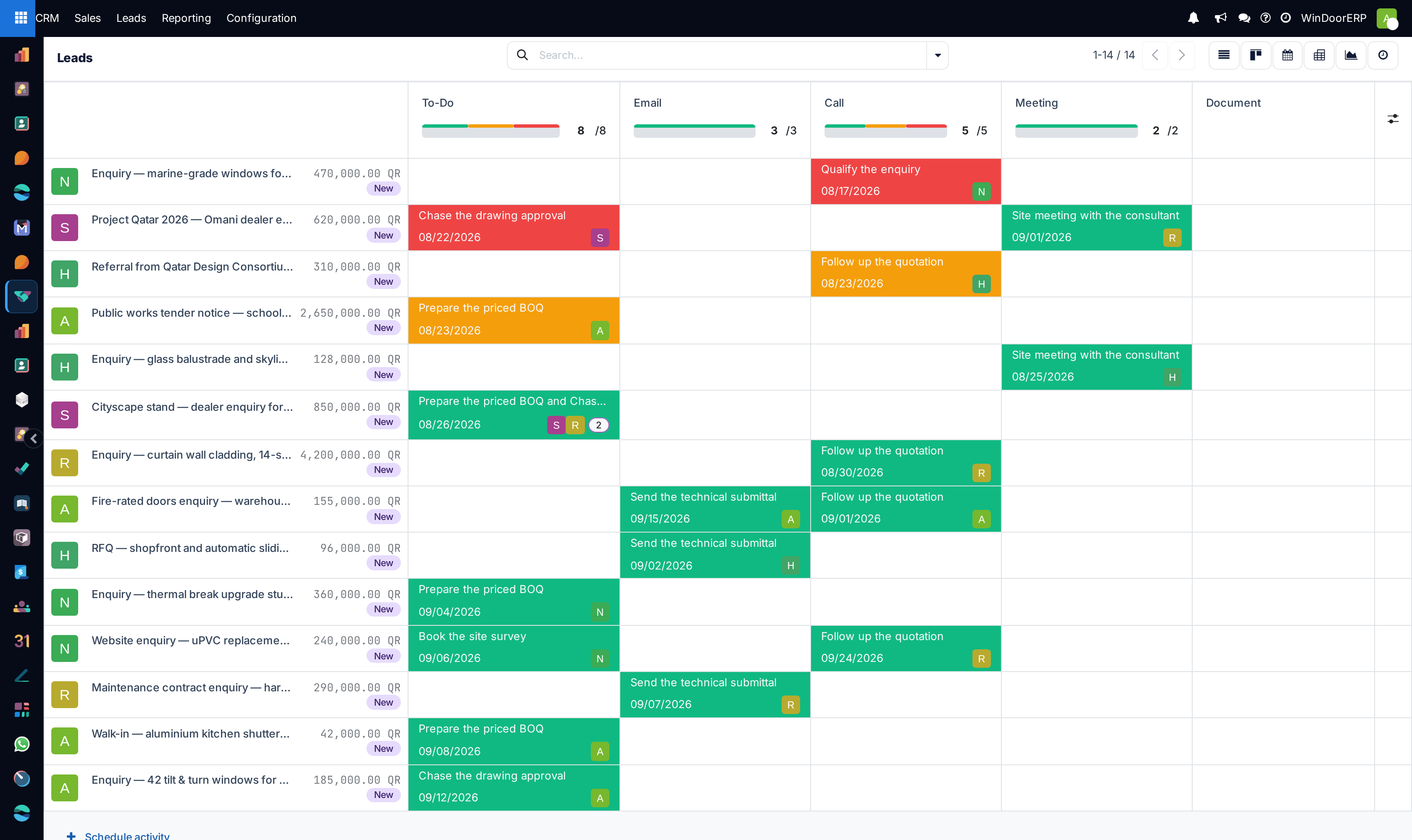
CRM › Sales › My Activities collects every activity assigned to you across all your deals, in list, Kanban, calendar, pivot, graph or activity view. Managers can group it by salesperson to see the team's committed workload.
The activity view — the clock icon in the view switcher — is the densest of them: deals down the side, activity types across the top, and a coloured cell wherever something is pending, so an entire team's outstanding follow-ups fit on one screen.
Common mistakes
- Trying to create an appointment by clicking an empty slot on the leads calendar. Nothing happens — that view cannot create, and the time is booked from the Meetings button instead.
- Marking an activity done without scheduling the next one — use Done & Schedule Next in the Mark Done popover instead, or the deal drops out of every follow-up filter until it resurfaces as rotting.
- Booking a site survey as a personal calendar entry with no link to the opportunity, so the deal itself still shows no scheduled activity.
- Leaving every activity assigned to yourself when the work belongs to the surveyor or the estimator — their activity list stays empty and the visit is not planned.
- Writing the whole brief into the summary line. The summary is what shows on the card; the detail belongs in the note underneath it.
Was this article helpful?
Thanks — your feedback helps.
Running a window or door factory?
Ask for a demo