Work the sales pipeline: stages, won and lost, rotting deals, and merging duplicate enquiries
What this does
The pipeline is the board every open deal sits on. Each opportunity is a card, each column is a stage, and moving a card is how the deal advances. This article covers the board itself — reading a card, moving it, winning and losing it, spotting the duplicate enquiries that arrive when an owner and a main contractor both call about the same villa, and merging them into one record.
Before you start
- Access to the CRM app. A salesperson sees their own pipeline; a manager sees the team's.
- Stages that match how you actually sell. They are configured at CRM › Configuration › Pipeline › Stages and shared across teams unless you restrict them.
Open the board
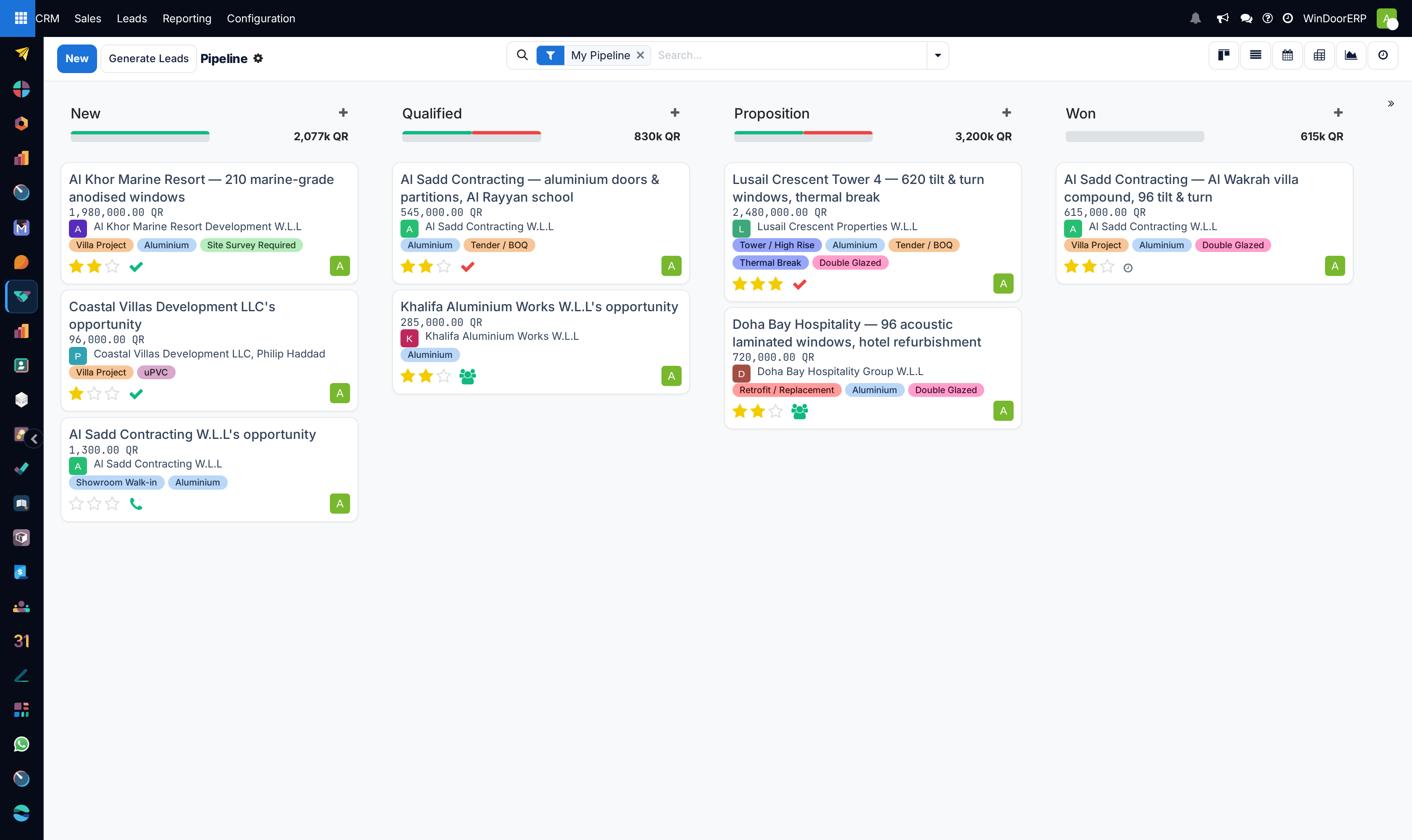
Go to CRM › Sales › My Pipeline. The Kanban opens grouped by Stage, one column per stage. Empty stages still appear as columns, so the board always shows the full path a deal travels rather than only the stages that happen to be occupied.
Above the cards in each column runs a thin progress bar. It splits the column by the state of each deal's next activity — green for planned, amber for due today, red for overdue — and the figure beside it totals the Expected Revenue of that column. Click a colour to filter the column down to just those deals; click again to release it.
Reading a card
| On the card | What it tells you |
|---|---|
| Title | The opportunity name — write it as the job, e.g. 620 tilt & turn windows, thermal break, not just the customer. |
| Customer | The linked contact, with its avatar. |
| Amount | Expected Revenue in the company currency. |
| Tags | Colour-coded classification — Villa Project, Tender / BOQ, Thermal Break, Site Survey Required. Configured at CRM › Configuration › Pipeline › Tags. |
| Stars | Priority. Click a star on the card to set it without opening the deal. |
| Activity icon | The next scheduled action — a phone, an email, a meeting, a tick. Its colour repeats the progress-bar state. |
| Avatar | The salesperson responsible. |
| Lost ribbon | A red Lost banner across the corner of a deal that was marked lost. |
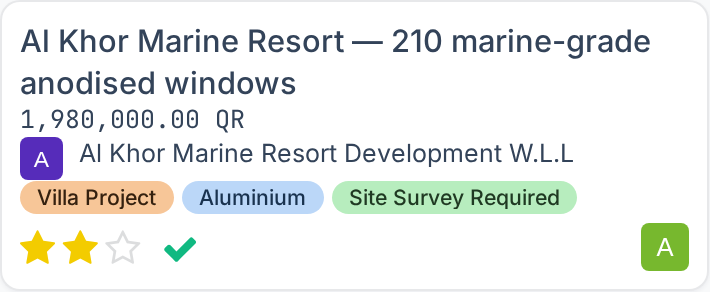
The three-dot menu on a card holds Edit, Delete and a colour picker for highlighting a card by eye.
Working the board
Note
A stage can be marked Is Won Stage? and can be Folded in Pipeline so it collapses to a narrow strip. A stage also carries Requirements — internal text that appears as a tooltip over the stage name, which is where you write what has to be true before a deal may enter it.

-
01
Drag a card to the next column when its milestone is met. The stage change is written to the deal's chatter with a timestamp.
-
02
Click New at the top of a column to add a deal without leaving the board. The quick-create form asks only for the essentials; press Add to place it, or Edit to open the full form.
-
03
Open a card to fill in the detail: contact, expected revenue, expected closing date, tags, and the notes that make the next call useful.
-
04
Schedule the next step from the activity icon at the bottom of the card, or from the chatter inside the deal. A deal with no next activity is a deal nobody is working.
-
05
Click Won in the header of the opportunity when the contract is signed.
-
06
Click Lost when it goes elsewhere, and fill in the wizard.
Marking a deal lost
The Lost button opens a small wizard:
| Field | Meaning |
|---|---|
| Lost Reason | Picked from the list at CRM › Configuration › Pipeline › Lost Reasons. This is the field the win/loss analysis groups by, so a short controlled list beats free text. |
| Lost Feedback | Rich text — what the customer actually said. Posted to the deal so it survives in the record. |
Confirm with Mark as Lost. The deal keeps its stage and its history, gains a red ribbon, and drops out of the default Kanban. A lost deal can be brought back with the Restore button on its form. To mark several at once, tick them in the list view and use Mark Lost in the list header.
Deals that have gone quiet
Each stage carries Days to rot. When a deal sits in that stage for longer without any update, it is flagged as rotting: the stage bar on the form shows how long it has been stuck, and the Rotting filter in the search panel collects every such deal. Set the threshold to 0 on a stage to switch the behaviour off there.
Important
Changing Days to rot does not restate deals that were last updated before the change. The new threshold applies from that point forward, so a fresh setting takes a cycle to become meaningful.
Duplicate enquiries and merging
The same project reaches you twice: the villa owner emails, and a week later the main contractor calls about the same job. WindoorERP flags the overlap by itself.
A Similar Leads smart button — a star with a count — appears at the top of a lead or opportunity as soon as at least one potential duplicate is found. Clicking it opens exactly those records so you can compare them. Matching is on three criteria, and any one is enough:
- the same email domain,
- the same commercial entity — the contact belongs under the same parent company,
- the same phone number, compared after normalisation, so formatting differences do not hide a match.
Archived records are included, and the search stops counting above about twenty matches: the button is a flag that duplicates exist, not an exhaustive list.
To merge:
- Open the pipeline or the leads list and switch to list view.
- Tick the records to combine.
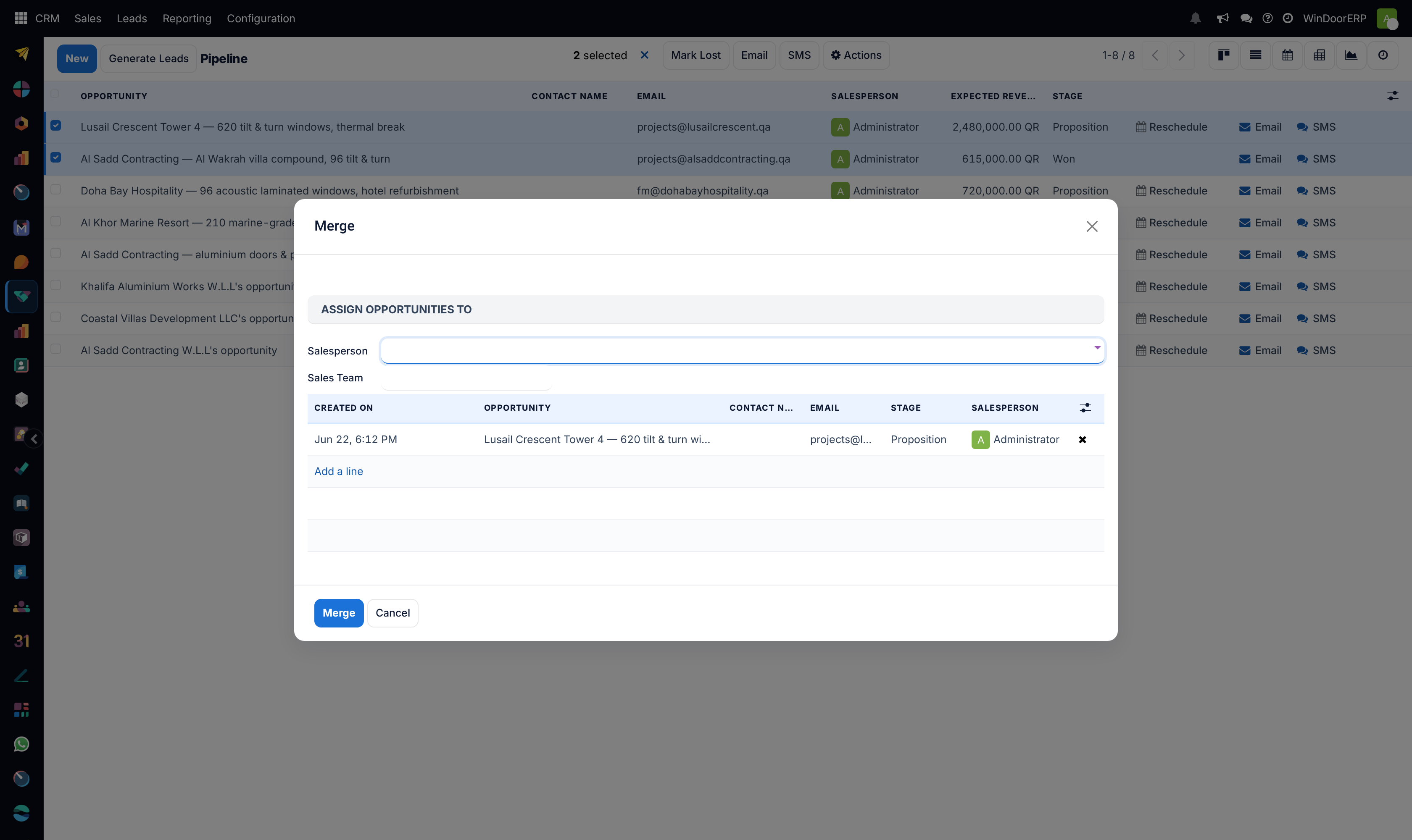
- Open the ⚙ Actions menu above the list and choose Merge.
- In the wizard, set the Salesperson and Sales Team the merged record should belong to, and check the list of records being combined — create date, name, contact, email, stage and salesperson are shown for each.
- Click Merge.
One record survives and carries the others' chatter, attachments, emails and scheduled activities. The merged-away records are gone from the pipeline, so make sure the list in the wizard is the list you meant.
Important
Merging cannot be undone. Read the wizard's list before confirming — an opportunity dragged in by a shared email domain (two enquiries from the same consultancy about different buildings) is a real risk, and the duplicate finder deliberately errs towards showing too much.
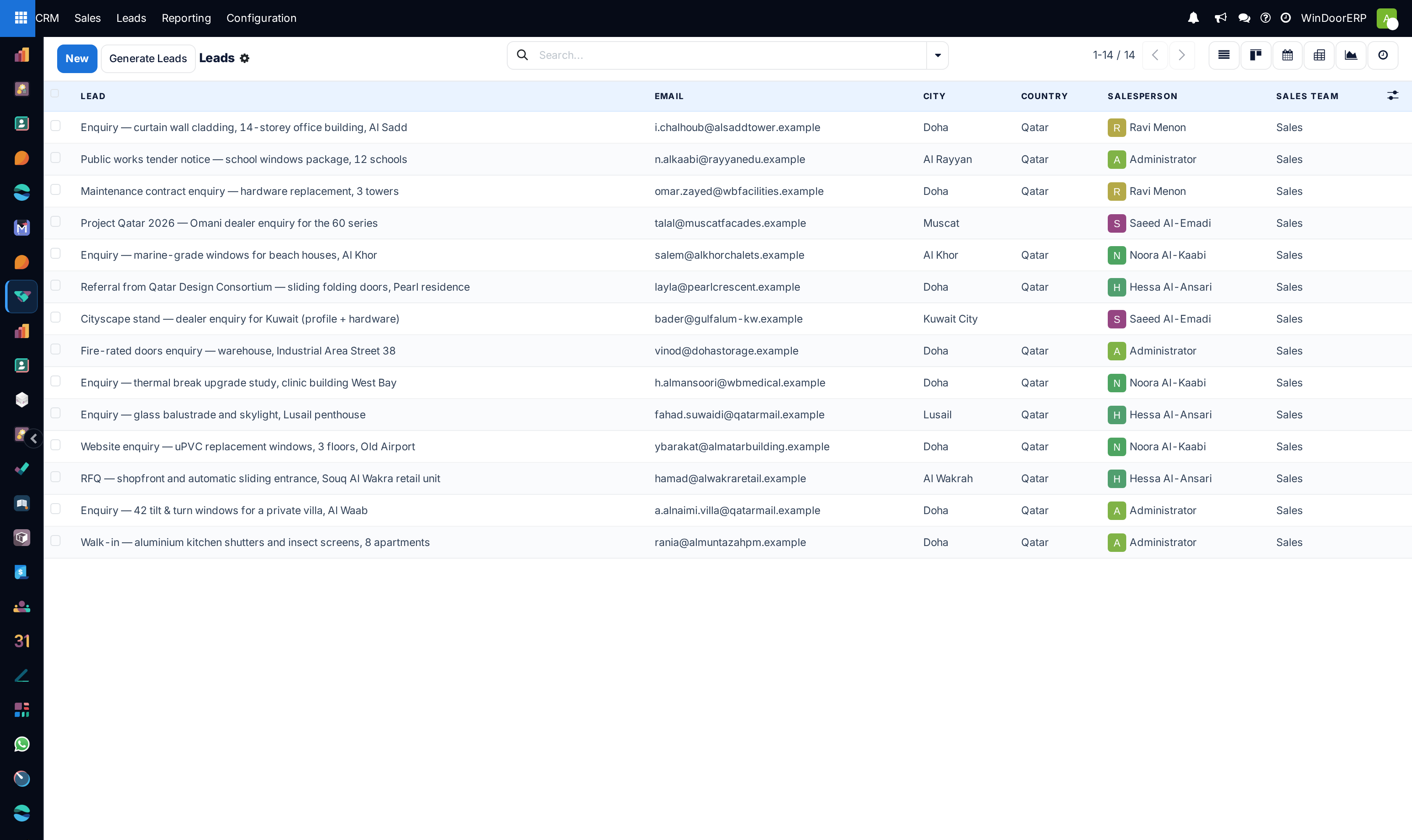
The same deals as a list
Switch to the list view when you want to compare rather than move. Lost deals are greyed out, and the list is multi-editable: tick several rows, change a value in one, and it applies to all of them.
Shown by default: contact name, email, salesperson, expected revenue, expected MRR and stage. Add any of these with the (adjust settings) icon at the right of the column titles — create date, contact, phone, company, city, state, country, sales team, priority, next activity, campaign, medium, source, expected closing, recurring revenue and plan, probability, lost reason, tags.
The list header carries Mark Lost and Email for acting on a selection at once.
Finding things on the board
The search panel ships with filters worth knowing by name: My Pipeline, Unassigned, Open Opportunities, Unread Messages, Won, Ongoing, Rotting, Lost, Overdue Opportunities, and the activity trio Late, Today and Future Activities.
Group by salesperson, sales team, stage, city, country, lost reason, company, campaign, medium, source, or any of the dates — creation, conversion, expected closing, closed.
Example
Unassigned + group by Sales Team shows which team is sitting on enquiries nobody has picked up.
Rotting + group by Salesperson is the Monday-morning list for a sales manager.
Common mistakes
- Leaving a deal in New after the site survey is done — the board stops describing reality and the forecast goes with it.
- Working a deal with no next activity scheduled. It disappears from every follow-up filter and resurfaces as a rotting card weeks later.
- Creating a second opportunity for a villa already in the pipeline because the contractor called, instead of checking the Similar Leads button.
- Merging on the strength of the count without reading the wizard's list, and losing a genuinely separate project from the same consultancy.
- Marking a deal lost with no Lost Reason, which empties the win/loss analysis of the one field it groups by.
- Using tags as a second stage. Stages are the path; tags describe the job.
Was this article helpful?
Thanks — your feedback helps.
Running a window or door factory?
Ask for a demo