Qualify leads and convert them into opportunities linked to the right customer account
What this does
A lead is a raw enquiry — a website form, a showroom walk-in, a tender notice, a phone call — that nobody has qualified yet. An opportunity is a deal on the pipeline with a value, a stage and an owner. This article covers the queue of raw enquiries, what to check before promoting one, and the conversion wizard field by field, including how it links the enquiry to the right contractor or consultancy account instead of creating yet another duplicate contact.
Before you start
- The Leads stage must be switched on at CRM › Configuration › Settings. Without it there is no CRM › Leads menu at all: every incoming enquiry is created straight as an opportunity on the pipeline.
- Sales teams and salespeople set up, so the conversion has somewhere to assign the deal.
Note
The setting decides what new records are. A user who has the Leads feature creates leads by default; a user without it creates opportunities directly. That is the whole difference between the two paths — a lead is not a lesser record, it is the same record before qualification.
The leads queue
Open CRM › Leads. Every unqualified enquiry sits here until someone acts on it. The Kanban shows the same card layout as the pipeline; the list view is usually the faster place to triage.
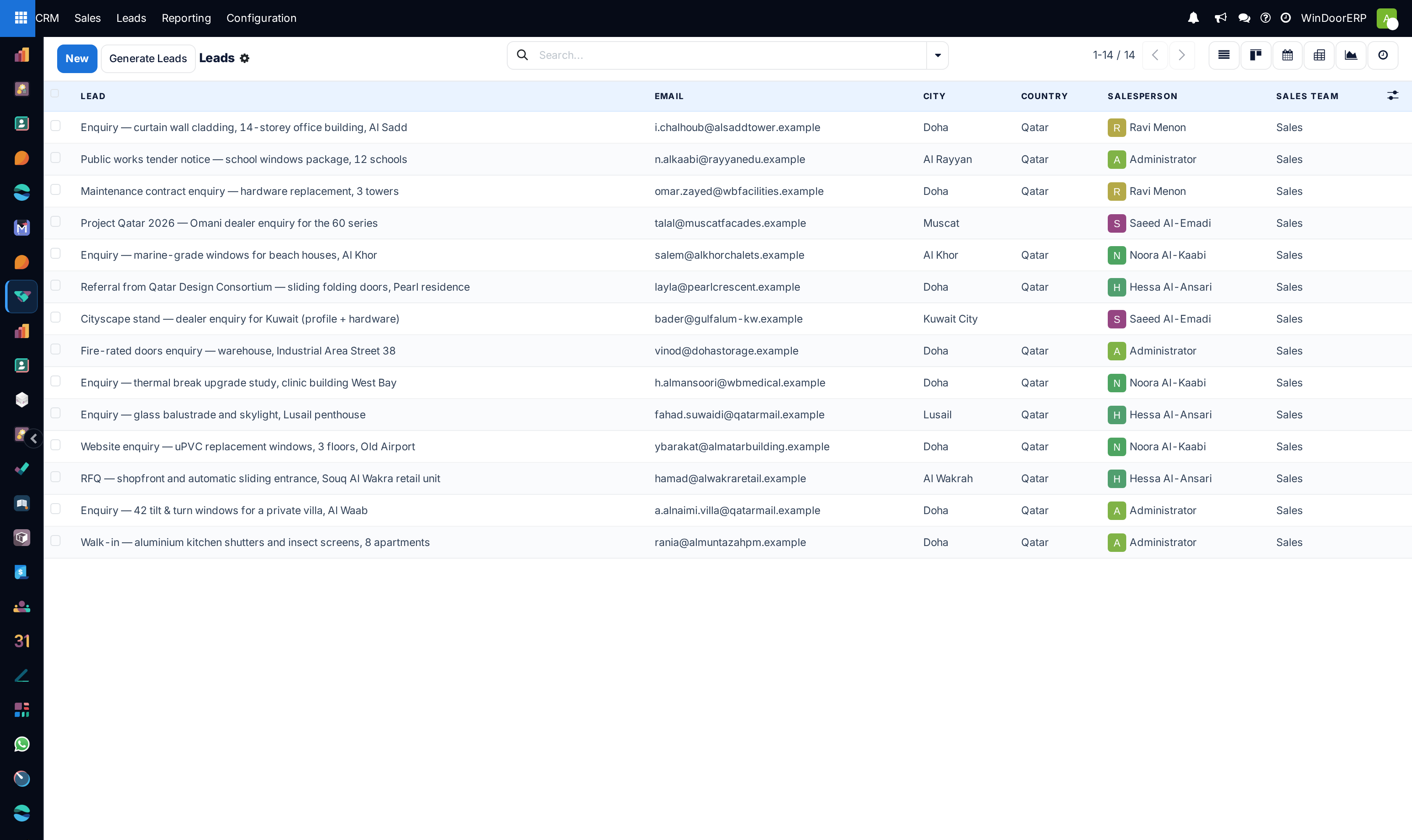
Columns shown by default are the enquiry name, email, city, country, salesperson and sales team. Add contact name, company name, phone, campaign, medium, source, tags, priority or probability with the (adjust settings) icon at the right of the column titles.
Two filters carry most of the triage work: Unassigned, for enquiries nobody owns yet, and the activity filters, for enquiries somebody owns but nobody has touched.
What to check before converting
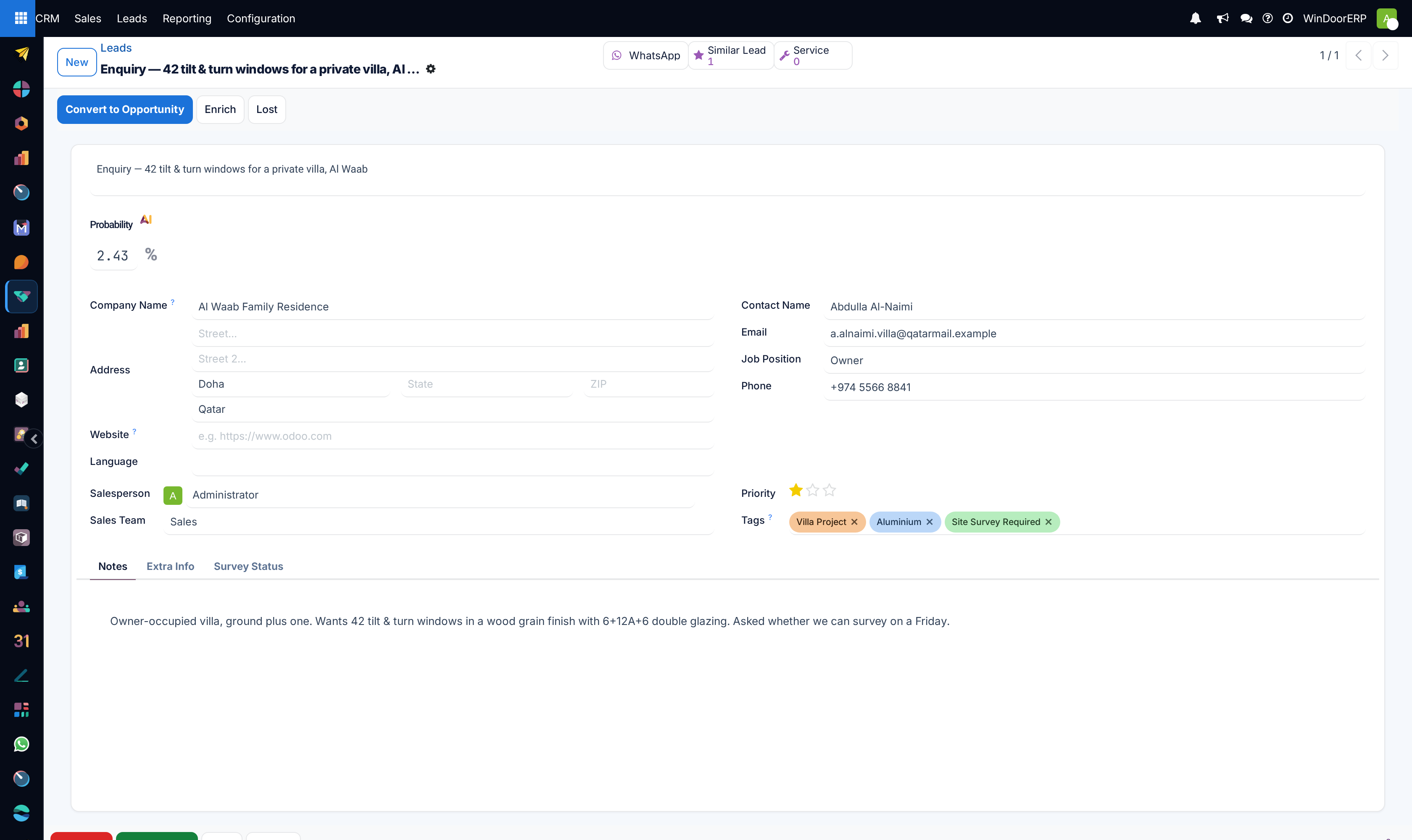
Open the lead and read it as the thing you will have to quote:
| Field | Why it matters at this point |
|---|---|
| Contact Name | The person who wrote in. It becomes the contact on the customer record if you create one. |
| Company Name | The company that will be created on conversion if you choose to create a customer. Getting it right here is what prevents a duplicate account later. |
| Email / Phone | Both are matched against existing records by the duplicate finder, and both are what the conversion uses to find an existing customer. A blacklisted or badly formed address is flagged beside the field. |
| Street, City, State, Zip, Country | The site address. It is also what the geographic filters and any territory rules work from. |
| Tags | Classification you will want on the opportunity — Villa Project, Tender / BOQ, Retrofit / Replacement. |
| Priority | Stars. Set it here; it carries across. |
| Expected Revenue | Even a rough figure is worth entering before conversion — an opportunity with no value is invisible to every forecast. |
| Salesperson / Sales Team | Who will own it. The conversion wizard can change this, but setting it here keeps the assignment history clean. |
The Notes tab holds the free description — the profile series asked for, the opening schedule, whatever the customer sent. The Extra Info tab, which exists only on leads, carries the marketing attribution:
| Field | Meaning |
|---|---|
| Campaign | The campaign that produced the enquiry. |
| Medium | How it arrived — email, web, phone, exhibition. |
| Source | Where it came from — the website form, a specific portal, a referral. |
| Referred By | Free text: the architect, consultant or existing customer who sent them. |
| Assignment Date / Closed Date | Read-only, under Analysis. When the lead was assigned and when it closed. |
Important
Check the Similar Leads star button at the top of the form before converting. If the same site has already reached you through another route, the right action is to merge — converting first creates a second opportunity for one project, and the pipeline value is then wrong by the size of the duplicate.
Convert to Opportunity
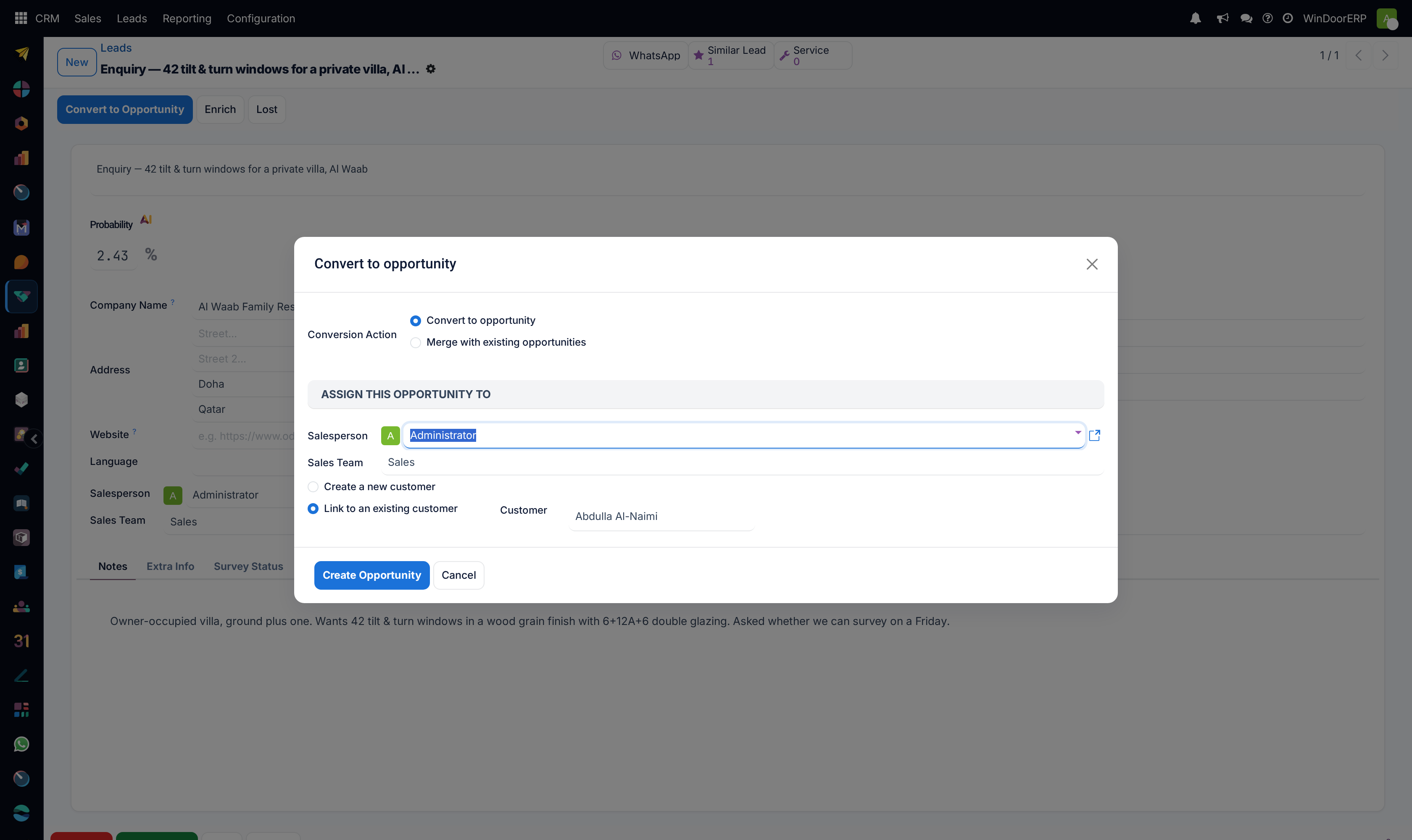
Click Convert to Opportunity in the header. The wizard has three parts, and what it shows depends on the first choice.
| Field | Meaning |
|---|---|
| Conversion Action | Two radio options: Convert to opportunity creates a new deal; Merge with existing opportunities folds this enquiry into one that already exists. The wizard preselects merge when it has found duplicates, so read this line rather than clicking past it. |
| Salesperson | Under "Assign this opportunity to". Internal users only — a portal or shared user cannot own a deal. |
| Sales Team | The team the opportunity belongs to. It drives the pipeline the deal appears on and the stages available to it. |
| Opportunities | Shown in merge mode only: the records that will be combined, listed with create date, name, contact name, country, email, stage and salesperson. This is your last chance to untick something that does not belong. |
| Related Customer | Shown in convert mode only. Two radio options: Create a new customer or Link to an existing customer. |
| Company | Shown when creating a customer. The company record to create the contact under; leave it empty and the placeholder reads "Don't link to a company", which creates a standalone individual. |
| Customer | Shown when linking, and required then. Search by name — the picker can display tax IDs, which is the reliable way to tell two similarly named contracting companies apart. |
Confirm with Create Opportunity.
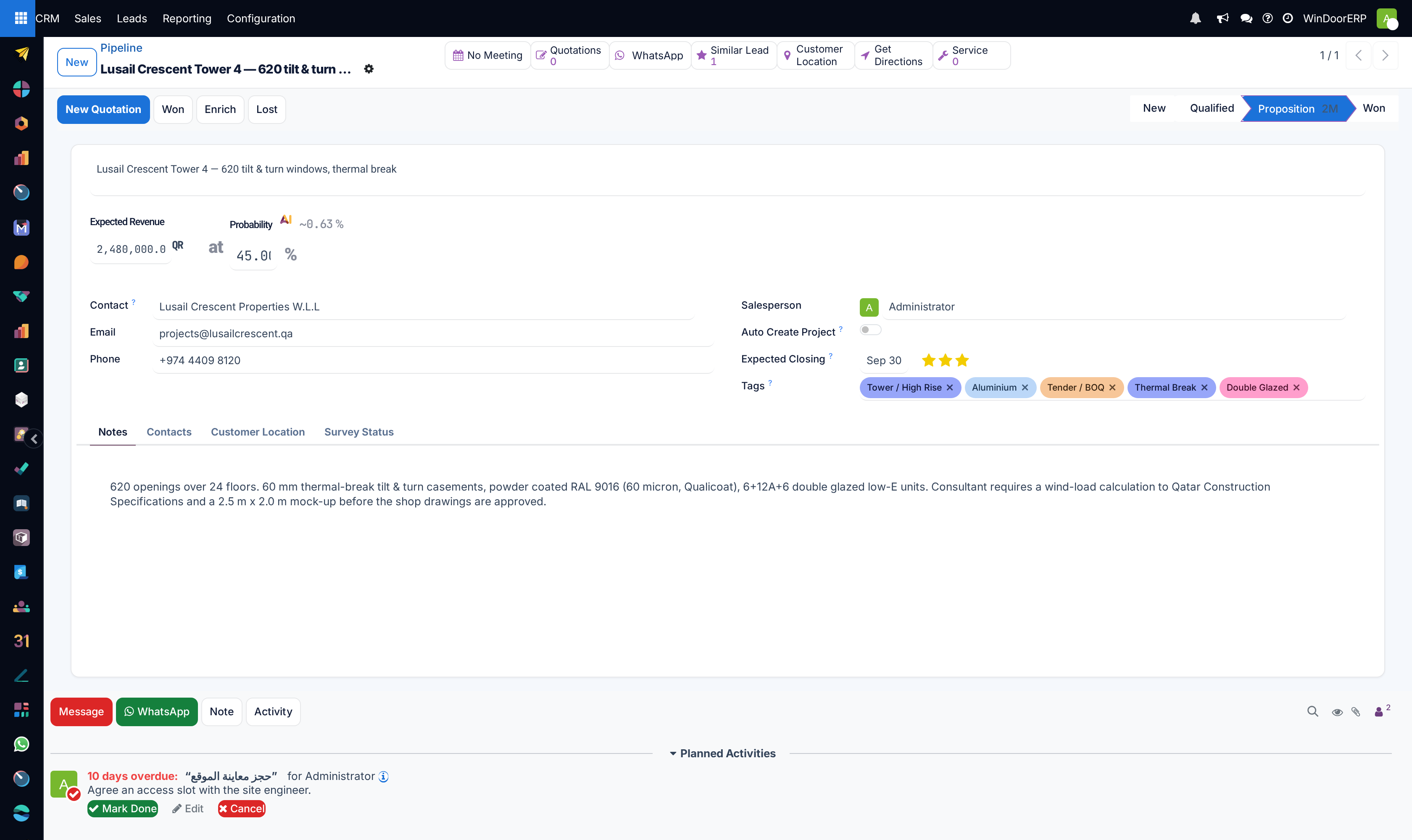
Everything on the lead follows it across: the chatter with its whole email thread, the attachments, the scheduled activities, the tags, the priority and the marketing attribution. The Conversion Date is stamped on the record, and the deal lands in the first unfolded stage available to its sales team.
Example
A tender notice arrives by email from a consultancy you already sell through. Convert it, choose Link to an existing customer, and pick the consultancy. The deal now sits under the same account as every previous project with them, so the account history — past quotations, won and lost jobs — is one click away when you price this one.
Converting several at once
Select several leads in the list or Kanban and choose Convert to opportunities from the ⚙ Actions menu. This is a different wizard from the single-lead one, and its extra options matter:
| Field | Meaning |
|---|---|
| Conversion Action | As before: convert, or merge. |
| Apply deduplication | On by default. Each selected enquiry is merged with the existing leads and opportunities of the same customer instead of becoming a separate deal. This is the single most consequential checkbox in CRM — leave it on to clean up a batch, turn it off when the selection genuinely contains several distinct projects for the same account. |
| Leads with existing duplicates | Read-only, shown while deduplication is on: exactly which of your selected enquiries have duplicates, and what they are. An empty list means none were found. |
| Sales Team | The team all the resulting opportunities go to. |
| Salespersons | Several, not one — the batch is spread across the users you name rather than dumped on a single person. |
| Force assignment | Off by default here. Left off, an enquiry that already has an owner keeps it; switch it on to reassign everything in the selection regardless. |
| Related Customer | Three options in this wizard: Create a new customer, Link to an existing customer, or Use existing partner or create — which matches each enquiry against existing contacts and only creates one where there is no match. That third option is what you want for a batch of exhibition cards. |
Confirm with Convert to Opportunities.
Important
With Apply deduplication on, converting a batch silently merges records. Read the "Leads with existing duplicates" list first — it is shown for exactly this reason, and merging cannot be undone.
Common mistakes
- Choosing Create a new customer for a contractor already in the database, which produces a second account and splits that customer's history in two.
- Ignoring the preselected Merge with existing opportunities and creating a duplicate deal for a project already on the pipeline.
- Converting with no Expected Revenue, so the deal never appears in the forecast at any value.
- Leaving Company Name empty on a lead that is plainly a company, then creating the customer from the wizard and getting an individual contact with no parent account.
- Converting before checking the site address, so the deal cannot be routed by territory or found by the geographic filters.
- Mass-converting a mixed selection with Apply deduplication left on, and merging away projects that were never duplicates.
Was this article helpful?
Thanks — your feedback helps.
Running a window or door factory?
Ask for a demo