Run one purchase through it
Put one job out to tender
Why this step
Send the same request to several suppliers and compare what comes back on one screen. This is where the pricelists you configured either save you the argument or reveal that they were wrong.
What this does
Guides procurement engineers through creating RFQs for aluminium profile billets, structural glass packs, and multi-point hardware, comparing multi-vendor tenders and converting winning bids into purchase orders.
Before you start
- Purchase User or Procurement Officer access.
Steps
Important
Generating automated RFQs directly from Manufacturing Order material shortages prevents production line stoppages.
-
01
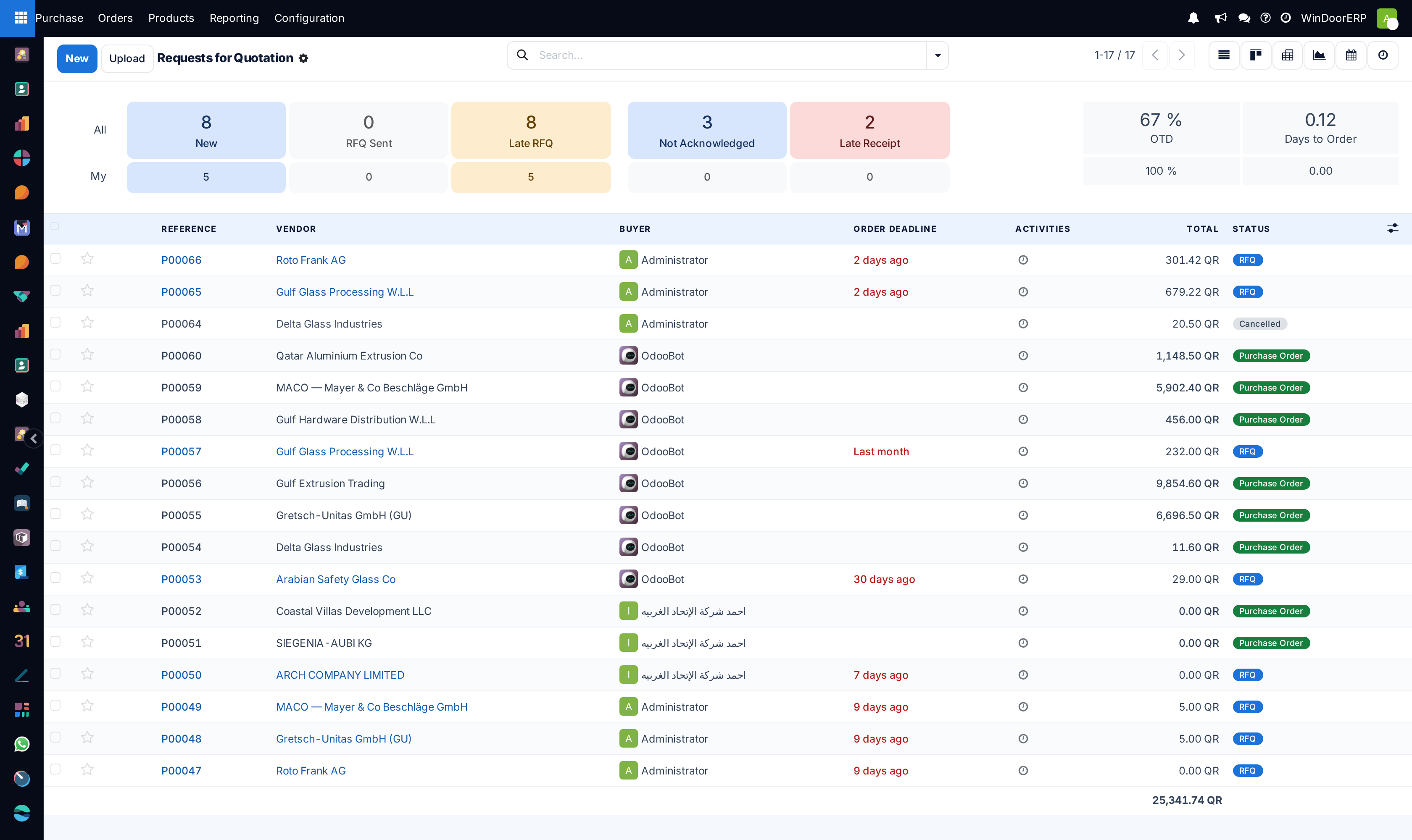
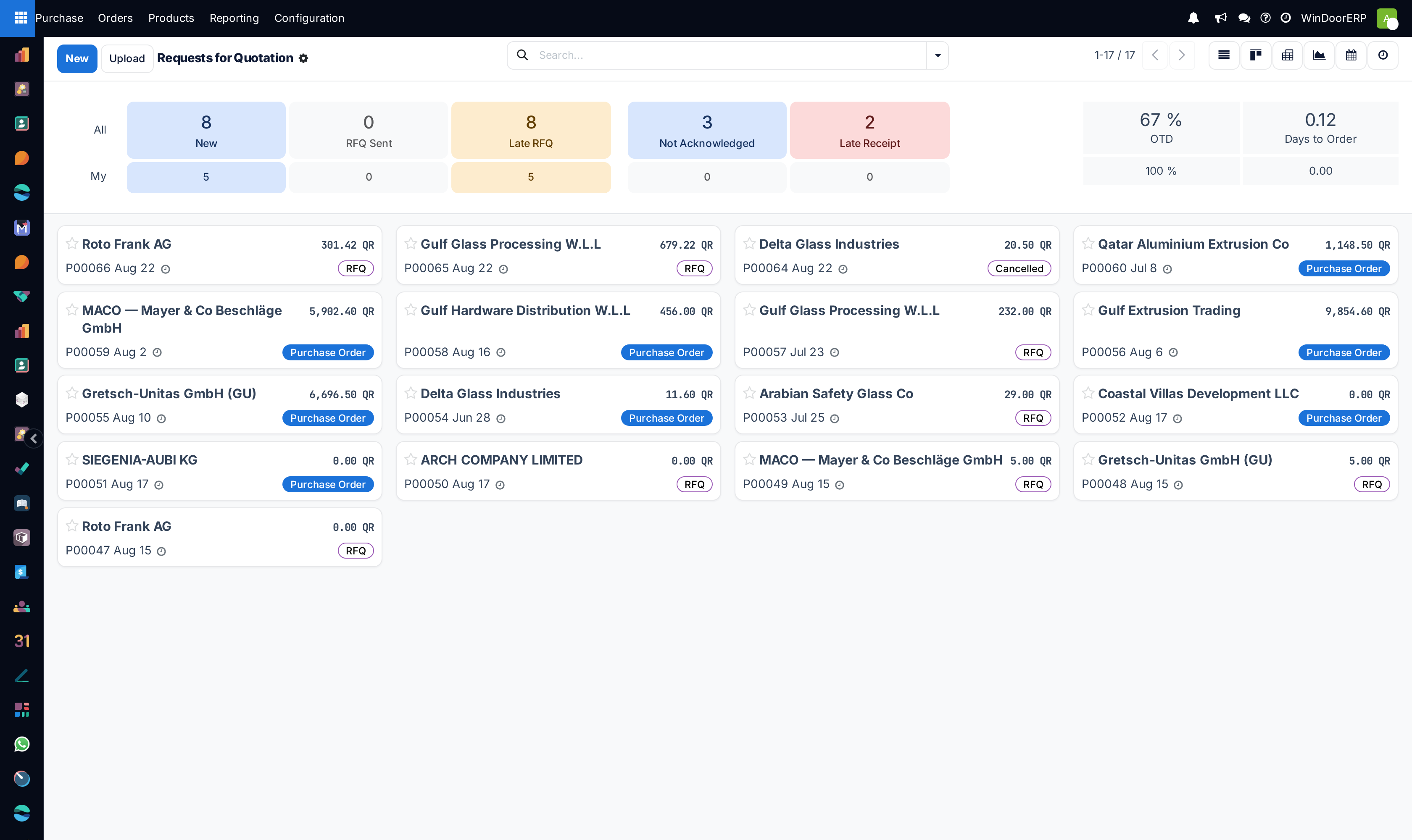
Open Purchase › Orders › Requests for Quotation and click New.
-
02
Select the Vendor, specify the Order Deadline, and set the expected Receipt Date.
-
03
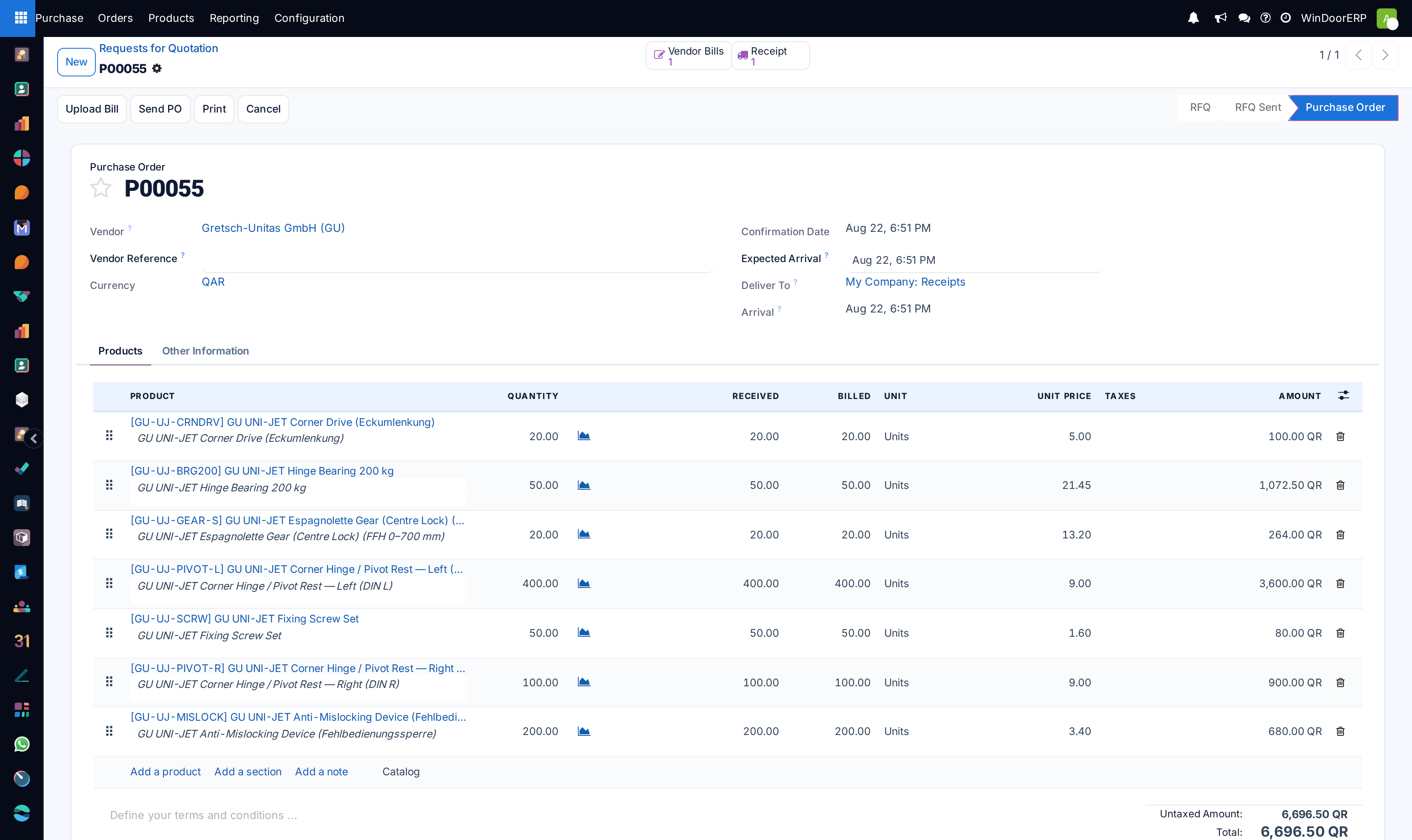
Under Products, add required extrusion profiles, glass packs (e.g. 6mm Low-E Glass Sheets 3.2m × 2.4m), EPDM rubber gaskets, or motorized hardware accessories.
-
04
Enter quantity, unit price (or leave blank for supplier quote), and target delivery warehouse.
-
05
Click Send by Email to deliver the automated RFQ document to suppliers with an online portal response link.
-
06
Once supplier bids are received, record their offered unit rates, payment terms, and lead times.
-
07
Use Call for Tenders / Alternative RFQs to compare bids side-by-side and select the best price/quality vendor.
-
08
Click Confirm Order to approve the winning quote and generate an official Purchase Order (PO).
Common mistakes
- Confirming purchase orders without specifying exact alloy extrusion temper grades (e.g. 6063-T6).
- Not entering supplier reference codes on RFQs, causing miscommunication with international vendors.
Checkpoint
Several supplier responses to one request sit side by side, and you can justify the one you chose.