Print and account for time
Design the labels and name the delays
Why this step
Two small settings with long shadows: the label template the floor scans, and the list of reasons a station was not producing. Without the second, downtime is a number you cannot act on.
What this does
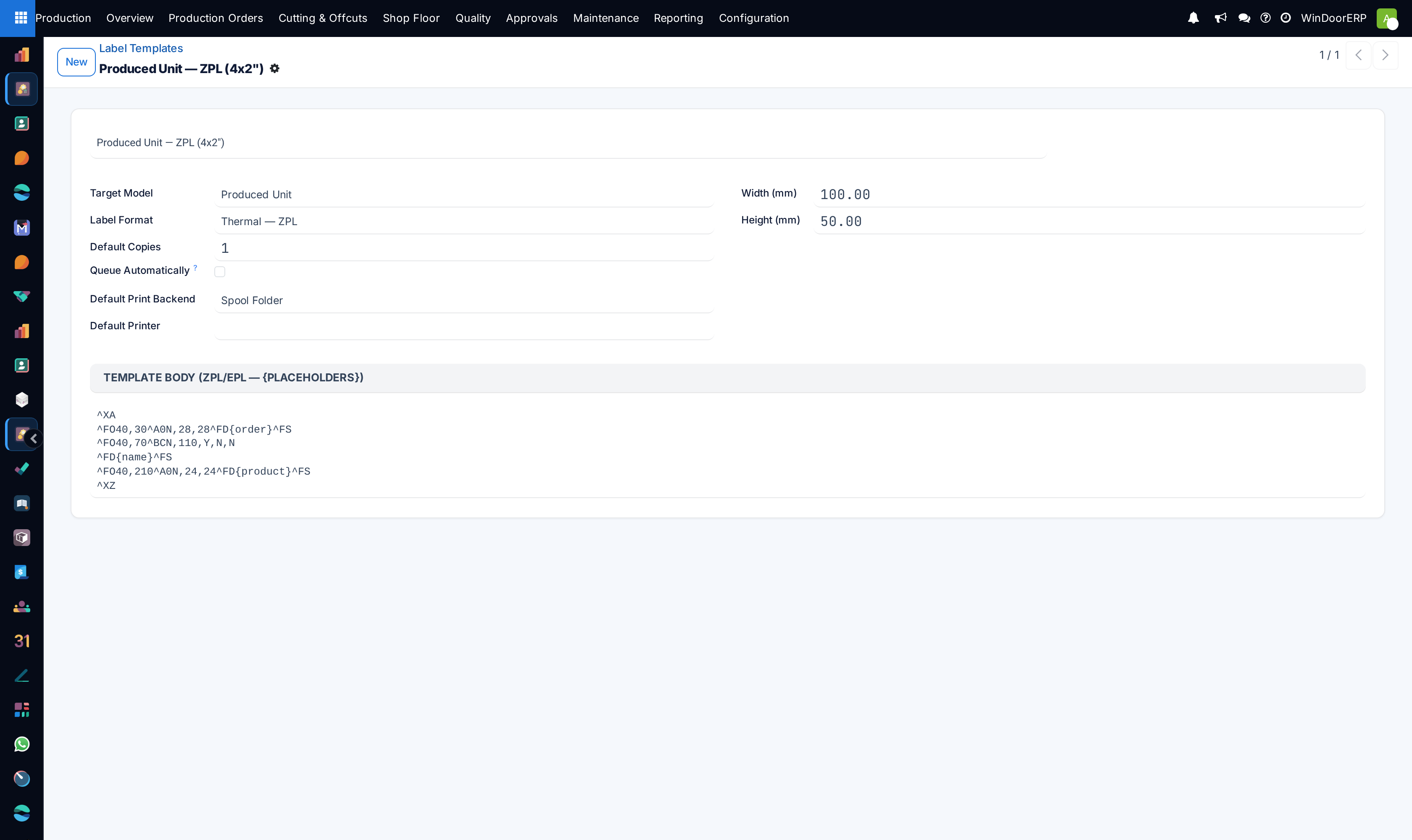
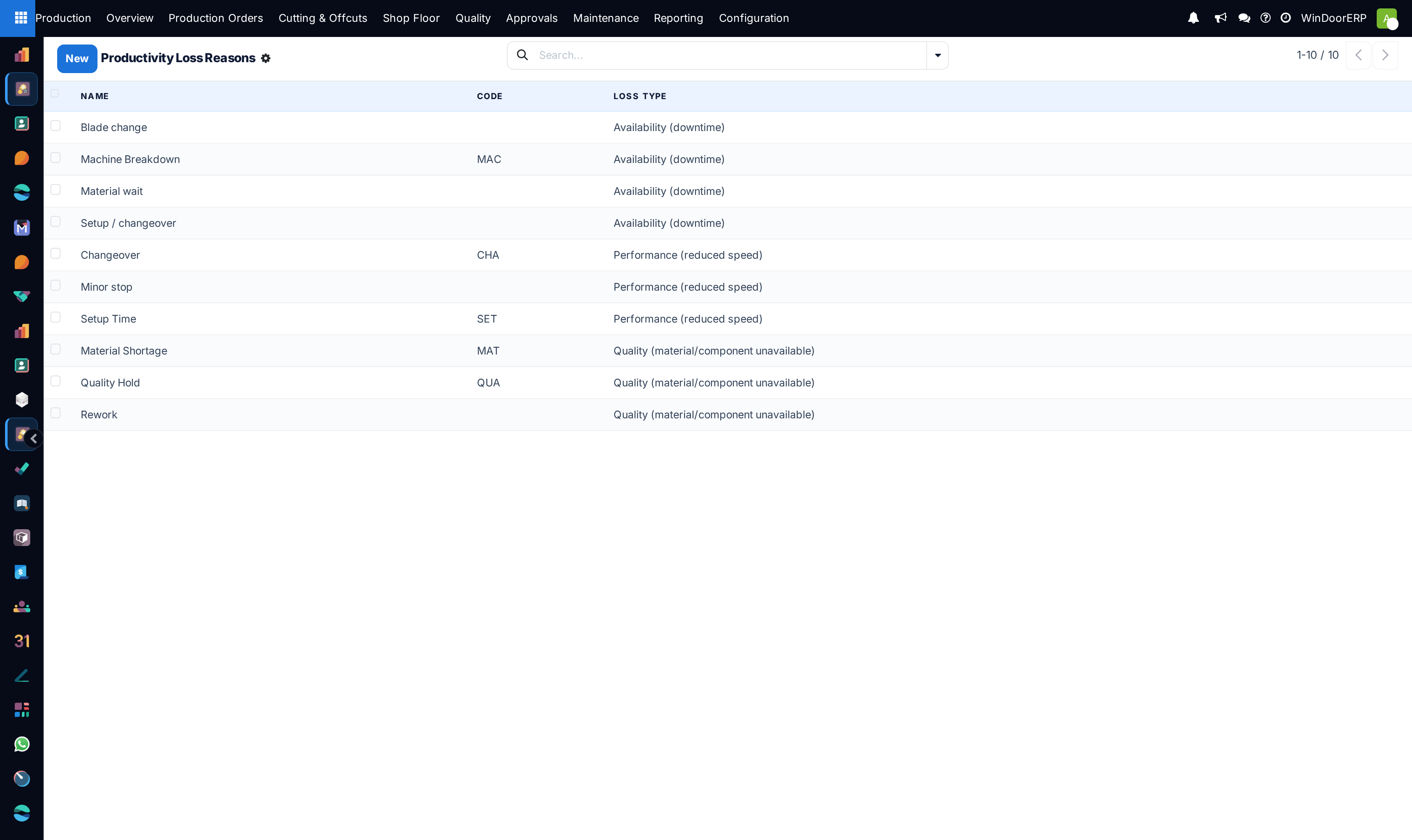
Standardizes ZPL barcode label designs for cut profiles and serialized frames, while categorizing downtime causes (Material Waiting, Power Outage, Tool Defect) for Lean OEE analysis.
Before you start
- Access to Production Configuration menus.
Steps
Important
Structured productivity loss reasons pinpoint whether factory bottlenecks stem from internal machine maintenance issues or external raw material supplier delays.
-
01
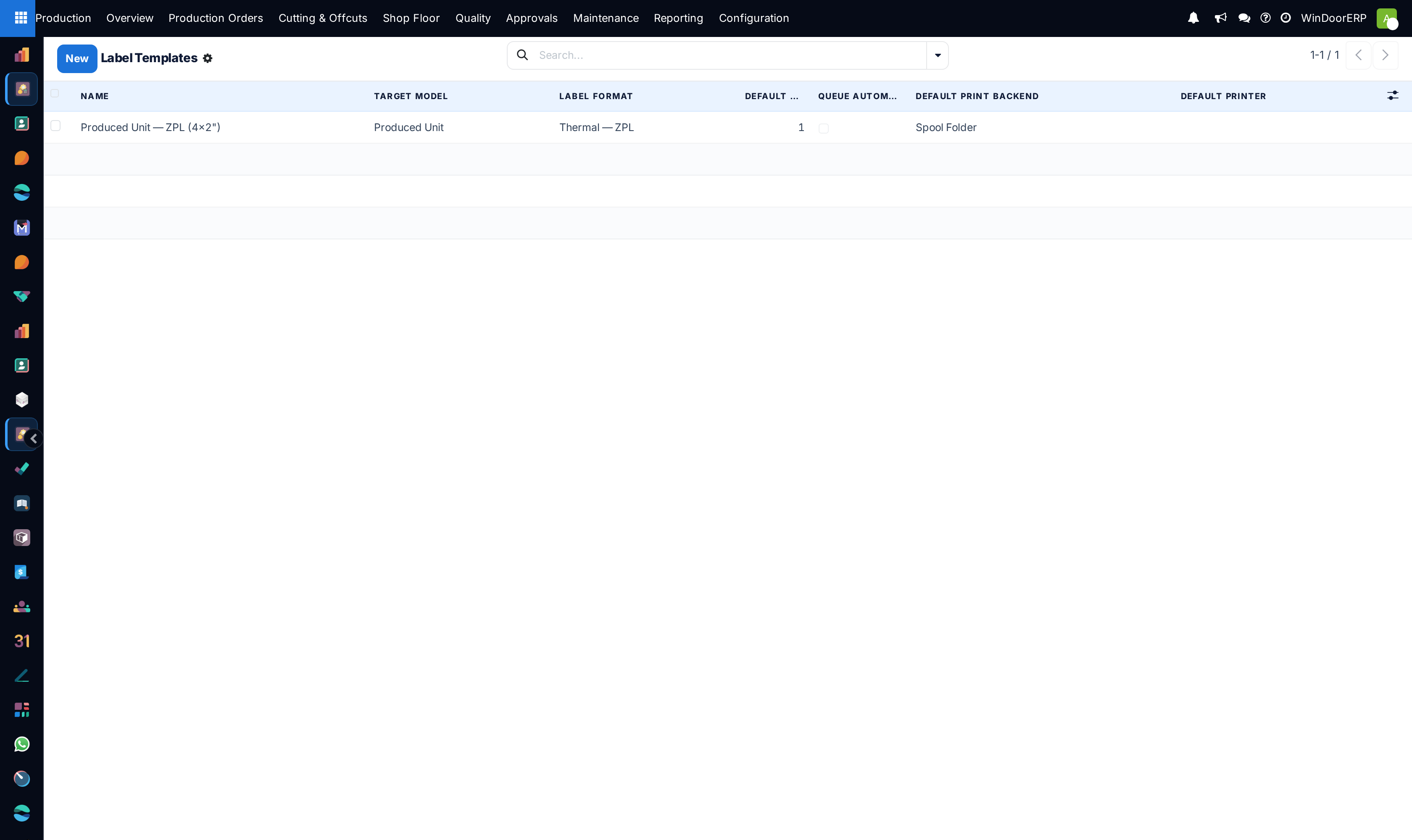
Go to Production › Configuration › Label Templates.
-
02
Design label layouts embedding dynamic placeholders (Order Number, Customer Name, Dimensions WxH, Barcode, Angle 1/2).
-
03
Navigate to Productivity Loss Reasons to define standardized downtime tags.
-
04
When operators pause work orders, require selection of an approved loss reason code.
Common mistakes
- Using hardcoded fixed text on label templates instead of dynamic database fields.
- Allowing generic 'Other' as a catch-all downtime category without mandatory explanation notes.
Checkpoint
A printed label scans cleanly, and a stopped station can be given a reason from your own list.