Shape what the customer receives
Build the PDF the customer opens
Why this step
The PDF is the only part of this the customer ever sees. Set up the builder, the fields that fill themselves, and the submittal pack the consultant will ask for.
What this does
Configures the enterprise PDF Quote Builder engine to assemble high-end architectural submittal packs, merging custom PDF Header pages (Company Profile, ISO Certifications), dynamic quote pricing tables with Jinja form fields, and custom Footer pages (Warranty & Handover terms).
Before you start
- PDF Quote Builder enabled in Sales › Configuration › Settings.
Steps
Important
Dynamic PDF form fields eliminate manual Word/Photoshop editing, ensuring every proposal looks like an agency-designed corporate tender submission.
-
01
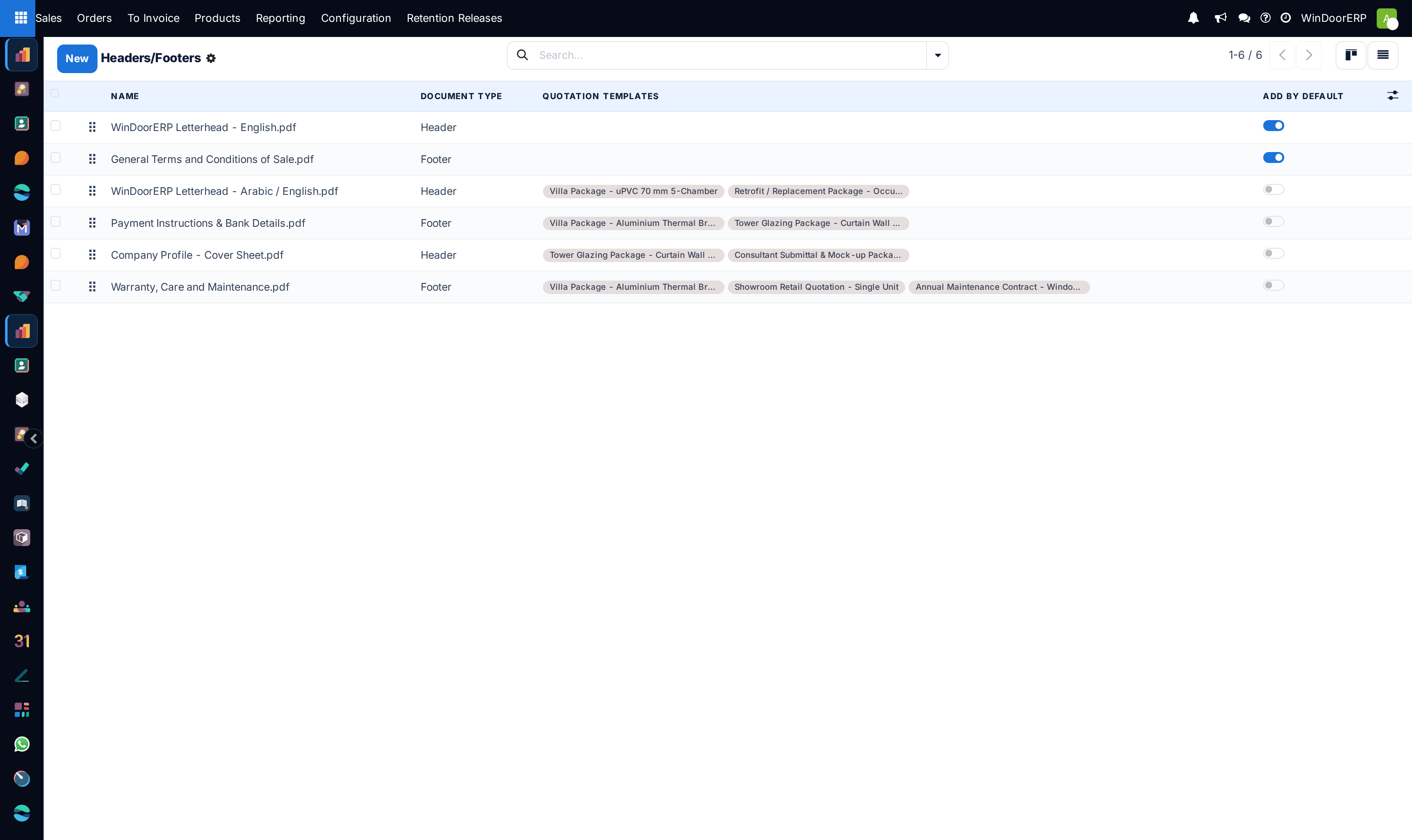
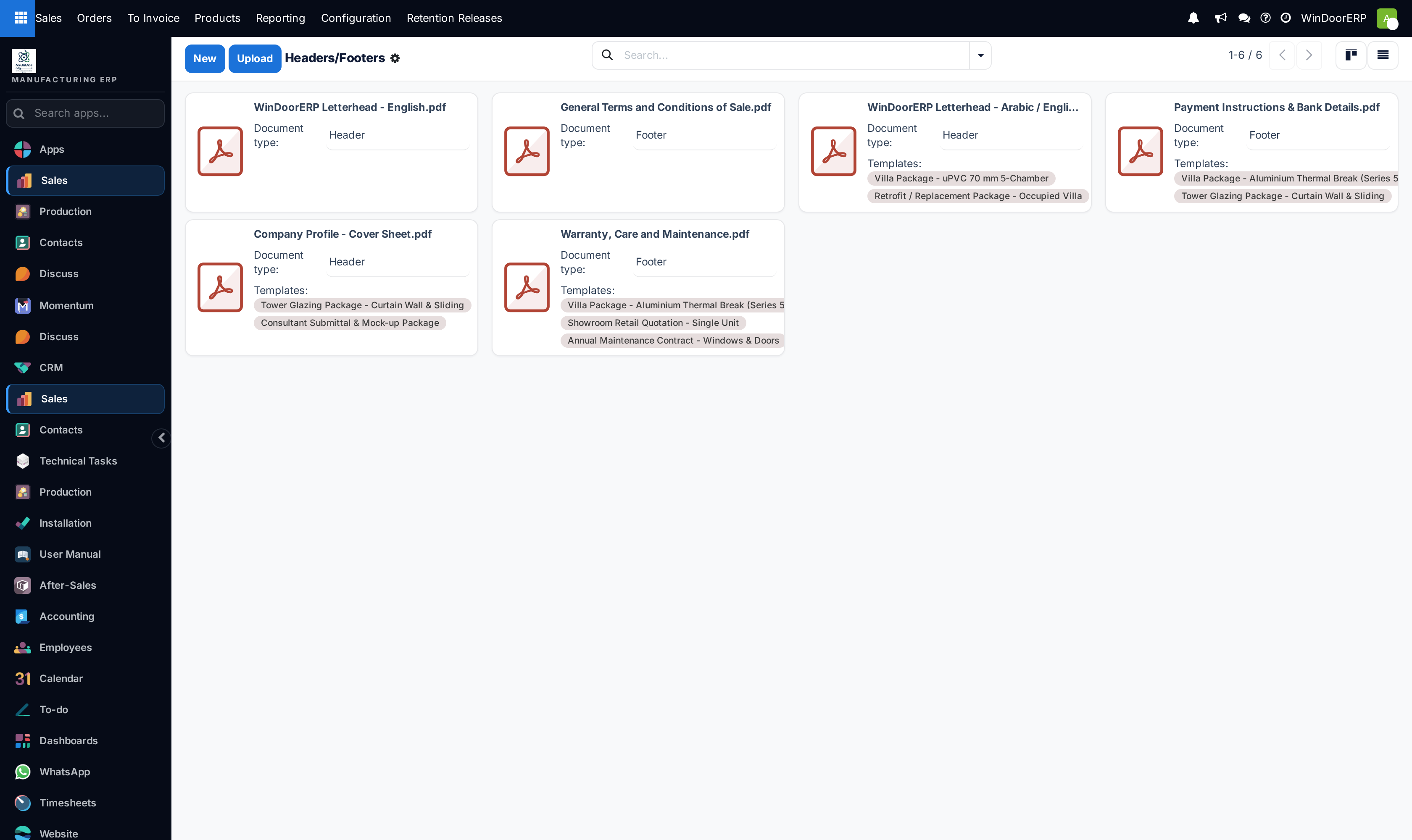
Open Sales › Configuration › Headers/Footers (or configure inside Quotation Templates).
-
02
Upload high-resolution PDF Header Pages (e.g. Cover page, company credentials, factory plant profile) and Footer Pages (e.g. 10-year warranty certificate, glass care guide).
-
03
To insert Dynamic Form Fields in PDFs: Open your PDF template in Adobe Acrobat, add form text fields, and set field names to WindoorERP dynamic tokens (e.g.
{{ object.partner_id.name }}for customer name,{{ object.user_id.name }}for sales engineer,{{ object.amount_total }}for total price,{{ object.validity_date }}for expiration date). -
04
Upload the form-enabled PDF into WindoorERP; the system automatically populates dynamic field values when generating customer proposals.
-
05
Print or email a quotation to verify that the generated document is a seamless, unified multi-page architectural submittal booklet.
Common mistakes
- Uploading non-standard PDF page sizes that conflict with default A4 print dimensions.
- Using incorrect Jinja token syntax inside PDF form field names, causing dynamic text to remain blank.
Checkpoint
A generated quotation PDF carries your layout, your fields, and the drawings or submittals it should.