Decide how a price is reached
Configure the parametric price engines
Why this step
This is the part specific to fenestration: a window is not priced per unit, it is calculated from area and perimeter. Configure the engine once and every quotation line prices itself from its own dimensions.
What this does
A Price Engine is a saved pricing formula. Instead of typing a unit price on every quotation line, you write the arithmetic once — using values read live from the product, the order, the line and the customer — and the system fills the price in and keeps it correct while the line is edited.
One engine can hold more than one formula: a base formula, plus ordered conditional rules that switch to a different formula when a field matches (a customer country, a product category, a quantity). Engines are approved before anyone can use them, every change is versioned, and any calculated line can explain how its price was reached.
Before you start
- You need the Price Engine Manager role to create formulas. Price Engine User only reads engines and runs the order-side wizards; Price Engine Administrator can additionally delete engines and import formulas.
- Optional but recommended: open Sales › Configuration › Settings, section Price Engine, and set the Price Engine Approver. The same section holds Allowed Models — the list of models a formula variable is permitted to read from (by default sale order, sale order line, product, product template and contact).
- The products whose price should be formula-driven. You point them at the engine in the last step.
How a price is produced
-
01
A product is added to a quotation line.
-
02
The product's Default Price Engine is copied onto the line — but only if that engine is approved, inside its date window, allowed for this customer and in the same company. If any of those fail, no engine is attached and the ordinary sales price stands.
-
03
The engine chooses which formula to run: conditional rules are evaluated in sequence and the first match wins; with no match, the base formula is used.
-
04
Every
{{variable}}in that formula is replaced by the live value it is mapped to, and the expression is evaluated in a restricted sandbox. -
05
The result is written to the line's Unit Price, and re-evaluated whenever a tracked field changes.
Build your first engine
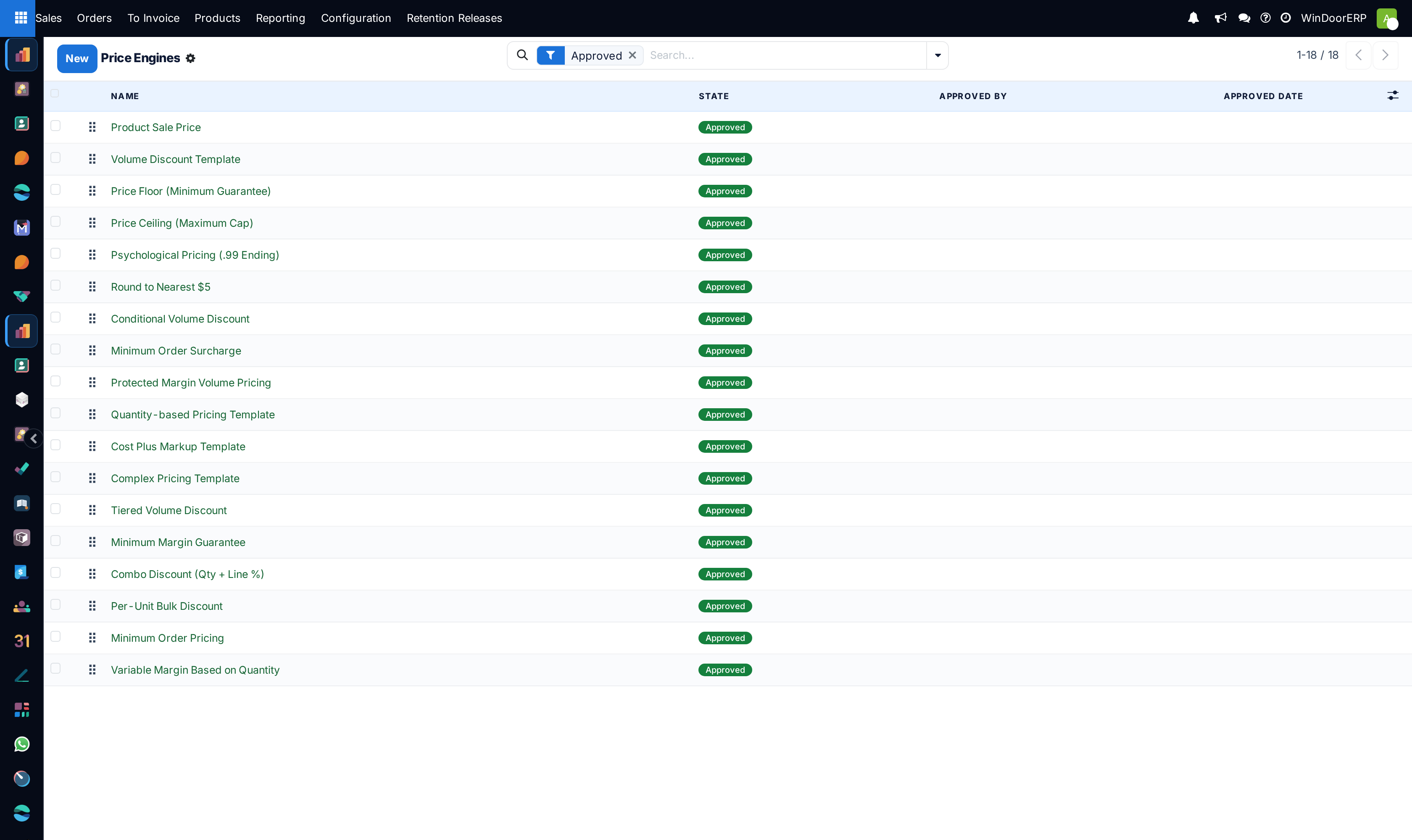
- Go to Sales › Configuration › Price Engines and click New.
- Enter a Name that says what it prices, for example Volume Discount — Aluminium Profiles. Sequence orders the list, and Company pins the engine to one company: an engine can never price a line belonging to a different company.
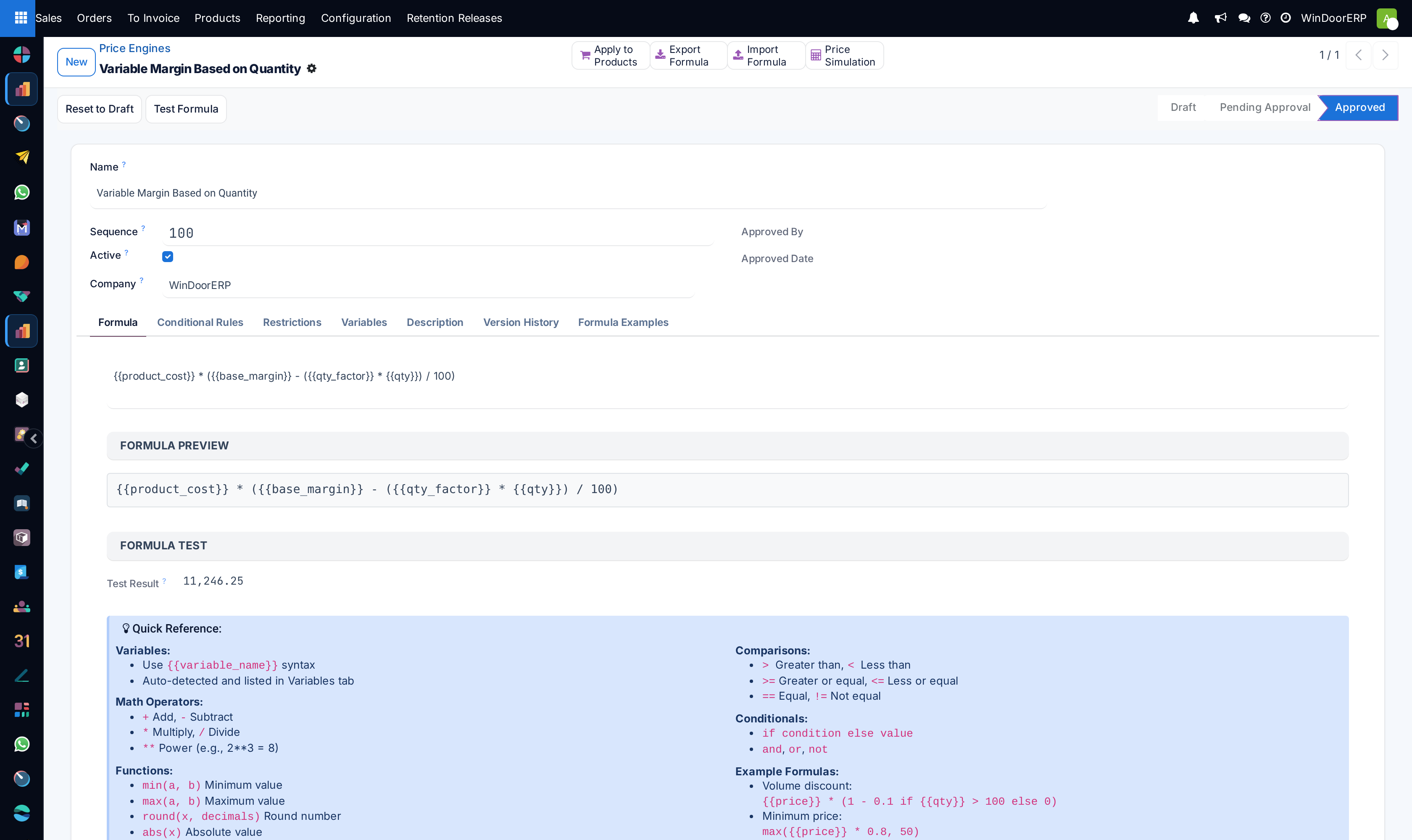
- On the Formula tab, type the expression. Write each input as
{{name}}, for example{{product_price}} * (1 - {{discount}} / 100). - Open the Variables tab. Every
{{name}}you typed is already listed — map each one to a field, or to a fixed number, and give it a Sample Value. - Click Test Formula. The Test Result under the formula shows what the sample values produce, or the error that stops it.
- Optionally restrict the engine to a date window or to named customers on the Restrictions tab.
- Click Submit for Approval, then have the approver click Approve. Only approved engines can be selected on an order line.
The Formula tab
The formula is one expression that must produce a number — the unit price. It is not a script: there are no loops, no assignments and no access to records beyond the variables you mapped. Anything outside the list below is refused when the formula is checked.
| Allowed | What you can write |
|---|---|
| Arithmetic | + add, - subtract, * multiply, / divide, ** power, ( ) to group |
| Functions | min(a, b), max(a, b), round(x, decimals), abs(x), ceil(x), floor(x) |
| Comparisons | >, >=, <, <=, ==, != |
| Conditionals | value_if_true if condition else value_if_false, combined with and, or, not |
| Variables | {{name}} — auto-detected and listed on the Variables tab |
Under the editor, Formula Preview reprints the expression in monospace so long formulas stay readable, and the Formula Examples tab keeps a quick reference next to the form while you write.
| Goal | Formula |
|---|---|
| Use the catalogue price unchanged | {{product_price}} |
| Apply a percentage discount | {{product_price}} * (1 - {{discount}} / 100) |
| Quantity break at 10 units | {{product_price}} * (0.95 if {{qty}} >= 10 else 1.0) |
| Cost plus markup | {{product_cost}} * (1 + {{markup}} / 100) |
| Never sell below a floor | max({{product_price}} * 0.8, 50) |
| Margin that shrinks with volume | {{product_cost}} * (({{base_margin}} - ({{qty_factor}} * {{qty}})) / 100) |
Note
A formula is capped at 1000 characters and its result must be a finite number. Anything else — a division by zero, a non-numeric outcome — is reported as an error on the line instead of silently writing a wrong price.
The Variables tab
Variables are detected from the formula text, so the list fills itself; you cannot add or delete rows here, only configure them. Click a row to open it.
- Label — a readable name for the variable, for the benefit of whoever reads the engine next.
- Type — Field reads a live value from a record, Fixed is a constant you type once.
- Model and Field — for a field variable. Only models on the Allowed Models list appear, and only numeric fields (integer, float, monetary) can be picked, because the result has to be arithmetic.
- Sample Value — used by Test Formula only. It never affects a real order.
- Field Path and Field Location — show where the value is actually read from, so a mis-mapped variable is visible without opening an order.
- Tracking Type — set by the system, see the table below.
Where a variable's field lives decides when the price refreshes:
| Variable reads from | Tracking | Effect |
|---|---|---|
| Order line (quantity, line discount…) | Real-time Tracking | The price recalculates as soon as the field is edited on the line. |
| Order header (currency rate, customer…) | No Tracking | Existing lines keep their price until someone clicks Recalculate Prices. |
| Product or product template (sales price, cost…) | No Tracking | A catalogue change applies to new lines only; confirmed quotations keep the price they were sold at. |
The Conditional Rules tab
Conditional rules let one engine price different situations differently, without maintaining a separate engine for each. Each rule is a single condition plus its own formula; rules are checked in Sequence order and the first one that matches is used. If none match, the base formula on the Formula tab is the fallback.
A rule is built from four things:
- Model and Field — what to look at. Sale order, sale order line, product, product template and contact fields are available, subject to the Allowed Models setting.
- Operator — is equal to, is not equal to, is greater than, is greater than or equal to, is less than, is less than or equal to, contains, does not contain, is one of, is not one of, is set, is not set.
- Comparison Value — text, number or yes/no, matched to the field's type. Rather than typing a technical value, click Pick Value to choose from the real data behind that field.
- Formula — the expression to use when the rule matches, written exactly like the base formula and using the same variables.
Example
Rule 10 — Customer › Country is equal to Qatar → {{product_price}} * 0.90
Rule 20 — Order Line › Quantity is greater than or equal to 50 → {{product_price}} * 0.95
Base formula (no rule matched) → {{product_price}}
A Qatari customer ordering 60 units gets 10%, not 5%: rule 10 is checked first and wins.
Important
Sequence is the whole logic. Put the narrowest condition at the top; a broad rule placed first will shadow everything under it, and the engine will look "wrong" while behaving exactly as configured.
The Restrictions tab
Date-Based Pricing — Date From and Date To bound the period in which the engine may be applied, and the Date Status badge reports where today falls: Always Active when no dates are set, Upcoming, Currently Active, or Expired. Outside the window the engine simply is not attached and the product's ordinary sales price is used, which is what makes a seasonal or promotional price expire by itself.
Customer-Specific Pricing — leave Apply to All Customers ticked for a general engine, or untick it and list the Customers it applies to: contract rates, distributor pricing, one negotiated account.
Note
The date checked is the order date of the quotation, not today's date, so re-opening an old order does not re-price it under a newer campaign.
Approval: Draft, Pending Approval, Approved
An engine moves through three states shown in the status bar. In Draft it is editable and invisible to sales. Submit for Approval moves it to Pending Approval; every variable must be mapped first, or the submission is refused. Submission also re-checks the base formula and every active conditional rule against the sample values, so a rule that cannot evaluate is caught here rather than on a customer's quotation. The approver — any Price Engine Manager, or the user named as approver in Settings — clicks Approve, which stamps Approved By and Approved Date.
Only Approved engines can be chosen on a sale order line. Reset to Draft pulls a live engine back for editing; changing the formula or the rules of an approved engine records a version snapshot first (see below). All state changes are tracked in the chatter with who did what and when.
Attach an engine to products
One product at a time: open the product, and set Default Price Engine — it sits just under Product Category on the product form.
Many products at once: open the approved engine and click Apply to Products. The wizard can target a manual selection of products, every product in chosen product categories, or the whole catalogue. This overwrites the default engine on the products it touches, so review the selection before confirming.
On the quotation
The order line carries the calculation. Add these columns with the (adjust settings) icon at the right of the column titles if they are hidden:
- Price Engine — the engine driving this line. It is filled from the product, and only approved engines are selectable. Clearing it returns the line to the ordinary price.
- Manual Price Override — tick it and Unit Price becomes editable. While it is ticked the formula never touches the line again; that is what protects a negotiated price from the next recalculation.
- Calculated Price — what the formula currently returns, so you can compare it against the price actually on the line.
- Price Engine Error — the last formula or rule error for this line, if any.
- Tracked Fields — the fields whose editing triggers an automatic recalculation of this line.
Open a line in its own form and click Explain Price to see, for that line: the engine used, which conditional rule matched (or that the base formula was used), the formula body, every variable with the value it resolved to, each condition that was evaluated, and any error. This is the fastest answer to "why did this line price like that?".
Recalculate Prices
The Recalculate Prices button under the order lines re-runs every line's engine — the way to pick up a change that real-time tracking does not catch, such as a new cost, a corrected formula, or a different customer on the order. The wizard first reports how many lines are automated and how many carry a manual override, then offers two choices:
- Recalculate automated lines only — manually overridden prices are left exactly as they are.
- Reset overrides and recalculate all — clears the override flags and re-prices every line from its formula. Negotiated prices are lost, so use it deliberately.
Distribute Amount
Distribute Amount solves the opposite problem: the total is agreed with the customer and the lines have to add up to it. Enter the Target Total; the wizard shows the current total, the difference and the difference as a percentage, then rewrites every line's unit price proportionally.
Rounding is done by largest remainder, so the distributed lines sum to the target exactly rather than landing a few units away from it.
Each run is recorded on the order's Price Distribution tab: date, user, original total, target total, difference, percentage, and the per-line detail — a read-only audit trail next to the chatter note.
Note
Distributing writes unit prices directly. It is the tool for progress-based contracting where a single agreed figure has to be spread across an itemised scope, not a substitute for a discount.
Test before you roll out
Before an engine touches live pricing, open it and click Price Simulation. Choose a date range, optionally filter by customers, products and order state (draft, confirmed, or all), and run it. The result is a line-by-line comparison of the current price against what the engine would produce, with the matched rule and any error shown per line, plus the total impact of the change.
Reading a simulation before approval is the cheapest way to catch a rule whose sequence is wrong or a variable mapped to the wrong field.
Templates, import and export, version history
- Pre-built templates ship with the module — tiered volume discount, per-unit bulk discount, minimum margin guarantee, minimum order pricing, price floor, cost-plus markup, variable margin by quantity and more. Open one, read how it is built, and duplicate it as the starting point for your own.
- Export Formula writes the engine — base formula, variables and conditional rules together — to a JSON file; Import Formula loads it into another engine or another database. This is how a formula proven on one company is moved without retyping it.
- Version History keeps a snapshot each time the formula or the conditional rules of an engine change, with the formula body and the rules as they stood. It answers "what were we charging last quarter, and who changed it".
Pricing a window from its design
For fabricated openings, the design itself supplies the number to price on. When a WebCC design is analysed, it writes Design System Amount onto the sale order line: the sum, for one unit of that design, of each frame's area multiplied by the price rate per m² of the profile system (and colour) that frame resolves to. Those rates live on the profile system and on its colour mappings as Price Rate (per m²).
Because it is a numeric field on the order line, it can be mapped as a variable and used like any other:
Example
{{design_system_amount}} * (1 + {{margin}} / 100) — the area-based value of the design as drawn, plus the commercial margin.
Being an order line field, it tracks in real time: redraw the design, the area changes, the line re-prices.
Who can do what
| Role | Can |
|---|---|
| Price Engine User | See engines and their variables; use Recalculate Prices, Distribute Amount and Explain Price on orders. Cannot create or edit a formula. |
| Price Engine Manager | Everything above, plus create and edit engines, define variables and conditional rules, run simulations, apply to products, and approve when named as approver. Cannot delete engines. |
| Price Engine Administrator | Everything above, plus delete engines, manage the default engine, import formulas and change the settings. |
Engines, rules, versions and distribution history are all company-scoped, so a multi-company database keeps each company's pricing to itself.
Troubleshooting
- The engine is not offered on the line. It is not approved, or it is outside its date window, or the customer is not on its list, or it belongs to another company.
- The price does not move when I change the quantity. Either Manual Price Override is ticked on that line, or no variable of the engine reads an order line field, so nothing is tracked in real time.
- "Please map all variables before submitting". A variable in the formula still has no field or fixed value on the Variables tab.
- Division by zero, or an error shown on the line. A variable resolved to zero in a denominator. Guard it, for example
{{amount}} / max({{qty}}, 1). - "Formula expression is not allowed". The expression used something outside the allowed operators and functions. Rewrite it with the vocabulary in the Formula tab table.
- Approval is refused. The user is neither a Price Engine Manager nor the approver named in Settings.
Common mistakes
- Ordering conditional rules broadest-first, so the general rule matches before the specific one ever gets a chance.
- Mapping a variable to a product field and then expecting confirmed orders to re-price themselves — catalogue changes reach new lines only.
- Using Reset overrides and recalculate all on an order that carries negotiated line prices.
- Approving an engine straight into production without a Price Simulation, then discovering the impact on the next batch of quotations.
- Leaving a promotional engine with no Date To, so a seasonal price stays live after the season.
- Editing an approved engine's formula for a one-off customer instead of adding a conditional rule for them.
Checkpoint
Changing the width of a window on a quotation changes its price without a manual override.