Design the pipeline: stage columns, the won stage, rotting thresholds and per-team stages
What this does
Stages are the columns of the opportunity pipeline. This screen decides how many columns there are, what they are called, in which order they appear, which one counts as won, how long a deal may sit in a column before it is flagged as stale, and which sales teams see the column at all.
A stage carries no price, no probability and no automation of its own. It is a column with a name, an order, four switches and a note. Everything a stage does to a deal comes from the two switches described below.
Before you start
- Sales administrator rights — the Stages menu sits under CRM › Configuration › Pipeline › Stages and is only visible to a Sales Manager.
- Decide the order first. Changing the order later moves every open deal's column position on screen but never changes the deal itself.
Steps

-
01
Open CRM › Configuration › Pipeline › Stages. The list opens ordered by Sequence, which is the left-to-right order of the pipeline columns.
-
02
Drag the handle at the far left of a row to re-order the columns, or click New to add one. The Stage Name cell is read-only in the list — open the row to rename a stage.
-
03
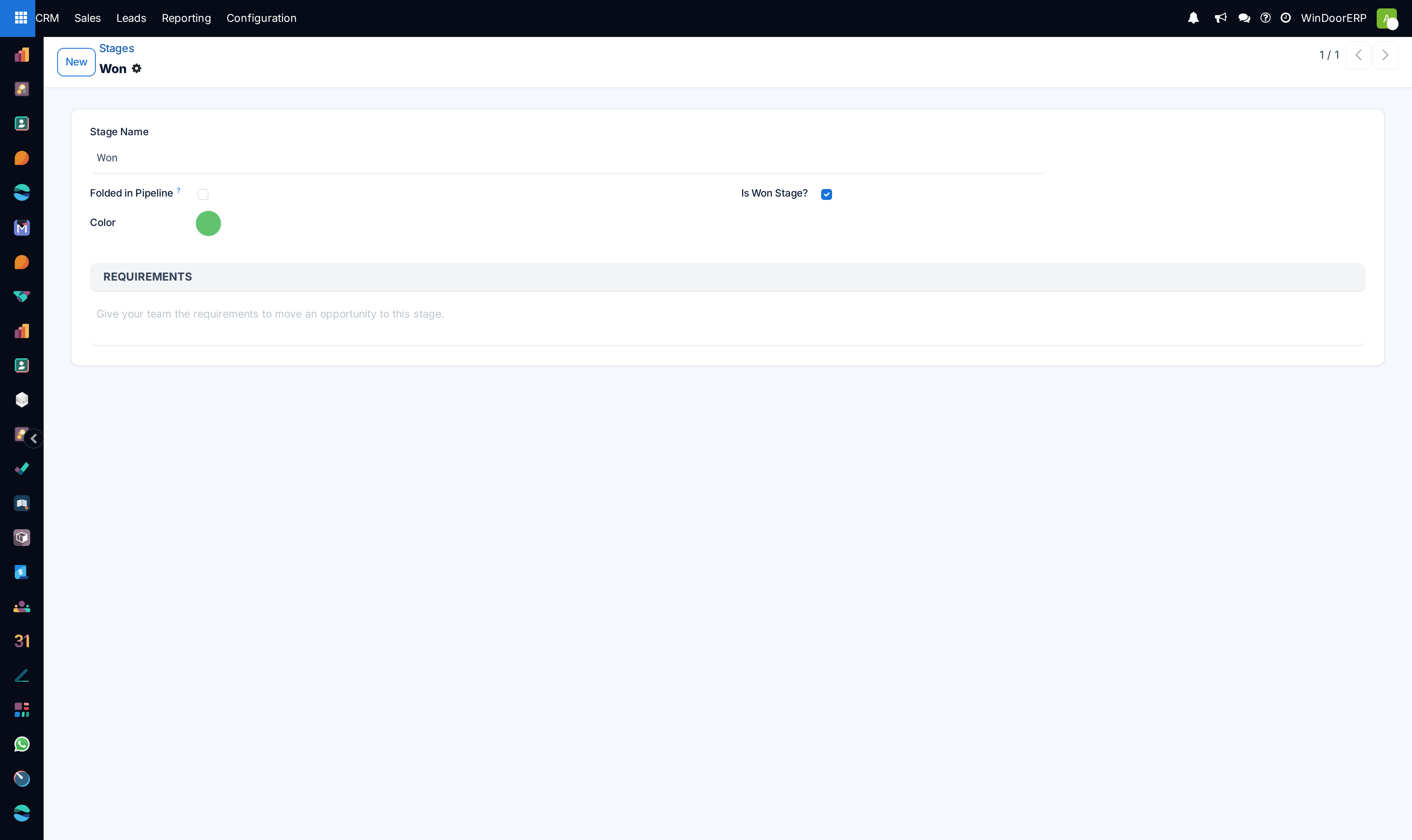
On the stage form, type the Stage Name and choose a Color.
-
04
Tick Folded in Pipeline for a column that should collapse to a thin bar when it is empty.
-
05
Tick Is Won Stage? on the single column that means the deal is signed. Read the section below on what that switch does before you do: it rewrites every deal already in the column.
-
06
Set Days to rot to the number of days a deal may sit untouched in this column before it is flagged. Leave it at 0 to switch the flag off for that column.
-
07
Fill in Requirements with what the team must have done before a deal may enter this column. The text becomes the tooltip on the column header.
-
08
If more than one sales team exists, pick the teams in Sales Teams. Leave it empty to share the stage with every team.
Every field on the stage form
| Stage Name | Required, and translated — each installed language keeps its own wording. Shown as the column header in the pipeline and on the status bar of every opportunity. |
|---|---|
| Folded in Pipeline | Collapses the column to a narrow vertical bar only while it contains no records. A folded stage that still holds deals is drawn as a normal column. |
| Color | The colour of the progress bar on the column header. Cosmetic only. |
| Sales Teams | Restricts the column to the chosen teams. Empty means every team. This field is hidden entirely while only one sales team exists. |
| Is Won Stage? | Marks the column as the end of a successful cycle. It also rewrites the probability of the deals in it — see below. |
| Days to rot | Days a deal may go untouched in this column before it is flagged as rotting. 0 disables the flag. The field disappears from the form as soon as Is Won Stage? is ticked, because a won deal never rots. |
| Requirements | Free text. Appears as the tooltip when a salesperson hovers the column header in the pipeline. Use it for the entry condition — for example site survey signed off and elevation drawings issued. |
The stage list
The list shows four columns by default and hides two more behind the ⚙ column picker at the top right.
| Sequence | The drag handle. Lower numbers sit further left. |
|---|---|
| Stage Name | Read-only here. Open the row to rename. |
| Is Won Stage? | Editable directly in the list. |
| Sales Teams | Editable directly, as tags. |
| Days to rot | Hidden by default — enable it from the ⚙ column picker. |
| Color | Hidden by default. |
The list allows multi-edit: tick several rows, change one cell, and the change is offered for all of the selected rows at once.
What "Is Won Stage?" actually does
Ticking the box does two things. From then on, any deal moved into that column is treated as won: its probability is forced to 100%, it is un-archived if it was archived, and its closing date is stamped. And immediately on saving, every deal already sitting in that column is rewritten to a probability of 100%.
Un-ticking it is not a clean undo. The deals in the column keep their won stamp but their probability is recomputed from the scoring engine, and any probability that had been typed in by hand is lost in the process. WindoorERP warns about this as soon as you touch the switch, before the record is saved.
Keep exactly one won stage per pipeline unless you deliberately run several. When a deal is marked won from the header button, WindoorERP looks for the first won stage after the deal's current column, and falls back to the last won stage before it — so several won stages placed at different points of the sequence do work, but the routing is only obvious if you designed it that way.
Rotting: when a card turns red
Days to rot is set per column, not globally, so a deal may sit for two weeks in Qualified and only three days in Proposition. The clock counts days since the deal was last written to; any edit resets it.
Only deals that are still running can rot. Won and lost deals are excluded, so a signed contract left in the pipeline is never flagged.
Changing the threshold does not retro-fit history. Deals last touched before the change keep the rotting state they already had until something writes to them again.
Out of the box every WindoorERP stage ships with Days to rot = 0, so nothing rots until you set a threshold. That is the single most common reason the flag "does not work".
Restricting a stage to a sales team
A stage with Sales Teams filled in only appears in the pipeline of those teams, and only those stages can be picked on the status bar of a deal belonging to them. A stage with the field empty is shared with everybody.
The field is hidden while the database has a single sales team, which is why it is missing on most installations. Create a second team and it appears.
The protection runs the other way round: a sales team cannot be deleted while a stage still lists it. Take the team off the stage first.
Troubleshooting
| No card ever shows the rotting flag | Every stage still has Days to rot = 0. Set a threshold on the columns where waiting is a problem. |
|---|---|
| A folded stage is still drawn as a full column | It contains records. Folding only applies to an empty column. |
| I cannot find the Sales Teams field | There is only one sales team in the database, and the field hides itself in that case. |
| Renaming a stage in the list does nothing | The name cell is read-only in the list on purpose. Open the stage and rename it on the form. |
| Probabilities jumped to 100% across the pipeline | A stage was just marked as the won stage. Every deal in that column was rewritten. Un-ticking it recomputes them, but does not restore hand-typed values. |
| A stage is missing from a deal's status bar | The stage is restricted to a sales team that this deal does not belong to. |
Common mistakes
- Looking for a probability field on the stage. There is none — probability is a property of the deal, computed by predictive lead scoring, and only the won stage forces it.
- Ticking Is Won Stage? to try it out. It rewrites every deal in the column on save, and un-ticking does not give the old numbers back.
- Expecting a folded stage to disappear. It folds only while it is empty.
- Building ten columns because the workflow has ten steps. Columns are for stages a deal can wait in; anything a salesperson does in an afternoon belongs in an activity, not a stage.
- Setting Days to rot on the won stage. The field is hidden there for a reason: won deals are excluded from rotting.
Was this article helpful?
Thanks — your feedback helps.
Running a window or door factory?
Ask for a demo