Bill contract progress with a BOQ invoice
What this does
A BOQ invoice is a claim for this period's progress on a contract. Its lines mirror the sales order — main contract and any linked variation orders, each under its own section — and for each line you certify how far the work has come. The running arithmetic is done for you: what earlier claims already billed, what advance remains to recoup, what retention is held. On approval, the customer invoice is generated and posted with the deductions as explicit lines. This article covers the regular progress claim end to end; the contract advance has its own article.
Before you start
- A confirmed sales order, and the BOQ Invoice User group (BOQ Invoice Manager to approve).
- The deduction counter-products set in Settings › BOQ Invoice — its health checklist shows what is missing, and deduction lines post without a product (into the journal's default account) if you skip this.
- The site engineer's certified progress — percentages or quantities per line, not estimates.
The moving parts
| Concept | How it works |
|---|---|
| Progress Input Method | Percentage: type this period's Current Progress % per line; the done quantity follows. Quantity: type the Current Done Qty; the percentage follows, and the entered quantity is billed exactly, with no rounding drift. Chosen per BOQ while in draft; both directions stay in sync as you edit. |
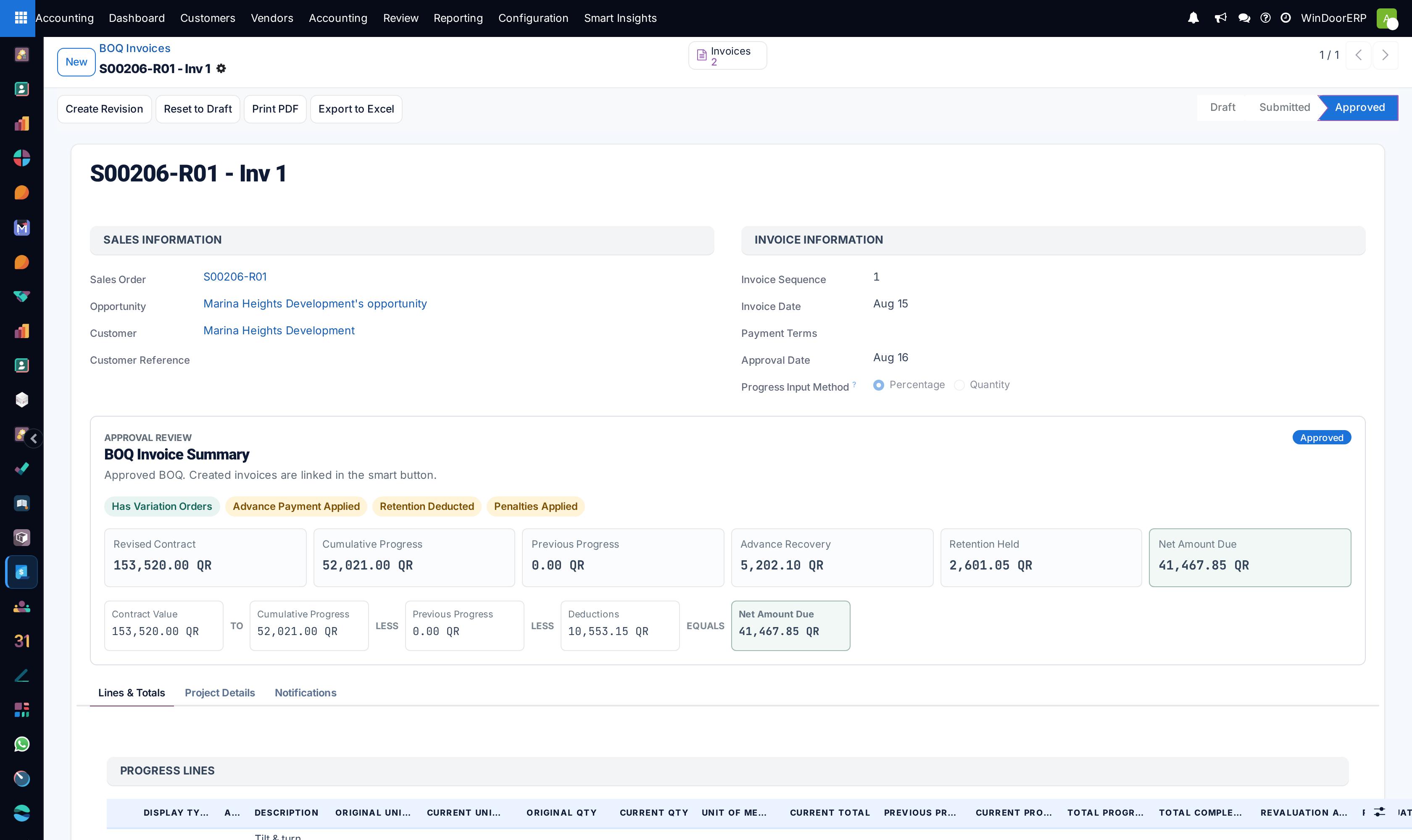
| The totals cascade | Revised contract price → Cumulative Progress → less Previous Progress (what earlier approved BOQs billed) → less the three deductions → Amount Due (Receivable). The summary band across the form shows the same chain at a glance. |
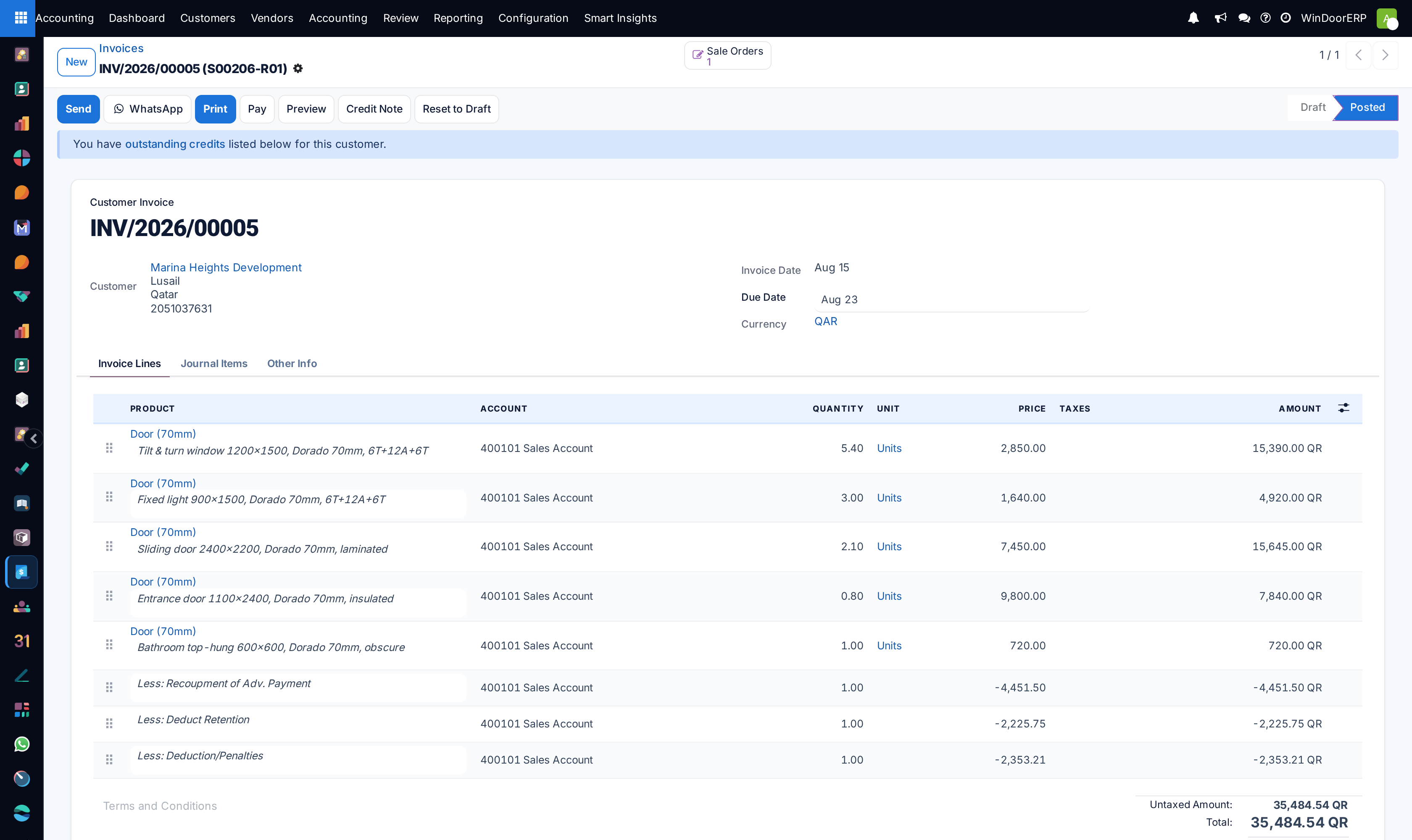
| Deductions are running totals | Less: Recoupment of Adv. Payment, Less: Deduct Retention, and Less: Deduction/Penalties are entered as cumulative amounts to date; only the increase since the last claim is billed. Each accepts an amount, a % of contract, or a % of progress — type any one and the others follow. There is no default rate: the retention percentage is whatever the contract says, typed by you. |
| Rate revisions | If a unit price changes mid-contract, each line shows the Revaluation Available on already-billed quantity; Apply available revaluations fills them, and the invoice carries them as separate Rate Revision lines. |
| Retention comes back | Held retention accrues per contract. When release is due, Release Retention on the sales order creates the release document and its invoice; releases are tracked under Sales › Retention Releases. |
Billing a contract period, start to finish
Important
The invoice lines are rebuilt from the sales order lines at this period's quantities — descriptions come from the order, and nothing invents milestone labels. Nothing checks your deduction figures against the contract document either: the one guard is that a period's deductions may not exceed its gross progress. The review point is the BOQ itself, which is why approval is manager-gated and the invoice posts without a draft step.
-
01
On the confirmed sales order, click Create Invoice using BOQ (or start from Accounting › Customers › BOQ Invoices). The claim opens with every order line, each variation order under its own section, numbered [order] - Inv [n].
-
02
Check the Progress Input Method while the BOQ is in draft, then enter this period's progress per line.
-
03
Enter the cumulative deductions: Suggest pre-fills advance recoupment pro-rata; type the retention and any penalties the contract prescribes. Watch Amount Due (Receivable) settle at the bottom of the cascade.
-
04
Click Submit — the claim moves to Submitted and the configured reviewers are notified.
-
05
A BOQ manager clicks Approve. With deductions present, the Deduction Split Preview first shows how they spread across main and variation orders — accept the proportional split, or tick Use Manual Split and adjust, then Proceed with Approval.
-
06
On approval the customer invoice is created and posted immediately — quantities from this period's progress, prices from the order lines, deduction lines appended — linked behind the Invoices smart button. Orders with no progress this period are simply skipped.
-
07
Send the claim: Print PDF for the certificate-style progress invoice, Export to Excel for the consultant's working copy.
Correcting an approved claim
The safe path is Create Revision: it copies everything to a new draft (numbered -R01, -R02, …) and cancels the original, subject to the same guards as any cancellation. Reset to Draft is administrator-only and refuses when a later approved BOQ exists (work newest-first), when a created invoice has received payment, or when an invoice sits in a locked period. Either way, already-posted invoices are never touched — credit them as part of the correction. The Cancel button disappears once a claim is approved; revision is the intended route.
Troubleshooting
"Deductions for this period (…) exceed the amount billed this period (…), which would make the invoice negative. Please reduce the deductions before approval." — the cumulative deduction you typed grows faster than this period's progress; lower it or spread it across periods.
"Cannot reset to draft. There are N subsequent approved BOQ(s) after this one…" — undo claims newest-first; the running totals depend on order.
"Cannot reset to draft. The following invoice(s) have received payments…" — credit and refund first, exactly as the message's checklist says; the same applies to invoices in locked periods.
Total progress refuses to pass 100% — the guard on each line caps previous plus current progress (or done quantity against contract quantity); check what earlier claims already certified.
The Approve button is missing — approval needs the BOQ Invoice Manager group; Submit and Approve are deliberately different hands.
A variation order got no invoice — it had no progress and no revaluation this period, so it was skipped by design.
Common mistakes
- Entering this period's retention instead of the cumulative total to date — the fields are running totals, and only the increase is billed.
- Approving without reading the deduction split preview on a project with variation orders, then puzzling over which order absorbed the rounding.
- Fixing a wrong claim by editing the posted invoice instead of revising the BOQ — the claim's totals and the ledger then disagree.
- Leaving the deduction counter-products unconfigured and shipping deduction lines into the journal's default account.
- Billing a period from uncertified site estimates, then revising after the consultant's cuts — certify first, claim second.
Was this article helpful?
Thanks — your feedback helps.
Running a window or door factory?
Ask for a demo