Close a deal as lost: the Lost dialog, lost reasons, restoring a deal and win/loss reporting
What this does
Closing a deal as lost records why it was lost, takes it out of the live pipeline, and keeps it available for reporting. This topic covers the Lost dialog itself, the catalogue of lost reasons behind it, how to find a lost deal again, and the difference between restoring one and simply un-archiving it.
Marking a deal lost is not a soft label. It sets the deal's probability to zero and archives the record, which is why a lost deal vanishes from every ordinary list and needs a filter to be seen again.
Before you start
- Any CRM user can mark their own deals lost. Only a Sales Manager reaches CRM › Configuration › Pipeline › Lost Reasons to maintain the catalogue.
- Agree the list of reasons before the team starts using it. A reason typed once and never reused is worse than no reason at all.
Steps
-
01
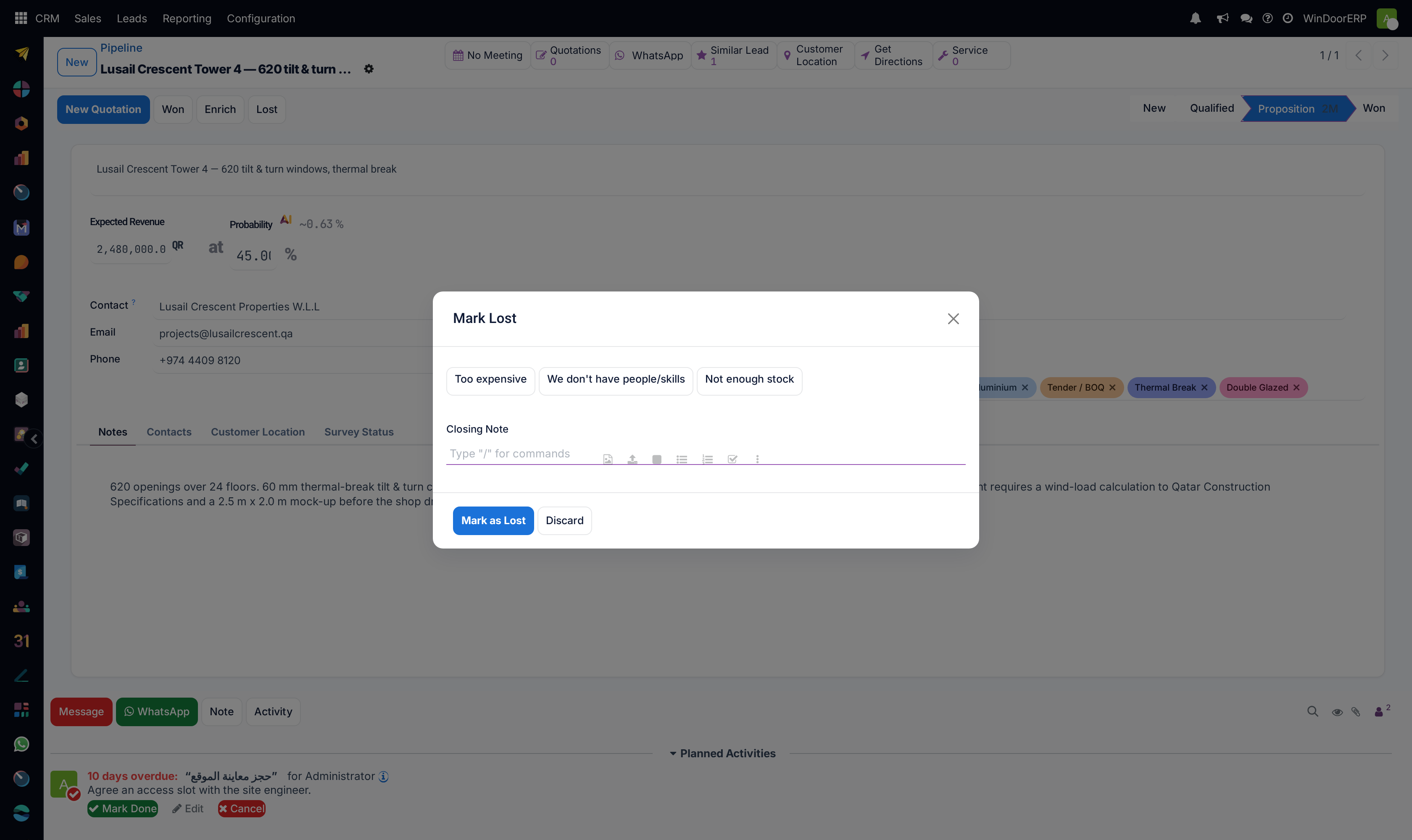
Open the opportunity and click Lost in the header. The button only appears while the deal is still running — it is hidden on deals already won, already lost or archived.
-
02
In the dialog, click a Lost Reason badge. Both fields are optional, so the dialog will accept an empty reason; pick one anyway or the loss will not appear in any breakdown.
-
03
Type what happened in Closing Note. Anything written here is posted into the deal's chatter under the heading Lost Comment. An empty note posts nothing.
-
04
Click Mark as Lost. The deal is archived, its probability drops to zero and a red Lost ribbon appears on the form.
-
05
To close several deals at once, select them in the pipeline list, then use ⚙ Actions › Mark Lost. The same dialog opens for the whole selection.
-
06
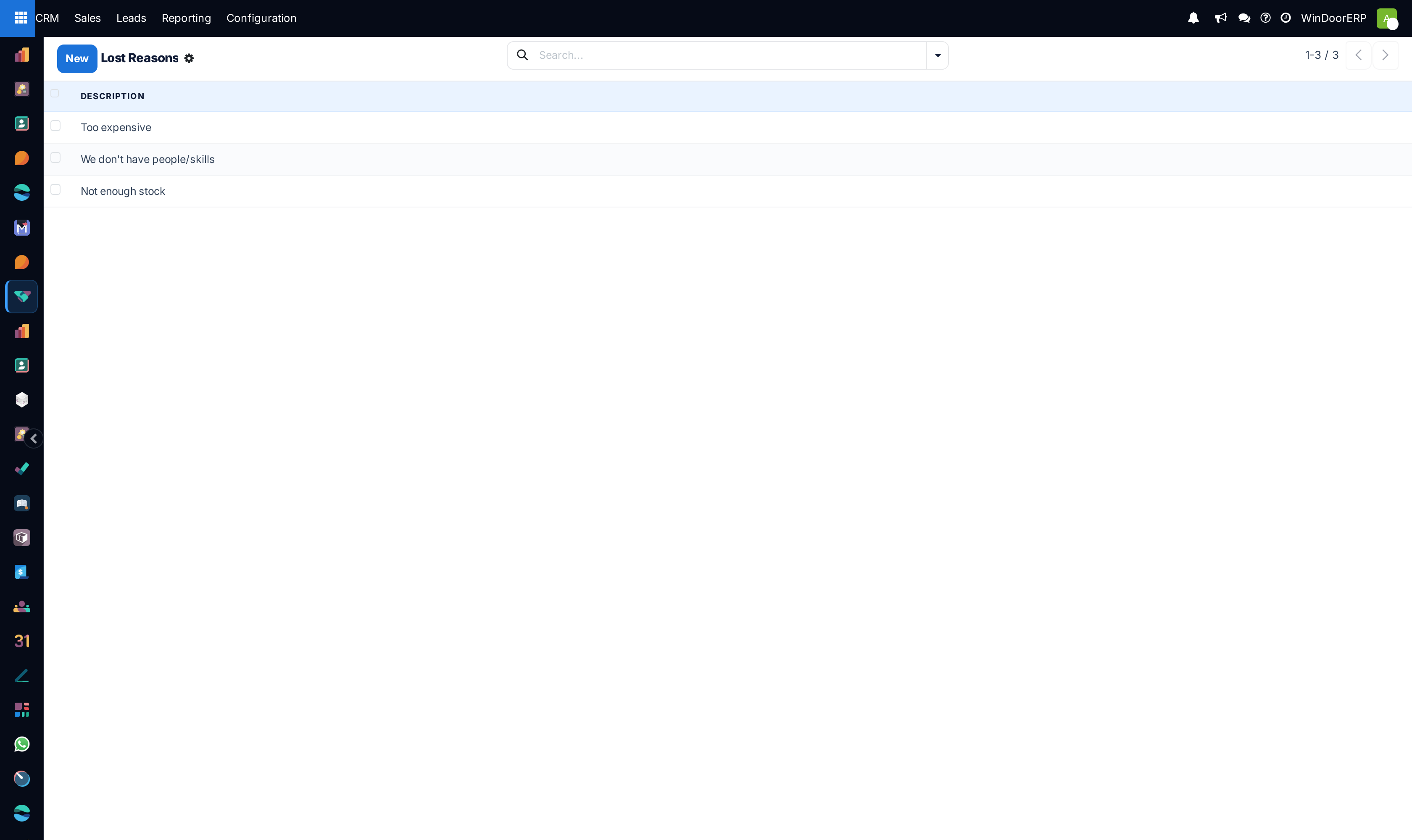
To maintain the catalogue, open CRM › Configuration › Pipeline › Lost Reasons and type directly into the list — it is editable in place.
The Mark Lost dialog, field by field
| Lost Reason | Drawn as a row of badges rather than a dropdown, so the whole catalogue is visible at a glance. Not required. Only reasons that are still active appear. |
|---|---|
| Closing Note | A rich-text box, placeholder What went wrong?. Posted to the chatter as a tracked message titled Lost Comment, so it is timestamped and attributed. Not required. |
| Mark as Lost | Applies the loss to every deal the dialog was opened for. |
| Discard | Closes without touching the deal. |
What "lost" does to the record
Three things happen together: the record is archived, its probability and its automated probability are both set to zero, and its won/lost status becomes lost. The lost reason and the closing note are written at the same time.
Because the record is archived, it disappears from the pipeline, from My Pipeline, from the forecast and from the ordinary searches. Nothing is deleted — the deal, its chatter, its activities and its quotations all remain.
The stage the deal was in is kept and frozen: the status bar becomes read-only on a lost deal, so the record still shows how far it had got before it was lost.
The Lost Reasons screen
| Description | The reason text. Required, and translated, so each language keeps its own wording. Placeholder e.g. Too expensive. |
|---|---|
| Active | Not a column — archive a reason from ⚙ Actions › Archive. An archived reason stops being offered in the dialog but stays on the deals that already carry it. |
| Leads (⭐ stat button) | On the reason's form. Shows how many deals carry this reason and opens them. The count deliberately includes archived deals — which is all of them — so it is never zero for a reason in use. |
The list is editable in place: click the last empty row, type, press Enter. WindoorERP ships three reasons to start from — Too expensive, We don't have people/skills and Not enough stock — and they are meant to be replaced with your own.
The search box offers Active and Archived filters, which is the only way to see reasons you have retired.
Finding a lost deal again
In the pipeline or the opportunity list, open the search dropdown and pick the Lost filter. It matches deals whose status is lost and which are archived, which is exactly what marking one lost produces.
There is also a plain Archived filter. It is wider: it catches anything archived for any reason, lost or not.
To see losses grouped by cause, add Group By › Lost Reason on top of the Lost filter, or open CRM › Reporting › Pipeline Analysis and group there.
Restore is not the same as Unarchive
Restore appears in the header of a lost deal. It un-archives the record and resets the probability to whatever the scoring engine currently predicts — so the deal rejoins the pipeline with a live, automatic probability.
⚙ Actions › Unarchive only un-archives. The probability stays at the zero written when the deal was lost, and because a hand-set zero counts as a manual value, the scoring engine will not overwrite it. The deal comes back to the pipeline showing 0%.
Use Restore for a revived project. Reserve Unarchive for the case where you archived a deal for some other reason and want nothing else touched.
Troubleshooting
| The Lost button is not on the form | The deal is already won, already lost, or archived. The button only shows while the deal is still running. |
|---|---|
| A restored deal sits at 0% and never moves | It was un-archived instead of restored. Press Restore, or type a probability to re-arm it. |
| The win/loss report shows a large "None" group | Deals were closed with the reason left empty — the dialog does not require one. |
| A reason cannot be selected any more | It has been archived. Un-archive it from the Lost Reasons list using the Archived filter. |
| The leads count on a reason looks too high | It is counted with archived records included, which is correct: lost deals are archived by definition. |
| A lost deal cannot be moved to another stage | The status bar is read-only while the deal is lost. Restore it first. |
Common mistakes
- Clicking Mark as Lost without picking a reason. Nothing stops you, and the loss then explains nothing.
- Deleting a lost deal instead of marking it lost. Deleting destroys the history the win/loss analysis is built from.
- Adding a free-text reason per deal instead of reusing the catalogue. Reporting groups by the reason record, so one-off wording produces one-off groups.
- Using Unarchive to revive a deal and then wondering why it forecasts nothing.
- Archiving a reason that is still in daily use, and assuming the deals that carry it lose it. They keep it; it just stops being offered for new losses.
Was this article helpful?
Thanks — your feedback helps.
Running a window or door factory?
Ask for a demo